
Bitrate tells you how much data your video or audio uses every second. This number affects both the quality and the file size. If you choose a higher bitrate, your video will look better but the file will be bigger and vice versa. You can see this in the table below:
Bitrate Level | Data Amount | Video Quality | File Size |
|---|---|---|---|
Higher bitrate | More data | Better quality | Larger files |
Lower bitrate | Less data | Reduced quality | Smaller files |
When you know how bitrate works, you can pick the best settings for recording, sharing, or using a video size compressor.
What Is Bitrate
Bitrate Definition
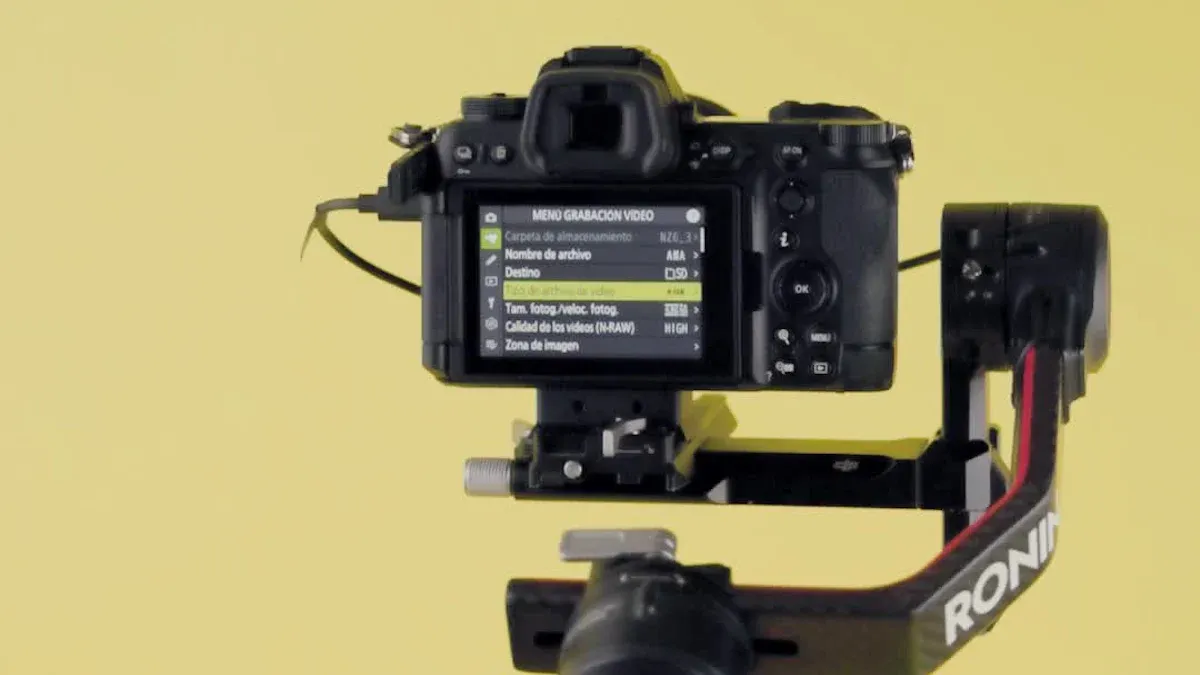
Bitrate is how fast data moves in a digital file each second. In digital media, bitrate shows how much data is used every second. This tells you how much information your video or audio needs to play. A higher bitrate lets more detail through. This makes your video or audio look and sound clearer. A lower bitrate uses less data. But you might see blurry pictures or hear unclear sounds. Bitrate matters because it affects both quality and file size. If you want smooth and sharp videos, you should watch the bitrate.
Note: Bitrate is the data used each second of video. If bitrate is too low, your video may look blurry or blocky. A high bitrate gives better quality, but the file gets much bigger.
How Bitrate Is Measured
Bitrate is measured in bits per second, or bps. For video, you often see megabits per second (Mbps). For audio, you often see kilobits per second (kbps). These units help you see how much data files use. For example, a video with 8 Mbps uses eight million bits every second. An audio file with 128 kbps uses 128,000 bits each second.
Here is a simple table to show the units:
Media Type | Common Unit | Example Value |
|---|---|---|
Video | Mbps | 5 Mbps |
Audio | kbps | 128 kbps |
There are two main ways to set bitrate: constant and variable. Constant bitrate keeps the same speed from start to end. Variable bitrate changes speed based on how hard the video or audio is. If your video has lots of action, variable bitrate uses more data to keep quality high. If the scene is easy, it uses less data.
Audio Bitrate vs. Video Bitrate
It is important to know the difference between audio bitrate and video bitrate. Audio bitrate is how much data your audio uses each second. Video bitrate is how much data your video uses each second. Both change quality, but video bitrate usually makes the file much bigger.
Audio bitrate matters for music, podcasts, and voice recordings. A higher audio bitrate gives clearer sound, but the file is bigger.
Video bitrate is important for movies, YouTube, and streaming. A higher video bitrate means sharper images and smoother motion. If video bitrate is too low, you may see blocky shapes or blurry scenes.
You should balance audio bitrate and video bitrate for the best mix of quality and file size. If you want to share videos online, pick a video bitrate that matches your internet speed and the platform’s rules. If you want to save space, you can choose a lower video bitrate, but make sure the quality still looks good.
Tip: When you change video bitrate, you control how clear your video looks and how much space it takes. Always try different settings to see what works best for you.
Bitrate and Video Quality

How Bitrate Affects Quality
When you increase video bitrate, you allow more data to flow through each second of your video. This extra data helps keep details sharp and colors bright. You will notice smoother motion and fewer visual problems, especially in scenes with lots of movement. Higher bitrates give you better quality audio and video, so your movies or clips look more professional.
If you use lower bitrates, your video may lose detail. Fast-moving scenes can look blurry or blocky. You might see strange patterns or dull colors. Lower bitrates can also make audio sound muffled or unclear. You need to find the right balance to keep your video quality high without making the file too large.
Tip: If you want your videos to look crisp and clear, choose a higher video bitrate. This is important for sports, action scenes, or any video with lots of detail.
Bitrate and Video Size
Video bitrate does not just affect quality. It also controls how big your video file will be. When you set a higher video bitrate, your file size grows quickly. This can make it harder to upload or share your videos online. If you use a lower video bitrate, your file will be smaller and easier to send, but you may lose some quality.
You can see how bitrate changes with different video resolutions and codecs in the table below:
Resolution | Frame Rate | Codec | Bitrate Range |
|---|---|---|---|
720p | 30 FPS | H.264 | 3–5 Mbps |
HEVC/AV1 | 1.5–3 Mbps | ||
720p | 60 FPS | H.264 | 5–7 Mbps |
HEVC/AV1 | 2–4 Mbps | ||
1080p | 30 FPS | H.264 | 5–8 Mbps |
HEVC/AV1 | 3–5 Mbps | ||
1080p | 60 FPS | H.264 | 10–15 Mbps |
HEVC/AV1 | 4–8 Mbps | ||
4K | 30 FPS | H.264 | 20–30 Mbps |
HEVC/AV1 | 12–20 Mbps | ||
4K | 60 FPS | H.264 | 35–50 Mbps |
HEVC/AV1 | 15–25 Mbps |
If you record in 4K at 30 frames per second, you may need a video bitrate of 35–45 Mbps. For 4K at 60 frames per second, you might need 53–68 Mbps. These numbers show how quickly file size can grow as you raise the video bitrate.
Trade-Offs: Quality vs. File Size
You always face a trade-off between video quality and file size. When you pick higher bitrates, you get sharper visuals and smoother motion. Your videos look great, but the files become much larger. This means longer upload times and more storage space.
If you choose lower bitrates, your files shrink. Sharing and uploading become easier. However, you risk losing important details. Fast scenes may look choppy or pixelated. The overall quality drops, and your viewers may notice.
Here are the main trade-offs you should consider:
High video bitrate gives you better quality, but creates large files.
Low video bitrate makes files smaller, but can lower quality, especially in busy scenes.
You need to balance these factors. Think about where you will share your video and how much storage you have. If you upload to social media, check the platform’s recommended video bitrate. Always test different settings to find the best mix of quality and file size for your needs.
Note: The right video bitrate depends on your project. Try different settings and watch your videos to see what works best.
Choosing Bitrate Settings
Bitrate for Streaming
When you stream video, your bitrate should match your internet upload speed. If your bitrate is too high, your stream might freeze or buffer. If your bitrate is too low, your viewers could see blurry or jumpy video. Always check your upload speed before you start streaming. The table below shows the lowest upload speeds you need for each streaming resolution:
Streaming Resolution | Minimum Upload Speed (Mbps) |
|---|---|
480p (Standard Definition) | 2–3 |
720p (HD) at 30fps | 3–4 |
720p (HD) at 60fps | 4.5–8 |
1080p (Full HD) at 30fps | 4.5–6 |
1080p (Full HD) at 60fps | 6–10 |
4K (Ultra HD) | 25+ |
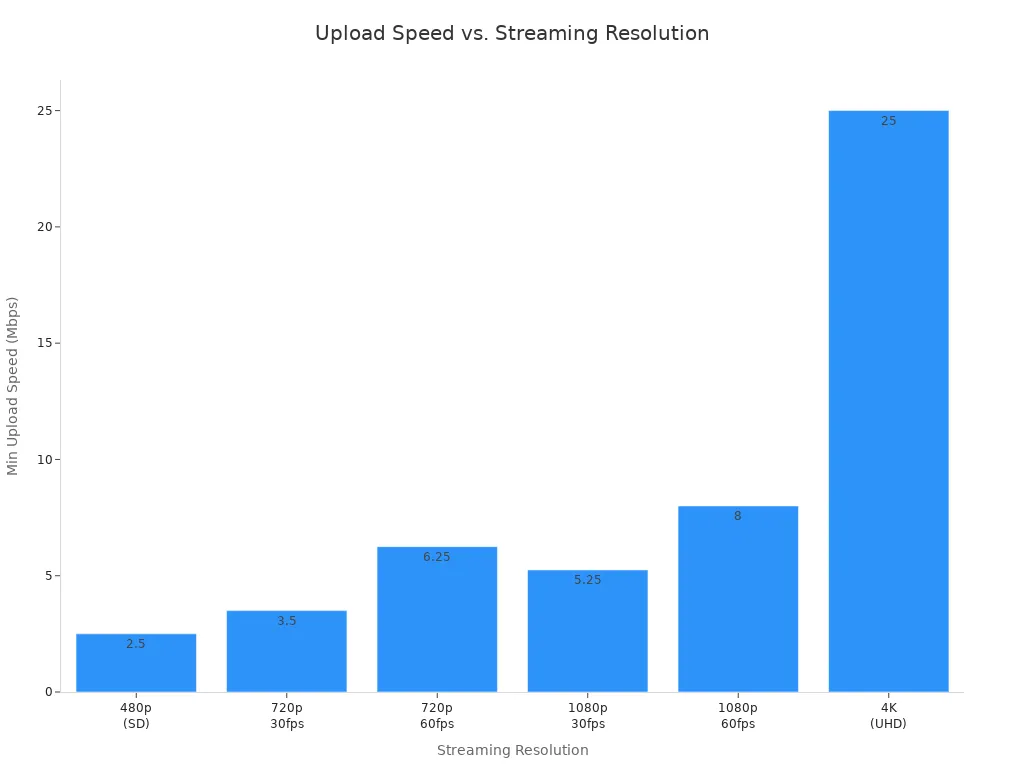
Set your bitrate lower than your fastest upload speed. This helps stop problems if your network slows down. Many streaming sites use adaptive bitrate streaming. This lets your video quality change as your internet speed changes. It keeps your stream smooth, even if your speed drops. You can also use adaptive bitrate for audio to keep sound clear.
Bitrate for Uploading and Recording
When you upload videos to YouTube or Vimeo, use the video bitrate settings they suggest. Higher bitrates give better quality, but your files get bigger. Big files take longer to upload and use more space. For example, a 1080p video at 30fps can use about 120 MB each minute. A 4K video at 60fps can use up to 450 MB each minute. You need to balance quality and file size. If you do not have much storage, you may need a lower bitrate. Check the audio bitrate for your uploads too. Good audio bitrate makes your videos sound better.
When you record video, think about how much space you have. Use this formula: Recording time (minutes) ≈ (Free space in GB × 1024) ÷ File size per minute (MB). If you want to record longer, pick a lower bitrate. Make sure your audio bitrate matches your video quality for the best results.
Tip: Always check the video bitrate settings your platform suggests before uploading. This helps your videos look good online.
Factors for Selecting Video Bitrate
You need to think about a few things when you pick your video bitrate. The codec you use is important. Some codecs, like H.265, can shrink video better than others. This means you can use a lower bitrate and still get good quality. Your device and where you watch also matter. Some devices cannot play high-bitrate videos well. Adaptive bitrate streaming helps by changing quality based on your network and device.
Here is a table of important factors:
Factor | Description |
|---|---|
Codec Efficiency | Some codecs need less data for the same quality. |
Bandwidth | Lower bitrate uses less internet data. |
Encoding Time | Advanced codecs may take longer to process. |
CPU Usage | High-efficiency codecs can use more computer power. |
Think about audio bitrate too. High audio bitrate gives clear sound, but uses more space. For live streaming, latency is important. High encoding times can slow your stream. Adaptive bitrate and transcoding can help by making different versions for different users. If you want to control video bitrate, try different settings and watch what happens. Always balance quality, file size, and smooth playback for your needs.
Constant vs. Variable Bitrate
What Is Constant Bitrate (CBR)
Constant Bitrate, or CBR, keeps the data rate the same for the whole video. It does not matter if the scene is easy or hard, CBR uses the same amount of data. CBR is often used for live streaming because it gives steady performance. This means your stream is less likely to stop or freeze.
CBR keeps the data rate steady, even if the scene changes.
CBR is popular for live streaming because it is reliable.
Here are some good and bad things about CBR:
Advantage | Description |
|---|---|
Quality Maintenance | CBR helps keep the video quality at the level you set. |
Steady Upload Usage | CBR uses the same upload speed, which is helpful for live streams. |
Disadvantage | Description |
|---|---|
CBR cannot change if your network gets better or worse. | |
CBR might use too much data or lower quality if the bitrate is not right. |
What Is Variable Bitrate (VBR)
Variable Bitrate, or VBR, changes how much data is used based on what is happening in the video. If the video has a lot going on, VBR uses more data. If the scene is simple, it uses less data. This helps make busy scenes look better. CBR always uses the same data rate, but VBR can change. For live streaming, people often pick CBR to stop buffering. VBR is better for videos that are already recorded.
Bitrate Type | Quality Impact | File Size Impact |
|---|---|---|
Constant Bitrate (CBR) | Keeps the same quality, but may not work well for busy scenes | Makes smaller files |
Variable Bitrate (VBR) | Changes quality for each scene, so busy scenes look better | Makes bigger files because busy scenes use more data |
Impact on Video Size Compressor Tools
When you use a video size compressor, you can change the bitrate to make your file smaller. Lowering the average bitrate makes your video take up less space. Many video size compressor tools let you use special codecs like H.265/HEVC. These codecs help your video stay clear, even if you use a lower bitrate. You can pick the best settings for your video with these tools.
Bitrate shows how much data your video uses every second. If you lower the bitrate, your file gets smaller.
Codecs like H.265/HEVC help keep your video looking good while making the file smaller.
If you want to save space, try different settings in your video size compressor. You can find the best mix of quality and file size by picking the right bitrate and codec. This helps you use constant and variable bitrates in the best way and get strong compression.
You can control how good your video looks and how big the file is by picking the right bitrate. Here are some things to remember:
Pick a bitrate that gives you good quality but does not make the file too big for what you need.
Change the bitrate to fit your device and internet speed. This helps your video play better and stops it from pausing a lot.
Do not set your livestream bitrate as high as your fastest upload speed. Leave some room so your stream does not freeze.
Use tools like HandBrake, Wistia, vidIQ, or Plainly Videos. These can help you make your files smaller or do some jobs for you.
Test different settings with your video size compressor. This will help you see what works best for you.
FAQ
For a 1080p video at 60fps, a bitrate of 12 Mbps is recommended, while 720p at 30fps typically requires 5 Mbps.
Yes. If your bitrate is high and your internet is slow, you can get lag. Lower bitrate can help your stream run better. Test your internet before you start streaming.
You can use editing or compression tools to lower the bitrate. This makes your video file smaller. You cannot make the quality better by raising the bitrate after recording.