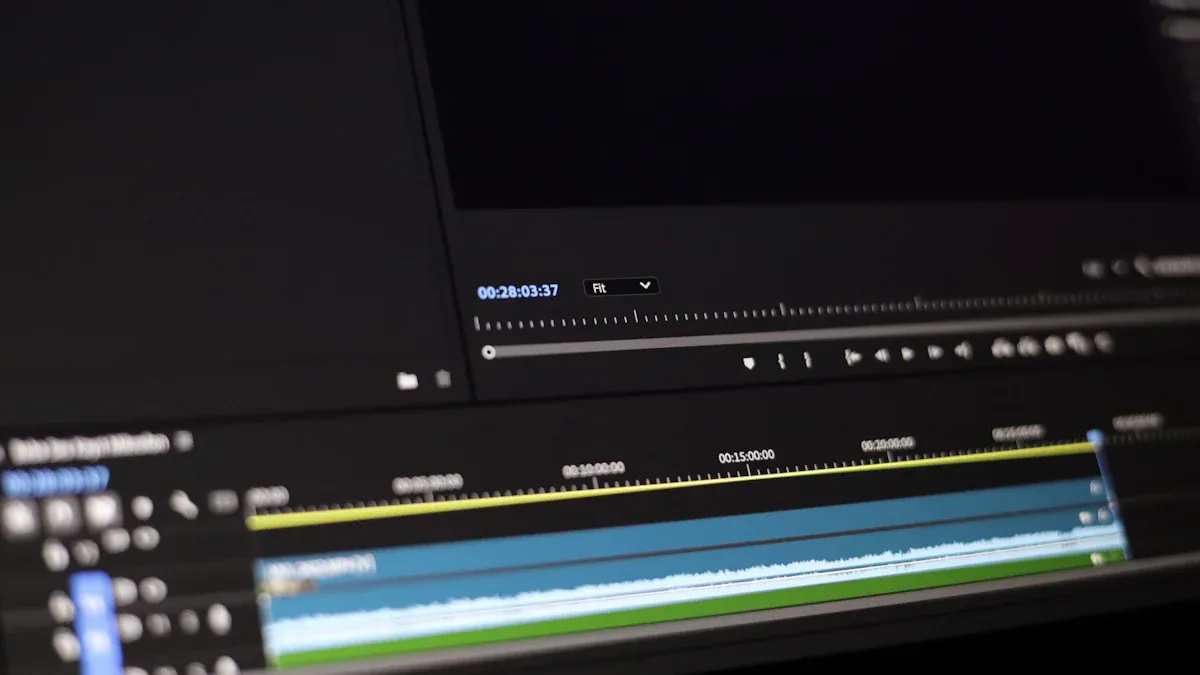
If you want to render videos faster, gpu video rendering is usually better. Speed is very important when files are big or deadlines are close. You should also think about how efficient your system is. Make sure your workflow matches your hardware. The table below compares GPUs and CPUs. It shows their speed, efficiency, quality, and scalability. Pick what fits your budget, hardware, and project type.
Aspect | GPU Rendering | CPU Rendering |
|---|---|---|
Speed | Much faster because it processes many frames at once. | Has great quality but is slower than GPU. |
Power Efficiency | Uses less power for transcoding jobs. | Uses more power for video work. |
Quality | Might lose a little quality from hardware changes. | Gives better quality, especially with software encoding. |
Scalability | Very scalable; you can use more than one GPU. | Also scalable, but not as good for big jobs. |
Key Takeaways
Pick GPU rendering if you want faster video work. It can be 5 to 15 times faster than CPU rendering. This is true for big projects.
Use CPU rendering if you need more stability and accuracy. It is better for hard tasks. It also uses more memory for big files.
Choose hardware that fits your project. Use a GPU for speed and quick previews. Use a CPU for careful work that needs high detail.
Make sure your software works with your hardware. Some programs do not use GPU acceleration. This can slow down your rendering.
Upgrade your system with care. Look at your budget and what you already have. This helps you save money and get better performance.
GPU vs CPU: Speed Comparison
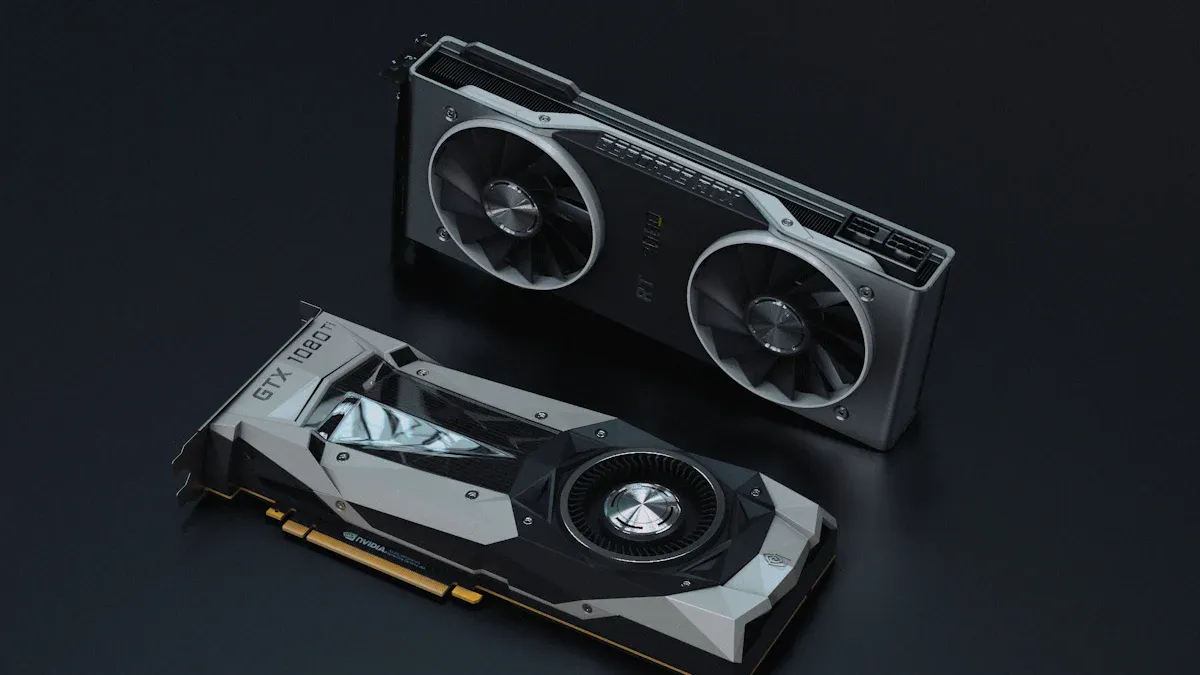
Rendering performance overview
It helps to know what each computer part does for video work. The cpu takes care of video timelines and file compression. It also helps you run many programs at once. The gpu makes rendering and visual effects much faster. It also helps with real-time previews. You can look at the table below to see what each part does:
Component | Role in Video Editing |
|---|---|
CPU | Handles video timelines, file compression, and multitasking between applications. |
GPU | Accelerates rendering, visual effects, and real-time previews. |
GPUs are really good at graphics rendering. They work best for video editing and 3D modeling. GPUs also help with video encoding and decoding. This is because they can do lots of jobs at the same time. CPUs are better for jobs that must be done one after another. These jobs include managing timelines or compressing files.
When you look at speed, gpu video rendering is usually faster. For example, a new GPU can be 5 to 15 times quicker than a CPU for most scenes. If you use a strong graphics card, one frame might finish in about 25 seconds. A powerful server cpu could take more than a minute for the same thing. You get faster previews and can work with animations more easily if you use a gpu.
Efficiency differences
You want your computer to be fast and save energy. GPUs are more efficient for rendering because they use parallel processing. This means you get results faster and use less power over time. CPUs are better for big projects that need lots of memory. They can use more system RAM, which helps with hard video work.
Here are some main points to compare efficiency:
GPUs finish rendering jobs much faster if your project fits in their VRAM.
CPUs can handle bigger or harder projects because they use more system memory.
GPUs use less power for each frame, even if they seem to use more electricity at first.
For 3D rendering, GPUs do better than CPUs because they can do many jobs at once.
You get the best speed if you keep your computer focused on rendering and do not run extra programs.
If you want quick feedback and fast results, pick a gpu. If your project is very big or needs lots of memory, a cpu might be better. Always choose what matches your workflow and the size of your video project.
How gpu video rendering works
Parallel processing benefits
When you use gpu video rendering, the graphics processing unit can do many jobs at once. This is called parallel processing. The gpu does not finish one job before starting another. It breaks the work into thousands of small parts. Each part gets done at the same time. This makes your video projects finish much faster.
You will see a big change in how fast things work when you use a gpu for editing. The gpu lets you see previews right away and make quick changes. You do not have to wait long for results. This helps you try new ideas and see what works best. The table below shows how gpu video rendering and cpu rendering are different:
Feature | GPU Rendering | CPU Rendering |
|---|---|---|
Speed | Much faster, turning hours into minutes | Slower, does one job at a time |
Real-time visualization | Great for previews and quick changes | Not as good for real-time previews |
Creative freedom | Lets you try more ideas quickly | Waiting slows down creativity |
Tip: If you want to save time and work faster, pick a gpu for video work.
Speed improvement examples
You can see how strong gpu video rendering is in many real-life jobs. For example, 3D animation studios use powerful gpu technology to make frame rendering faster. This means artists finish projects sooner and try more ideas. In cloud-based AI services, companies use gpus to speed up machine learning and launch models faster. Testing self-driving cars also uses gpu video rendering to run tests quickly and safely.
Application Type | Description |
|---|---|
Autonomous Vehicle Testing | Uses GPU simulators to test driving software, saving money and making tests safer. |
Cloud-based AI Services | Uses GPUs for machine learning, making AI faster and cheaper. |
3D Animation Studios | Uses advanced GPUs for rendering, making frames finish much faster. |
You can see that gpu video rendering gives you better speed and results in many areas. If you want to make your editing faster, a gpu can help a lot.
cpu rendering explained
When cpu is preferable
Sometimes cpu rendering works better for some videos. The central processing unit gives you more stability. It is more reliable for hard jobs. You can use more system RAM with a cpu. This means you do not hit memory limits as fast. If you want steady results for many effects, cpu rendering helps you do that.
Here is a table that shows when cpu rendering is a good pick:
Aspect | Description |
|---|---|
Stability | CPU rendering is often more stable and reliable for tough projects. |
Memory usage | CPUs can use lots of system RAM, so memory limits are less likely. |
Consistency | CPUs give steady results for many effects and jobs. |
Pick cpu rendering if you work with huge files. It is also good if you need the most reliable output. Some video editing programs work better with cpu for some effects.
cpu limitations
There are some limits when you use cpu rendering. Speed does not always get better if you add more cores. This is true after you reach 16 cores. Some jobs, like user interface work, need strong single-core speed. If you work with hard 3D scenes, cpu power can slow you down.
Here are common cpu problems and issues:
Not enough cores or threads can make your computer slow for big jobs.
Old hardware or software can cause lag and high cpu use.
Bad code can slow down your cpu and limit what it can do.
Note: If you want the fastest rendering, you may need to upgrade your cpu or use software that works with new hardware.
Always check your project needs and hardware before you pick cpu rendering. This helps you avoid slowdowns and get the best results for your video work.
Choosing between gpu and cpu
Project type factors
You should always think about your project before you choose your hardware. Some projects need speed, while others need accuracy or stability. Here are some things to consider:
CPU rendering works best for projects that need complex calculations. You get more stability and precision. If you work with scientific simulations or need exact results, you should use a cpu.
GPU rendering helps you finish projects faster. It works well for tasks that need high-speed rendering. If you create animations or graphics-heavy videos, you will see better performance with a gpu.
For video editing, you should look at the effects and layers in your project. If you use many effects or 3D elements, you may need more power from your hardware.
Tip: Always match your hardware to your project needs. This helps you save time and get better results.
Software compatibility
You must check if your software works well with your hardware. Not all programs use the same technology. Some video editing tools use the cpu for most tasks. Others use the gpu to speed up rendering.
Check if your rendering engine supports gpu acceleration. Some engines only use the cpu.
Look at your project requirements. If you need fast results, pick software that uses the gpu.
Think about your budget. Some programs need expensive hardware to run well.
If you want the best performance, use software that matches your hardware. This helps you finish projects on time.
CPUs help with multitasking and complex calculations. You get more stability and precision for some effects.
GPUs give you speed and efficiency. They work well for high-resolution animations and time-sensitive jobs.
You should always test your software with your hardware. This helps you find the best setup for your workflow.
Budget and hardware
Your budget and hardware will affect your choice. You do not need the most expensive parts to get good results. You should look at what you already have and what you need.
If you have a strong cpu, you can handle big projects and multitask. You do not need to upgrade right away.
If you want faster rendering, you may need to buy a new gpu. This can cost more, but you get better speed and efficiency.
Some video editing jobs need both a good cpu and a good gpu. You should balance your spending to get the best value.
Always check if your computer can support new hardware. Some upgrades need a new power supply or more cooling.
Note: You should plan your upgrades based on your workflow and project needs. This helps you avoid wasting money.
You can make a smart choice if you look at your project, your software, and your budget. This helps you get the best performance for your video editing work.
Benchmarks: gpu vs cpu
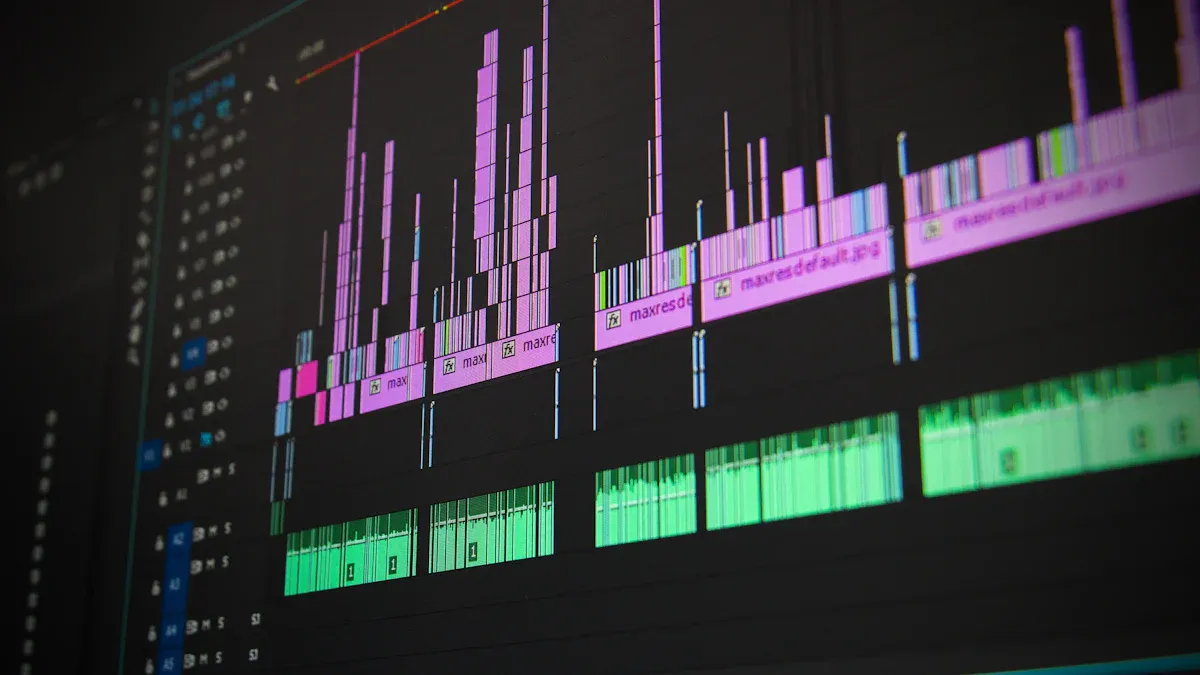
Video editing tasks
You want to know how GPUs and CPUs perform in real video editing tasks. Many benchmark tests show clear results. When you use a CPU, you get efficient work for tasks that need step-by-step processing. CPUs handle instructions with high accuracy. When you use a GPU, you see much faster results for tasks that need many things done at once. This is important for effects, color grading, and exporting your final video.
Here is a table that shows how each hardware type works for common editing jobs:
Hardware | Performance Characteristics |
|---|---|
CPU | Efficient for sequential processing and high instruction accuracy |
GPU | Excels in parallel tasks, significantly speeding up rendering processes |
You can see that GPUs help you finish rendering tasks much faster. CPUs give you steady results for jobs that need careful steps.
Rendering time comparison
You may wonder how much time you can save with a GPU. In many tests, a modern GPU can finish a five-minute 4K video export in about 3 minutes. A high-end CPU might take 10 minutes or more for the same job. If you add effects or transitions, the gap gets even bigger. You get faster previews and smoother playback with a GPU. This means you spend less time waiting and more time creating.
Here are some key points to remember:
GPUs cut down rendering time for most video projects.
CPUs work well for tasks that need accuracy and stability.
You get the best performance when your software supports GPU acceleration.
Tip: Always check if your editing program uses your GPU. This can make a big difference in your workflow.
Pros and cons: gpu and cpu
gpu advantages and drawbacks
When you use a GPU for video rendering, you get impressive speed and efficiency. You can finish projects much faster because a GPU can handle many tasks at the same time. This means you spend less time waiting and more time creating. You also get real-time feedback, which helps you make quick changes and see results right away. Adding more GPUs is easy if you want even better performance.
However, you should know about some drawbacks. Upgrading a GPU can cost a lot, especially if you want the latest model. GPUs have less memory than some other parts of your computer, so very complex scenes might slow down. Not all software works well with every GPU, so you may need to check compatibility. Learning how to use GPU rendering can take time if you are new to it.
Here is a table to help you see the main points:
Advantages | Disadvantages |
|---|---|
Speed: Renders up to 100x faster | Hardware can be expensive |
Handles many tasks at once | Limited memory for big projects |
Easy to add more GPUs | May need new skills to use |
Real-time feedback | Not all software supports GPU |
Long-term savings | Depends on GPU quality |
Tip: If you want fast results and real-time previews, a GPU can boost your workflow.
cpu pros and cons
You may choose a cpu for video rendering if you want stability and reliability. A cpu can use a lot of system memory, which helps with large or complex projects. You get consistent results, especially when you use many effects or need high accuracy. This makes a cpu a good choice for detailed work.
But there are some downsides. Rendering with a cpu usually takes longer. High-end processors can be expensive, and you might not see a big speed boost after a certain point. For very large projects, you may need to invest in more hardware.
Here is a table that shows the main pros and cons:
Pros of CPU Rendering | Cons of CPU Rendering |
|---|---|
Stable and reliable | Slower rendering speed |
Uses lots of RAM | High cost for top models |
Consistent results | May need more hardware |
Note: If you work with big files or need steady results, a cpu gives you the control and memory you need.
You will see faster video rendering with a GPU because it handles many tasks at once. A CPU works well for stability and complex projects. Choose a GPU for speed and real-time previews. Pick a CPU if you need more features or work with heavy files. Always match your choice to your workflow, hardware, and budget. For more help, look for guides or try render farm services to save money on hardware.
FAQ
You should pick GPU rendering for speed. GPUs process many tasks at once. This helps you finish video projects faster. You also get real-time previews, which makes editing easier.
Yes, you can use both. Many editing programs let you combine CPU and GPU power. This gives you better performance. You get faster rendering and more stable results.
Most of the time, you will not see a big drop in quality. Some hardware encoding may cause small changes. For most users, the speed boost is worth it.
Check your software settings. Look for options like “GPU acceleration” or “hardware encoding.” You can also visit the software’s website for a list of supported GPUs.