Every good video project begins with clear steps. If you follow a strong video production process, you make fewer mistakes. You can use smart tools to do technical jobs, especially after filming is done.
Key Takeaways
Use a step-by-step video production process to make fewer mistakes and work faster.
Try AI tools to help you edit videos quickly and make them look better, so you have more time to be creative.
Plan every part of making your video, like setting goals and sorting your clips, to keep things running smoothly.
Be ready to change your plans while filming if you face problems like lighting or sound issues.
Spend time after filming to fix any problems and make your video look finished and professional.
Video Production Stages Overview
You should know the main stages before you start. Each stage has its own job. Following these steps helps you avoid mistakes. It also makes your work easier. Here is a table that lists the five main stages and what they do:
Stage | Description |
|---|---|
Planning & Development | Set goals, find your audience, make your main idea, plan your budget and time, and decide how to measure success. |
Pre-Production | Write your script, draw your storyboard, look for places to film, pick your actors, and make a schedule. |
Production | Set up lights and sound, film your main scenes, record extra shots, check each take, and keep track of details. |
Post-Production | Edit your video, mix sound, add graphics, and get ready to share it. |
Distribution | Share your finished video in different ways to reach your audience. |
Tip: Breaking your project into these stages helps you manage your time and resources better.
Strategy & Development
You begin with strategy and development. This part is the base for your video. You need to set your goals and know who will watch. You also pick the best format and where to post it. Good planning now stops problems later. Try these steps:
Set your goals.
Learn about your audience.
Pick the right format and platform.
Plan your script and storyboard.
Decide how you will share your video.
Pre-Production Planning
Pre-production is when you get ready before filming. You write your script and make a storyboard. You also plan your budget and schedule. You choose places to film and gather your team. Good pre-production makes filming much easier.
Video Production Shoot
This is when you film your video. You set up your gear and check lights and sound. You record your main scenes and extra shots. Take notes to help with editing later.
Post-Production Essentials
After filming, you start post-production. You edit your video, add music, and put in graphics. You also get your video ready to share. Most technical problems are fixed here. Good post-production makes your video look and sound great.
You will learn more about each stage soon. This overview gives you a simple plan for your video project.
Pre-Production: Planning for Success
Pre-production helps your video project go well. If you plan carefully now, you will save time later. You will also avoid problems. In this stage, you work on your idea, who will watch, your script, your storyboard, and your schedule.
Defining Goals & Audience
First, think about what you want your video to do. You should know who will watch it and how they act. Ask if your viewers use sound or like captions. Think if they want short videos or longer ones. Also, find out where they spend time online. Do they use LinkedIn at work or look for answers on YouTube?
Here are some steps you can try:
Make goals for your video that match what you want.
Learn about your audience by seeing what they know and need.
Ask others for feedback to make your goals better.
Description | |
|---|---|
Brand Awareness | Make videos that show your brand and tell a story about your product. |
Conversions | Use demos or explainer videos to help people buy your product. |
Customer Retention | Make tutorials and how-to videos for your current customers. |
Tip: When you know your audience and goals, you can make better choices when you make your video.
Scripting & Storyboarding
A good script helps your video have a clear plan. Storyboarding lets you see each part before you film. You can plan camera moves, lighting, and sound. This makes your story easy to follow and helps your team stay on track.
Description | |
|---|---|
Precision in Composition | Make sure each shot helps your story and guides your team. |
Advanced Camera Techniques | Use camera moves and changes to keep your story moving. |
Effective Use of Lighting and Color | Use color and lighting to set the right mood. |
Indicating Sound Elements | Add notes for sound effects or music in your storyboard. |
Iterative Storyboard Creation | Update your storyboard and ask your team for feedback. |
Scheduling & Logistics
Good planning helps your shoot go smoothly. Make a plan for each day. Film hard scenes early when everyone has energy. Use tools that help you change your plan fast. This helps you stay on budget and finish on time.
Film hard shots early in the day.
Use AI tools for planning and quick changes.
Work with your team to stop delays.
Plan for special effects and make sure they fit with your other scenes.
Note: Careful pre-production planning means you will have fewer problems when you film and edit your video.
Video Production Shoot: Capturing Content
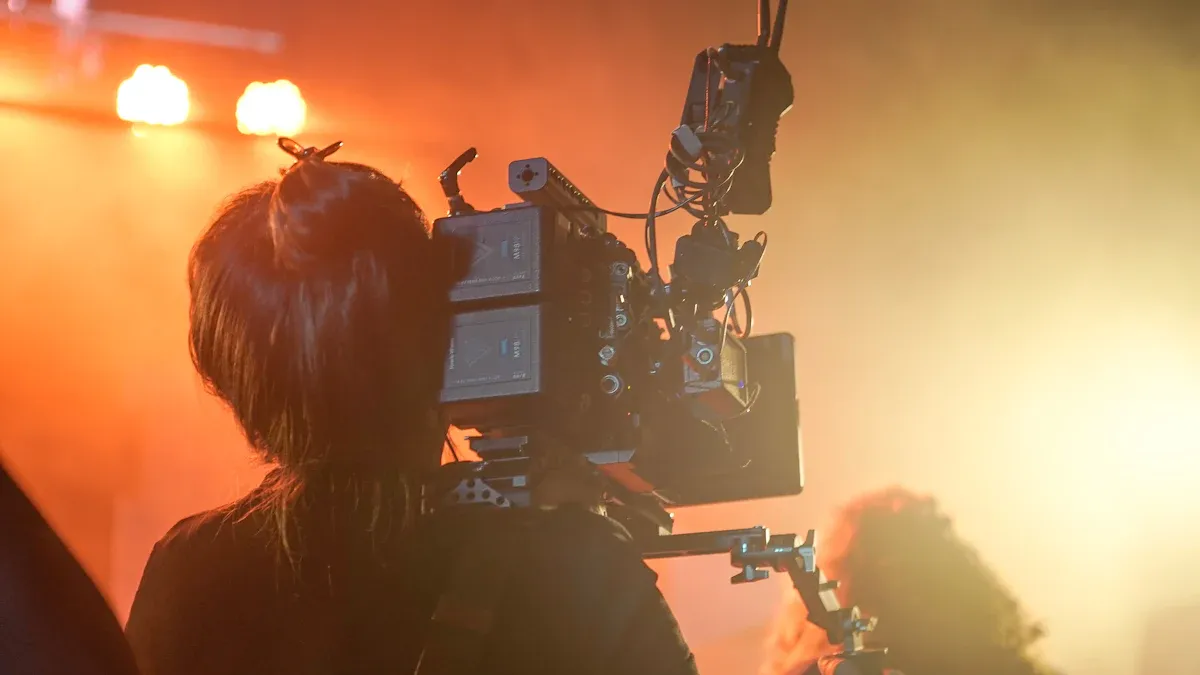
Device Selection & Setup
You have many choices when you plan your video production shoot. You can use phones, cameras, or even action cameras. Each device has its own strengths. Cameras give you control over depth of field and work well in low light. Phones are easy to use and great for quick shoots. Lighting and audio gear also play a big role in your shoot. Good lighting makes your video look clear. Quality microphones help your audience hear every word.
Equipment Type | |
|---|---|
Cameras | Sensor size for low-light, bit depth for editing, lens options for creative shots |
Lighting | Energy efficient, adjustable color and brightness, works in many places |
Audio Equipment | Lavalier mics for hands-free, shotgun mics for focused sound, wireless for movement |
Camera Support | Tripods for steady shots, stabilizers for smooth movement, pedestals for studio control |
Before you start your shoot, you need to set up your gear the right way. Follow these steps for a smooth video production shoot:
Define your goals and vision for the shoot.
Make a shot list and storyboard to guide your video.
Pick a location that helps with lighting and sound.
Check all your equipment before you shoot.
Test your lighting and sound to avoid problems.
Tip: A good setup at the start of your shoot saves you time and trouble later.
Filming Challenges
You may face many challenges during your video production shoot. Lighting can change fast, especially outdoors. Sound can pick up unwanted noise. Batteries can run out in the middle of a shoot. You need to stay flexible and solve problems as they come up. Always have backup gear ready. Watch your footage as you go to catch mistakes early. If you shoot with different devices, make sure you match settings like frame rate and resolution.
Managing Mixed Footage
Many creators use more than one device during a video production shoot. You might use a phone for one angle and a camera for another. This gives you more options but also makes post-production harder. You need to organize your media and keep track of each file. Editing, sound mixing, and color correction all become more complex with mixed footage. You can use timecode or software sync to line up your clips. If you do not plan, your workflow can slow down and cause delays.
Note: Managing mixed footage well during your shoot will make editing your video much easier.
Post-Production: Editing & Enhancement
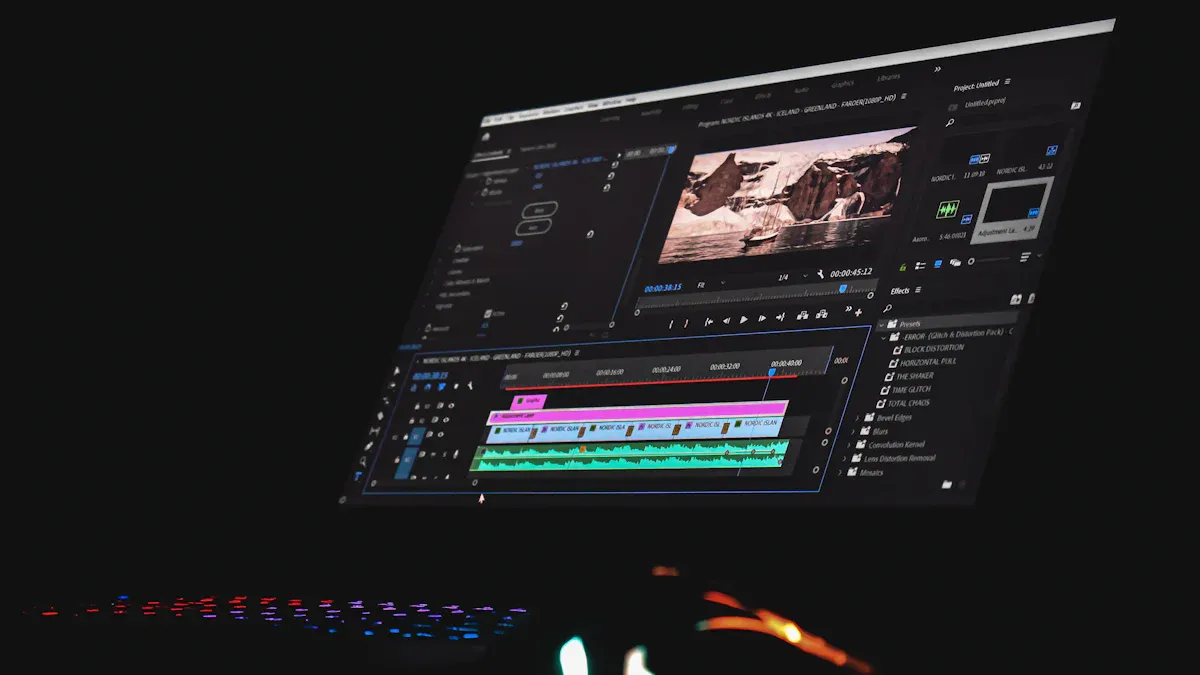
Post-production is when you turn your video clips into a finished video. You fix most technical problems here. You can make shaky shots steady and improve the sound. This step makes your video look professional. It is important for anyone who wants high-quality videos. You can do this alone or with help from video production services. Total Media gives you smart tools. These tools help you work faster and keep your creative ideas.
Importing & Organizing Footage
First, you need to bring in and organize your video clips. This helps you find files fast and not make mistakes. Here are some steps to follow for a smooth process:
Put your files in folders like ‘Footage,’ ‘Audio,’ ‘Graphics,’ ‘Sequences,’ ‘Exports,’ and ‘Other.’
Give your files clear names using project names, like ‘CampusTour_Interview_A01.mp4.’
Move images with fast card readers to a quick drive, like an SSD.
Rename files when you import them. Add the client name, date, and a number.
Make a folder for each client or project. This keeps things simple and neat.
Use the 3-2-1 backup rule: keep three copies of your data on two types of storage, and one copy in a different place.
Copy all RAW files to another drive right after the first transfer.
Use cloud storage for safe backups away from your main place.
Good organization saves time and keeps your project on track. Total Media lets you process whole folders at once. This is called batch processing. It is great for big projects and makes video production easier.
Format Conversion & Compatibility
You might have clips from different devices. Sometimes, your editing program cannot read every format. Format conversion fixes this problem. The codec and format you pick change how your video looks and works. H.264 and H.265 are common codecs. They keep good quality and small file size. MP4 works on most devices, but AVI might not. Old devices may not play new formats, so you need to change files to standard types.
Total Media can see what device and codec you used. It changes your files to formats that work everywhere. You can focus on editing and not worry about tech problems. This makes your work smoother and your videos better.
AI Video Enhancement
AI video enhancement helps you fix problems in your clips. You can make shaky shots steady and clean up noisy, dark scenes. You can also make old videos look sharper. If you have old formats, AI can update them for today. Total Media uses AI models for steady shots, cleaning up noise, and fixing old clips. These tools help you make high-quality videos from any source.
You still get to choose how much you want to fix. You stay in control of your creative ideas. Total Media helps you get the best from your video.
Editing & Creative Assembly
Editing is when you put your story together. You cut, move, and add effects to your video. There are many ways to make your video stand out. Here is a table of common techniques and what they do:
Technique | Description |
|---|---|
Storyboarding | Shows key scenes and changes, helping you plan your edits. |
Color Correction | Changes brightness, contrast, and color to match your clips. |
Motion Graphics | Adds cool animations and templates to make your video look better. |
Multi-Camera Editing | Lines up clips from different cameras for smooth changes. |
Keyframing | Makes animations by changing things like size and see-through. |
Transitions | Moves viewers between scenes; keep them simple and the same. |
Audio Editing | Matches voices to video and checks sound levels for balance. |
You can use these ways to make your video look professional. Total Media gets your files ready for editing but does not do your creative work. You are still in charge of your story.
Compression & Export
The last step is compression and export. You want your video to look good and be easy to share. Smart compression uses AI to make files smaller but keep them clear. Machine learning finds important parts and keeps them sharp. Some tech can even rebuild lost details when you play the video, so it looks almost new.
Total Media gives you smart compression for email, social media, and backup. You can save your video in the best format for your viewers. This step finishes your video production and makes it work well.
Note: Post-production is where you fix most problems. Total Media helps you with formats, fixing clips, and making files smaller. You save time and can focus on your creative ideas. The right tools help you share great videos every time.
Workflow Example for Creators
Multi-Device Footage Scenario
You might use your phone, a GoPro, and a camcorder to film. Each device gives you different footage. This can make your work harder. You need a good plan to keep things in order.
Here is a simple workflow you can try:
Start your project by organizing files
Create a clear folder structure (by date, device, or scene). Good organization at this stage prevents confusion later.Import all footage from every device
Bring everything into one place—phone clips, GoPro footage, camcorder videos—so you can see what you’re working with.Prepare footage using Total Media (post-production prep)
Before editing, use Total Media to:Convert incompatible or outdated formats into a universal format (such as MP4)
Stabilize shaky clips and reduce noise
Compress large files so they’re easier to handle
This step ensures your footage is editing-ready, regardless of the device it came from.
Create a rough cut
Focus on structure and story. Don’t worry about perfection yet—just get the main idea in place.Refine with a fine cut
Tighten edits, improve pacing, and clean up transitions.Finish with color, sound, and graphics
Apply color correction, adjust audio levels, and add titles or graphics as needed.Share for feedback and revise
Early feedback helps catch issues with timing, clarity, or tone.Export and deliver the final video
Use the right format and size for your platform—social media, presentation, or archive.
Tip: If you organize well at the start, you will make fewer mistakes later.
You can also use these ideas to help your process:
Work with your team at the same time.
Keep your files neat and easy to find.
Store everything together so you can get it fast.
Using AI Tools for Efficiency
AI tools help you work with footage from many devices. They make your work faster and easier. Some tools focus on creative editing, while others—like Total Media—focus on preparing and optimizing footage before and after editing.
Here is a table that lists some popular AI tools and what they do:
Tool | Key Features |
|---|---|
TotalMedia | Format conversion, AI enhancement, stabilization, compression, batch processing |
Runway | Non-linear editing, 4K upscaling, motion controls, AI for object removal and style changes. |
Magic Hour | Over 400 presets, video-to-video generation, automation with API, creator-focused workflow. |
Pictory | Summarizes from URLs or text, adds visuals and captions, team workspaces, brand kits. |
Kapwing | Collaborative editing, text-to-speech, auto-subtitles, repurposes content for social media. |
You can use these tools to save time. For example, you can make blurry clips look better, take out things you do not want, or add captions by themselves. This lets you spend more time on your story and less on fixing problems.
Note: Smart AI tools help you work faster and keep your creative ideas strong.
Why Post-Production Matters Most
When you finish filming, you might think you are done. But most problems show up after filming, not before. You may only notice sound or color issues when you start editing. Sometimes, file types do not work together. You must fix these problems to make your video look and sound good. Post-production lets you fix mistakes and make your story better.
Common Technical Issues
You will find many technical problems in post-production. These can slow you down if you do not plan ahead. Here is a table that lists common problems and how to fix them:
Technical Issue | Resolution |
|---|---|
Poor file management and lack of backups | Make folders that make sense and back up your files often. Use extra drives or cloud storage. |
Ignoring audio quality | Clean up voices, remove bad sounds, and balance the audio with editing software. |
Color mistakes in post-production | Use color tools to fix colors and make your video look the same all the way through. |
Overusing visual effects and transitions | Pick effects and transitions for a reason. Do not use too many or viewers may lose interest. |
Neglecting audience feedback | Show your video to others and ask for advice. This helps you find problems with timing or mistakes. |
Rushing the export and quality control | Check your video carefully before you finish. This helps you catch sound or picture errors. |
Many of these issues can be reduced by preparing footage properly—for example, converting formats, stabilizing clips, and cleaning up noise before editing. This is where dedicated post-production tools like Total Media provide real value.
Benefits of Dedicated Tools
Special post-production tools help you work faster and make fewer mistakes. You do not have to fix every problem by yourself. These tools use AI to make your video and sound better right away. For example, AI can make shaky video steady and clean up noisy sound. A study says 75% of people like videos with good sound. Good tools help you reach this level.
You also get these benefits:
Automation does boring jobs, like sorting clips or fixing color, so you save time.
These tools work well with your editing style, so you do not need to change how you work.
Your edits look the same, so your video feels smooth and professional.
AI features, like in Adobe Premiere Rush, help you make great videos even if you are new to editing.
Tip: The best workflows separate responsibilities—use creative editors for storytelling, and use technical tools like Total Media to handle preparation, optimization, and delivery.
When you follow each stage, your video production gets better. Good planning helps you get ready and avoid problems. Shooting with a clear plan makes filming easier. Strong post-production turns your clips into a finished video. The table below shows how each stage helps your work:
Stage | Contribution to Workflow |
|---|---|
Pre-Production | Sets up your project, makes plans, and gets your team ready so there are fewer surprises when you film. |
Production | Records video and sound. You need to talk clearly and stick to your schedule to keep things running well. |
Post-Production | Changes your raw clips into a final video. Different people work together to finish the project. |
Distribution | Shares your video with viewers in the best way. This helps more people see it and makes your video matter more. |
Smart tools fix tech problems and help you tell your story. Use these steps on your next video and watch your skills improve.
FAQ
You start with planning. Next is pre-production. Then comes production. After that is post-production. The last step is distribution. Each stage helps you stay organized. This makes your videos better.
AI tools fix shaky video. They clean up noisy sound. They change formats to work everywhere. You save time and make your video look good. You still choose how your video looks.
When you organize your footage, you find files fast. This stops mistakes. Your project stays on track. Editing is easier when everything is in order.
Can you use phone and camera footage in one project?
Yes, you can use clips from phones and cameras together. You can also add action cam footage. Smart tools help you match and improve your clips. This makes editing smooth.