Looking for the best Handbrake alternative to convert videos with ease? Beginners often find Handbrake difficult because of its advanced settings, steep learning curve, and frequent technical problems. For those seeking a user-friendly interface and easy to use video converter software, here are seven handbrake alternatives:
Each offers simple video converting, reliable compressing videos, and high video quality, making them the best alternative to handbrake for beginners who value ease of use.
1. TotalMedia
Features
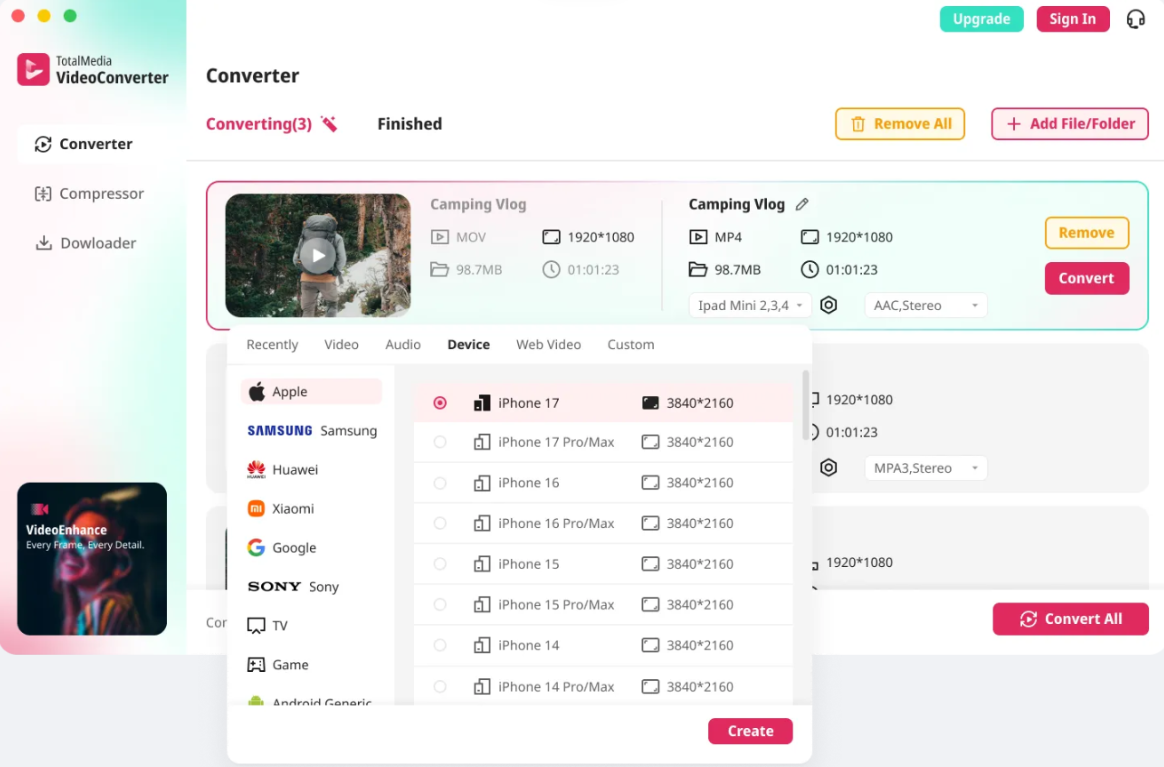
TotalMedia stands out as a handbrake alternative for beginners who want to convert videos quickly and efficiently. The software offers an AI-powered suite that includes a video converter, video compression software, and video enhancement tools. Users can convert videos to mp4 and dozens of other formats with one-click device presets. The AI Compressor reduces file sizes while maintaining high video quality, making compressing videos simple. The built-in Downloader allows users to save online videos directly to their desktop. VideoEnhance uses deep learning to restore and upscale footage, supporting resolutions up to 4K and 8K. TotalMedia provides a user-friendly interface that streamlines the conversion process.
Pros & Cons
Pros:
AI-powered tools automate conversion and enhancement tasks.
One-click device presets simplify converting videos for specific devices.
Fast conversion speeds and reliable video quality.
Integrated video compression software for easy file management.
Free trial available for new users.
Cons:
Advanced features may require a paid upgrade.
Platforms
TotalMedia supports a wide range of devices, making it a versatile handbrake alternative. The software enables conversion for PC, smartphones, tablets, game consoles, and more.
Beginner-Friendly Aspects
TotalMedia was designed for ease of use. The user-friendly interface allows beginners to convert videos without technical knowledge. One-click presets eliminate guesswork, making conversion fast and straightforward. The software handles video compression and enhancement automatically, so users do not need to adjust complex settings. TotalMedia is a top choice among handbrake alternatives for those who value simplicity and reliability.
Tip: TotalMedia is ideal for users who want a free, easy-to-use video converter with powerful AI features.
2. VLC Media Player
Features
VLC Media Player is a versatile video converter and multimedia player that stands out as a handbrake alternative. The software offers a user-friendly interface and supports a wide range of video formats, including mp4, WebM, TS, and OGG. Users can convert videos, preview files during conversion, and batch process multiple files at once. VLC also provides options for deinterlacing and supports HEVC codec, which helps maintain high video quality. The software includes basic video compression software features, making compressing videos straightforward for beginners.
Feature | Description |
|---|---|
Versatility | Works on all types of platforms including Windows, Mac, and Linux. |
Video Conversion | Can convert videos to various formats such as MP4, WebM, TS, OGG, etc. |
Codec Support | Supports HEVC codec for high-efficiency video coding. |
Batch Conversion | Allows conversion of multiple videos at once. |
Deinterlacing | Provides options for deinterlacing videos during conversion. |
Previewing | Enables users to preview videos while they are being converted. |
Pros & Cons
Pros:
Free software with no ads or spyware.
Supports a wide range of video formats and codecs.
Offers batch converting videos and basic video compression.
User-friendly interface with preset profiles for ease of use.
Reliable video quality during conversion.
Cons:
Limited advanced editing features compared to some alternatives.
Interface may feel basic for users seeking more customization.
Platforms
VLC Media Player is compatible with many operating systems, making it accessible for most users. Supported platforms include:
Windows
macOS
GNU/Linux
Solaris
BSD
Why It’s a Handbrake Alternative
VLC Media Player simplifies video conversion tasks for beginners. The Convert/Save feature allows users to select codecs and settings easily. Preset profiles optimize conversion for different devices, and basic compression needs are handled without requiring extensive knowledge. Users can also manage audio extraction and compression, making VLC a multi-purpose tool. The software provides ease of use and accessibility, which makes it a strong choice among handbrake alternatives. Beginners can use VLC for dvd ripping, converting videos, and maintaining video quality with confidence. Its free nature and user-friendly interface ensure that anyone can use it for video conversion tasks.
Note: VLC Media Player is ideal for those who want a reliable, free handbrake alternative with straightforward features and broad platform support.
3. WinXDVD
Features
WinXDVD offers a comprehensive video converter and video compression software suite. Users can convert videos from DVD to mp4 and many other formats. The software supports dvd ripping, making it easy to digitize physical media. WinXDVD includes advanced features such as AI-powered video enhancement, which improves video quality and upscales footage to 4K. The software also provides fast conversion speeds through level-3 hardware acceleration. Users can edit videos with built-in tools for trimming, cropping, and adding subtitles. These features make WinXDVD a strong handbrake alternative for those who want more than basic converting videos.
Feature | WinXDVD | Handbrake |
|---|---|---|
Level-3 hardware acceleration | Yes | No |
Video editing features | Yes | Limited |
Pros & Cons
Pros:
Fast conversion with hardware acceleration.
AI-powered video enhancement for better video quality.
User-friendly interface with simple navigation.
Supports dvd ripping and compressing videos.
Built-in editing tools for customization.
Cons:
Some advanced features require a paid version.
Not available for Linux.
Tip: WinXDVD is ideal for users who want to convert videos quickly and enhance old footage with ease.
Platforms
WinXDVD supports both Windows and macOS. The Winxvideo AI tool, part of the suite, runs on these platforms.
Platform | OS |
|---|---|
Winxvideo AI | Windows, macOS |
Beginner-Friendly Aspects
WinXDVD stands out among handbrake alternatives for its ease of use. The user-friendly interface guides users through each step of the conversion process. Beginners can convert videos, compress files, and enhance video quality without technical knowledge. One-click presets simplify converting videos for different devices. The software automates many tasks, so users do not need to adjust complex settings. WinXDVD makes dvd ripping and video conversion accessible to everyone. The free trial allows users to explore features before purchasing. This software is a top choice for those seeking a handbrake alternative that balances power and simplicity.
4. Any Video Converter
Features
Any Video Converter stands out as a handbrake alternative due to its comprehensive feature set and focus on ease of use. The software provides a user-friendly interface that allows users to convert videos quickly. It supports over 1000 formats, making it a versatile video converter for both beginners and advanced users. The software integrates AI-powered video editing features, which enhance video quality and streamline the editing process. Users can benefit from fast conversion speeds and efficient mp4 compression, which helps in compressing videos without sacrificing quality. Dedicated customer support teams are available to assist with any technical issues or questions.
Feature | Description |
|---|---|
User-friendly interface | Clean design and intuitive layout for easy navigation. |
Speed | Fast video conversion for quick results. |
Customer support | Pre-sale guidance and after-sales support available. |
MP4 compression | Reduces file size while maintaining high video quality. |
AI video editing features | Advanced tools to enhance usability and enrich the user experience. |
Pros & Cons
Pros:
Supports a wide range of formats for converting videos.
Fast conversion and batch processing save time.
Functions as both a video converter and video compression software.
AI features improve video quality and editing options.
Free version available for basic use.
Cons:
Some advanced features require a paid upgrade.
Occasional limitations on output quality in the free version.
Platforms
Any Video Converter offers compatibility with major operating systems, making it accessible for most users.
Operating System |
|---|
macOS |
Video Converting for Beginners
Any Video Converter simplifies the process for those new to video editing and conversion. The software supports batch conversion, allowing users to process multiple files at once. Efficient compression tools help reduce file sizes, which is essential for sharing or uploading videos. The 2-pass encoding feature improves video quality, while deinterlacing enhances playback. Custom output directories make file management straightforward, even for users unfamiliar with complex folder structures. The intuitive design and one-click options ensure that beginners can use the software for dvd ripping, converting videos, and compressing videos with confidence. As one of the leading handbrake alternatives, Any Video Converter delivers ease of use and reliable results for anyone seeking a user-friendly solution.
Tip: Any Video Converter is a strong choice for users who want a free, user-friendly video converter with advanced features and broad format support.
5. Freemake Video Converter
Features
Freemake Video Converter is a popular handbrake alternative for users who want a simple way to convert videos. The software supports more than 500 formats, including mp4, AVI, WMV, and MKV. Users can convert videos for playback on many devices, such as smartphones, tablets, and gaming consoles. Freemake also offers basic video editing tools, including trimming, joining, and rotating clips. The software includes video compression software features, which help with compressing videos for sharing or storage. Freemake supports dvd ripping, allowing users to digitize their DVD collections with ease. The program provides presets for different devices, so users can select the best settings without technical knowledge.
Pros & Cons
Pros:
User-friendly interface makes converting videos easy for beginners.
Supports a wide range of formats and devices.
Includes basic editing and video compression tools.
Free version available for standard use.
Presets simplify the conversion process.
Cons:
Watermark appears on videos in the free version.
Some advanced features require payment.
Only available for Windows.
Platforms
Freemake Video Converter is designed for Windows users. The software supports a variety of devices and formats, making it one of the most versatile handbrake alternatives.
Platform/Device | |
|---|---|
Windows | AVI, MP4, WMV, Matroska, FLV, SWF, 3GP, DVD, Blu-ray, MPEG, MP3 |
Apple Devices | iPod, iPhone, iPad |
Xbox | Xbox Console |
Sony | PlayStation |
Samsung | Mobile Devices |
Nokia | Mobile Devices |
BlackBerry | Mobile Devices |
Android | Mobile Devices |
Handbrake Alternatives for Windows
Freemake Video Converter stands out among handbrake alternatives for Windows because of its ease of use and user-friendly interface. First-time users often find handbrake overwhelming due to its complex settings. Freemake, on the other hand, allows for quick and easy conversion without advanced configuration. The software streamlines the process of converting videos, compressing files, and maintaining video quality. Users can rely on Freemake for everyday video tasks, such as dvd ripping, video compression, and format conversion. This makes it a strong choice for anyone seeking a free, reliable, and accessible video converter on Windows.
Tip: Freemake Video Converter is ideal for users who want a straightforward handbrake alternative with a focus on ease and device compatibility.
6. Movavi Video Converter
Features
Movavi Video Converter stands out as a handbrake alternative for users who want speed, flexibility, and ease of use. The software offers a user-friendly interface that makes converting videos simple for beginners. Movavi supports over 180 formats, including mp4, MOV, MKV, and GIF. The SuperSpeed technology enables ultra-fast conversion, up to 79 times faster than standard methods. Built-in video compression software helps reduce file sizes while maintaining video quality. Batch conversion options allow users to convert multiple files at once, saving time and effort.
Feature | Description |
|---|---|
User-Friendly Interface | Designed for ease of use, ideal for beginners. |
Supports Over 180 Formats | Compatible with various file types like MP4, MOV, MKV, GIF. |
Ultra-Fast Conversion Speed | Utilizes SuperSpeed technology for 79x faster conversions. |
Built-in Compression Tools | Helps reduce file sizes while maintaining quality. |
Batch Conversion Options | Allows multiple videos to be converted simultaneously. |
Pros & Cons
Pros:
Fast conversion speeds due to GPU acceleration.
Wide format support for converting videos to mp4 and other types.
Batch processing for efficient workflow.
High video quality after conversion.
User-friendly interface suitable for all skill levels.
Cons:
Some features require a paid license after the free trial.
No support for Linux systems.
Platforms
Movavi Video Converter is compatible with the latest versions of Windows and macOS. This ensures most users can access the software regardless of their device.
Operating System | Version |
|---|---|
Microsoft Windows | 10/11 64-bit |
macOS | 12.0 or higher |
Easy Video Converting
Movavi simplifies the process of converting videos for beginners. The clean and user-friendly interface allows users to drag and drop files, making the workflow intuitive. Quick tutorials appear at the first launch, guiding new users through the main features. Batch conversion enables users to process several files at once, which is ideal for compressing videos or preparing content for different devices. Movavi’s video converter also supports dvd ripping, making it a versatile tool among handbrake alternatives. The software provides a free trial, so users can test its features before committing. Movavi’s focus on ease of use, speed, and video quality makes it a top choice for anyone seeking a reliable handbrake alternative.
Tip: Movavi Video Converter is perfect for users who want fast, high-quality results without the complexity of handbrake.
7. CloudConvert
Features
CloudConvert is a browser-based video converter that serves as a handbrake alternative for users who prefer online solutions. The platform supports hundreds of file formats, including mp4, AVI, MKV, and MOV. Users can convert videos, compress files, and adjust video quality directly from their web browser. Batch conversion is available, allowing multiple files to be processed at once. CloudConvert integrates with cloud storage services such as Google Drive and Dropbox, making file management efficient. The software offers a free tier with limited conversions, which is ideal for occasional use.
100% browser-based, works on any device
Supports hundreds of formats
Allows batch conversion and cloud storage integration
Free tier available with limits
Pros & Cons
Pros:
No installation required; use on any device with a modern browser.
User-friendly interface simplifies converting videos and compressing videos.
Supports batch conversion and integrates with popular cloud storage.
Free tier available for light use.
Abstracts complexity, making video compression software accessible.
Cons:
Free tier has conversion limits.
Requires internet connection for use.
Advanced features may require payment.
Platforms
CloudConvert is compatible with a wide range of platforms. Users can access the software from any device that supports a modern browser.
Platform/OS | Browser Compatibility |
|---|---|
Windows | |
macOS | Modern Browsers |
Linux | Modern Browsers |
ChromeOS | Modern Browsers |
Android | Modern Browsers |
iOS | Modern Browsers |
Online Handbrake Alternative
CloudConvert stands out among handbrake alternatives for its ease of use and accessibility. The web-based interface is user-friendly and easy to navigate, making it suitable for beginners. Unlike handbrake, CloudConvert abstracts technical complexity and provides simple controls for adjusting video settings. Users can convert videos, compress files, and maintain video quality without needing to install software. The platform does not support dvd ripping, but it excels as a video converter and video compression software. CloudConvert is a practical choice for those seeking an online handbrake alternative that prioritizes ease and convenience.
Tip: CloudConvert is ideal for users who want a free, user-friendly solution for converting videos and compressing videos online.
Comparison Table

Choosing the right handbrake alternative can be challenging. The following comparison table summarizes key aspects of each software. This quick reference helps users evaluate ease of use, supported formats, OS compatibility, and price. Each tool offers unique features for converting videos, compressing videos, and maintaining video quality.
Software | Ease of Use | Supported Formats | OS Compatibility | Price |
|---|---|---|---|---|
TotalMedia | High | 1000+ incl. mp4, mkv, avi etc. | Windows, macOS | Free/ Paid |
VLC Media Player | High | Most video/audio formats | Windows, macOS, Linux | Free |
WinXDVD | High | MP4, AVI, DVD, ISO, etc. | Windows, macOS | Free trial / Paid |
Any Video Converter | High | 1000+ incl. mp4, mp3 | Windows, macOS | Free / Paid |
Freemake Video Converter | High | 500+ incl. mp4, AVI | Windows | Free / Paid |
Movavi Video Converter | High | 180+ incl. mp4, MOV | Windows, macOS | Free trial / Paid |
CloudConvert | High | Hundreds incl. mp4, MKV | Browser-based (All OS) | Free tier / Paid |
Ease of Use
All handbrake alternatives in this list feature a user-friendly interface. Beginners can use each video converter without technical expertise. The software simplifies converting videos and compressing videos. Device presets and one-click options enhance ease of use.
Supported Formats
Most alternatives support a wide range of formats. Users can convert videos to mp4, AVI, MKV, MOV, and more. This flexibility ensures compatibility with various devices and platforms. Video compression software features are included for efficient file management.
OS Compatibility
Compatibility varies among alternatives. VLC Media Player and CloudConvert offer broad support across Windows, macOS, Linux, and browsers. TotalMedia, WinXDVD, Any Video Converter, and Movavi Video Converter support Windows and macOS. Freemake Video Converter is exclusive to Windows.
Price
Many handbrake alternatives provide a free version or trial. VLC Media Player and Freemake Video Converter offer free options. TotalMedia, WinXDVD, Any Video Converter, and Movavi Video Converter include free trials with paid upgrades. CloudConvert features a free tier for light use.
Note: Users should consider their needs for dvd ripping, video compression software, and converting videos when selecting a handbrake alternative. Each tool delivers reliable video quality and ease for beginners.
All seven handbrake alternatives deliver ease of use and a user-friendly interface.
Choose the best handbrake alternative based on your device, preferred features, and video compression software needs.
For Windows, Freemake Video Converter offers simple compressing videos.
For Mac, Movavi Video Converter stands out for ease.
VLC Media Player is the top free option for those who want to use handbrake alternatives with broad compatibility.
Use these alternatives to convert videos, compress files, and enjoy user-friendly tools that make handbrake tasks easy.
FAQ
TotalMedia offers one-click presets and an intuitive interface. Beginners can convert videos without technical knowledge. The software automates most tasks.
Most tools, including TotalMedia, WinXDVD, Any Video Converter, and Movavi, support both Windows and macOS. Freemake is exclusive to Windows. CloudConvert works on any device with a browser.
Yes. VLC Media Player, Any Video Converter, Movavi, and CloudConvert allow batch conversion. Users can process multiple files at once, saving time and effort.
Choose tools with AI-powered enhancement, such as TotalMedia or WinXDVD. Use device presets and recommended settings. Avoid excessive compression to preserve quality.