What Separates a Good Compressor From a Bad One
Every video compressor reduces file size. What separates a good one from a bad one is how much quality it sacrifices to get there — and how much control it gives you over that trade-off.
Three things matter:
Output quality — Does the compressed file look visually comparable to the original at the target size? Blocking, smearing, and colour shift are the failure modes.
File size accuracy — Can you hit a specific target size, or are you guessing until you get close enough? This matters for email attachments, platform upload limits, and client delivery.
Speed — Compression is computationally heavy. Hardware acceleration makes a real difference on large files.
The five tools below cover the full range of use cases from one-click AI compression to precise manual encoding.
1. HandBrake — Best Free Option for Precise Control
Price: Free
Platform: Mac, Windows, Linux
Best for: Users comfortable with encoding settings who need maximum control at no cost
HandBrake remains the benchmark free compressor in 2026. Two-pass encoding with average bitrate mode gives the most accurate file size targeting available in any free tool — set a target bitrate, enable two-pass, and the output lands reliably close to the calculated size.
On Apple Silicon, VideoToolbox hardware acceleration makes H.264 and H.265 encoding significantly faster than software encoding. On Windows, NVIDIA NVENC and AMD AMF are supported for similar speed gains on compatible GPUs.
The limitation is the interface — HandBrake assumes you know what RF value and bitrate to use. There is no size preview, no AI assistance, and no guided workflow. For users who know what they are doing, it is unbeatable free software. For everyone else, it has a learning curve.
Strengths: Free, precise two-pass encoding, hardware acceleration, no file size limits, no watermark.
Weaknesses: No file size preview, interface requires codec knowledge.

2. TotalMedia VideoConverter — Best for AI-Assisted Compression With Size Preview
Price: Free tier / Pro upgrade from $9.95
Platform: Browser based; Mac and Windows
Best for: Users who want accurate file size targets without manual bitrate calculation
The differentiator here is the Compressor module’s real-time file size preview. Before the encode begins, TotalMedia VideoConverter shows the predicted output size. You see exactly what you are getting before committing processing time — a feature absent from every other tool on this list.
The AI compression engine analyses the source file and determines optimal settings automatically. Select the Reduce File Size preset, check the preview, set your output folder, and compress. For batch jobs, folder-level processing handles multiple files in one session. The Finished tab shows before and after sizes for every file.
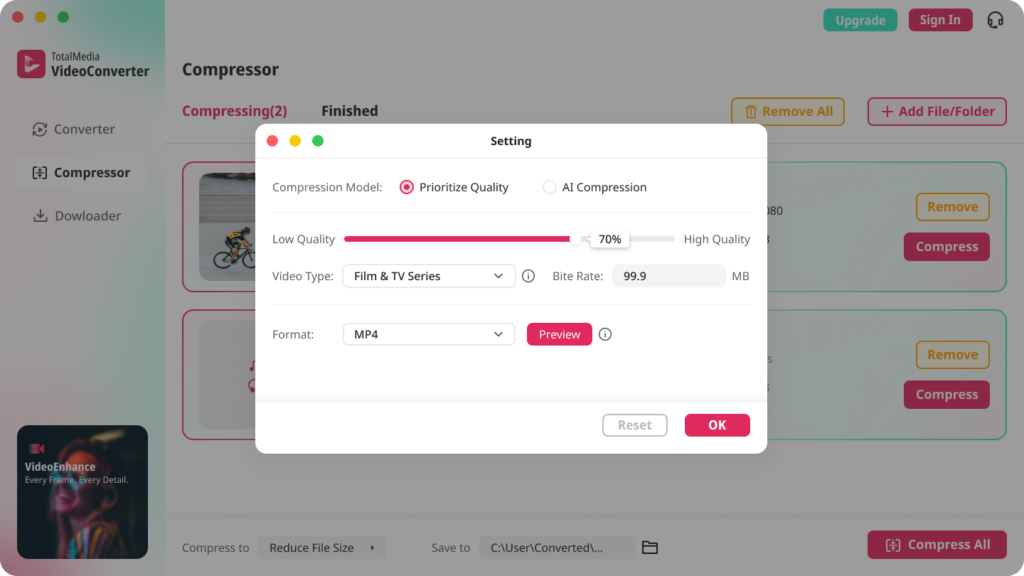
For users who regularly compress video for Google Drive, WeTransfer, client delivery, or email — where hitting a specific size target matters — this preview capability removes the trial-and-error cycle that every other tool requires.
Strengths: Real-time size preview, AI-assisted settings, batch processing, clean UI, no bitrate knowledge required.
Weaknesses: Less granular codec control than HandBrake for advanced users.
3. CloudConvert — Best Browser-Based Option
Price: Free tier (25 conversions/day) / Pay-per-use
Platform: Browser-based, any OS
Best for: Occasional compression without installing software
CloudConvert handles video compression in a browser — no installation, no platform restriction. Upload, set output format and quality, compress, download. The free tier covers 25 conversions per day, sufficient for occasional use.
The trade-offs are real: files upload to third-party servers (privacy consideration for sensitive content), conversion speed depends on CloudConvert’s infrastructure rather than local hardware, and the free tier caps files at 1GB. For large files or regular use, a desktop tool is more practical.
Strengths: No installation, works on any device, supports 200+ formats.
Weaknesses: File uploaded to external servers, speed not leveraging local hardware, 1GB free tier limit.
4. FFmpeg — Best for Automated and Scripted Workflows
Price: Free
Platform: Mac, Windows, Linux (command line)
Best for: Developers and power users needing scripted batch compression
FFmpeg is the encoding engine inside most video tools — using it directly gives complete control over every compression parameter. For batch compression across hundreds of files, a single FFmpeg command processes the entire directory:
for f in *.mp4; do ffmpeg -i "$f" -vcodec libx264 -crf 23 -acodec aac "${f%.mp4}_compressed.mp4"; done
CRF 23 is H.264’s default quality setting — balanced output at a significantly reduced file size. Adjust the CRF value (higher = smaller file, lower quality; lower = larger file, better quality) to target different size/quality ratios.
Strengths: Complete control, scriptable, free, handles any format.
Weaknesses: Command-line only, no GUI, no size preview, steep learning curve.
5. Clideo — Best Free Browser Tool for Simple Jobs
Price: Free (with watermark) / $9/month
Platform: Browser-based
Best for: Quick single-file compression without technical knowledge
Clideo compresses video in a browser with a genuinely simple interface — upload, choose quality level (high, medium, low), compress, download. No bitrate settings, no codec choices, no configuration. For a single file that needs to be smaller before sending, it works in under two minutes.
The free version adds a Clideo watermark to output. The paid plan at $9/month removes it and adds higher file size limits. For occasional personal use where a watermark is acceptable, the free tier is functional. For anything going to a client or public audience, the watermark makes the free tier unusable.
Strengths: No installation, genuinely simple, fast for small files.
Weaknesses: Free output watermarked, limited quality control, not suitable for professional use on free tier.
Side-by-Side
| Tool | Price | File Size Preview | Batch Processing | Hardware Acceleration | Best For |
|---|---|---|---|---|---|
| TotalMedia VideoConverter | Free / Pro | Yes — before encoding | Yes | Yes | AI-assisted, size-targeted compression |
| HandBrake | Free | No | Yes (queue) | Yes | Precise free compression |
| CloudConvert | Free / pay-per-use | No | Limited | No (server-side) | Browser-based, no install |
| FFmpeg | Free | No | Yes (scripted) | Yes | Automated pipelines |
| Clideo | Free / $9/month | No | No | No | Simple single-file jobs |
Which One?
You need to hit a specific file size and want to see it before encoding: TotalMedia VideoConverter. The preview feature alone justifies it for anyone doing regular delivery work.
You want the best free desktop compressor and know your way around encoding settings: HandBrake. Nothing else at the price point.
You compress once a month and refuse to install software: CloudConvert free tier.
You are scripting a batch workflow: FFmpeg.
You have one file and five minutes: Clideo — just know the free output has a watermark.
FAQ
HandBrake is the best free video compressor with no watermark, no file size limits, and no restrictions. It requires some codec knowledge to use effectively — RF 23 for H.264 is a reasonable starting point for most compression jobs. TotalMedia VideoConverter also offers a free tier with AI compression and no output watermark.
For large files where hitting a specific size target matters, TotalMedia VideoConverter’s real-time file size preview and HandBrake’s two-pass average bitrate mode are the strongest options. Both handle large files without size restrictions. Browser-based tools like CloudConvert cap file sizes on free tiers and are not practical for large files.
Yes — video compression is lossy, meaning some data is discarded during encoding. At moderate compression levels the quality loss is typically imperceptible on standard displays. The key is matching the compression level to the viewing context: a file for client review can be compressed more aggressively than a broadcast master. Always keep the original before compressing.