Wondershare Filmora
AI has revolutionized video upscale and restoration, automating complex tasks for both beginners and professionals. The market is projected to reach USD 1,131.72 million in 2026, driven by demand for high-quality remastered content.
Selection Criteria for Best AI Video Enhancer
Key Factors for Video Upscale Tools
When selecting the best video upscale tools in 2026, several factors stand out as essential for users seeking high-quality results. The evaluation process focuses on the following:
AI Capabilities: Advanced AI models drive the effectiveness of video upscale, restoring detail and enhancing clarity in every frame.
Ease of Use: A streamlined interface ensures that both beginners and professionals can operate the software efficiently.
Output Quality: The ability to deliver crisp, realistic video upscale results is critical, especially for content creators and archivists.
Compatibility: Support for a wide range of file formats and operating systems increases the tool’s versatility.
Pricing and Value: Competitive pricing, balanced with robust features, determines the overall value of a video upscale solution.
Support for Old Footage: Tools must handle degraded or archival footage, offering restoration features that meet the needs of preservationists.
These criteria ensure that each video upscale tool delivers on its promises, verified through official documentation, user reviews, and expert analysis.
How We Evaluated Video Restoration Software
The evaluation process for video upscale and restoration software uses a structured approach:
Features account for 40% of the score, focusing on upscaling proficiency and advanced enhancement options.
Ease of use makes up 30%, based on aggregated user feedback and interface design.
Value comprises the remaining 30%, weighing pricing against the feature set.
Home users often seek quick, easy video upscale solutions. Professionals prioritize output quality and advanced controls. Archivists require customization and reliable performance for restoring older footage. The right tool balances convenience, quality, and workflow needs for each group.
Comparison Table of Video Upscale and Restoration Tools
Feature Overview
Selecting the right video upscale and restoration tool depends on understanding each product’s strengths. Some tools excel at AI-driven enhancement, while others focus on film restoration or batch processing. Professionals often require advanced AI models and high-resolution output. Beginners may prefer intuitive interfaces and one-click enhancement. Pricing and compatibility also play a significant role in decision-making.
Tip: Consider your primary use case—such as restoring archival footage, upscaling for content creation, or batch processing—before choosing a tool.
Quick Reference Chart
Tool Name | Key Features | Pricing & Licensing | Compatibility | Best For |
|---|---|---|---|---|
AI Smart Enhance, frame interpolation, 8K upscaling, real-time preview, batch management | Subscription & Pro plans | Web-based, cross-platform | Home users, archivists, content creators | |
Topaz Video AI | Advanced AI upscaling, frame interpolation, denoising | $299 one-time, 1 year updates | Windows, Mac | Professionals, high-end enhancement |
Wondershare Filmora | Integrated Topaz AI, editing suite, easy workflow | Subscription & perpetual licenses | Windows, Mac | Creators, editors, YouTubers |
UniFab Video Upscaler AI | AI upscaling, batch processing, color correction | Subscription model, lifetime option | Windows, Mac | Batch processing, home users |
AVCLabs Video Enhancer AI | Face refinement, color improvement, targeted enhancement | Starts at $99.90, Pro+ $299.90 | Windows, Mac | Specific footage, targeted restoration |
VidHex Video Restoration | Film restoration, deinterlacing, stabilization | Perpetual license from $149.90 | Windows, Mac | Archivists, film restoration |
HitPaw VikPea | User-friendly, quick enhancement, AI filters | Subscription & lifetime license | Windows, Mac | Beginners, quick fixes |
This chart provides a snapshot of each tool’s core strengths, pricing, and best use cases. Users can quickly identify which solution aligns with their workflow, technical skill, and project requirements.
1. TotalMedia Video Enhance
AI Smart Enhance Features
TotalMedia Video Enhance stands out with its advanced AI Smart Enhance engine. This tool uses deep learning to analyze and reconstruct every frame, restoring lost detail and improving overall video quality.
Its unique capabilities make TotalMedia a powerful choice for both general video enhancement and specialized sports production.
Pros and Cons
Pros:
Efficient batch processing with multi-file management
Advanced AI-driven enhancement for noise reduction, color restoration, and detail recovery
Real-time before/after preview with interactive split view
Flexible upscaling up to 8K resolution for Pro users
Compatibility
Compatible with Windows and Mac OS
Pricing
TotalMedia Video Enhance offers both subscription and Pro plans. Users can access core features through a standard subscription, while Pro plans unlock 8K upscaling and advanced export options. Pricing remains competitive for the feature set provided.
Use Cases
Restoring old footage to improve clarity and color
Addressing noise, grain, and compression artifacts in archival or personal videos
TotalMedia Video Enhance serves home users, archivists, and content creators who need reliable, AI-powered video restoration.
2. Topaz Video AI
AI Upscaling Capabilities
Topaz Video AI stands out for its advanced AI-driven upscaling and restoration. The software uses proprietary machine learning models, such as Proteus and Artemis, trained on millions of video samples. These models reconstruct detail by analyzing textures, edges, and patterns, resulting in photorealistic upscaling. Users can transform low-resolution footage, like 480p, into sharp 4K or even 16K video. Topaz Video AI also offers frame interpolation, noise reduction, stabilization, and deinterlacing. Batch processing, GPU acceleration, HDR, and high bit-depth support make it a favorite among YouTubers and filmmakers.
Pros and Cons
Pros | Cons |
|---|---|
Cross-platform compatibility | |
Batch processing | Demanding hardware |
Crash recovery | Slow processing times |
Instant previews | Steep learning curve |
Can look artificial | |
Output size increase |
Compatibility
Topaz Video AI supports Windows and macOS, including Apple Silicon and Intel Macs. It works with most common video formats, such as Apple ProRes, H.264/5, VP9, AV1, and more. The software offers hardware encoding support for NVIDIA, AMD, and Intel GPUs. However, AV1 decoding may be unstable on some platforms, so users should convert AV1 files before processing.
Pricing
Plan Type | Monthly Cost | Annual Cost |
|---|---|---|
Personal Plan | $25–$33 | $299 |
Pro Plan | $58–$67 | $699 |
Studio Bundle | $33–$37 | Annual Only |
Note: One-time purchase is no longer available for new users.
Use Cases
Travel vloggers enhance older camera footage for modern viewing.
Gaming creators use frame interpolation for smooth gameplay videos.
Educational channels upscale archival footage for clarity.
Restoration labs and historians restore historical films.
Documentary filmmakers integrate enhanced archival clips.
Animation studios create smoother animations.
Marketing teams repurpose legacy footage for new campaigns.
3. Wondershare Filmora
Enhance Video Quality with Topaz AI
Wondershare Filmora integrates Topaz AI directly into its editing timeline. The Topaz Starlight model allows users to enhance video quality without leaving the application or exporting clips. This seamless workflow helps creators maintain focus and efficiency. Users can enhance video quality during the editing process, which streamlines production and reduces time spent on external tools. The integration of AI-driven enhancement ensures that even beginners can achieve professional results with minimal effort.
Pros and Cons
Pros | Cons |
|---|---|
Well designed & intuitive interface | Free version has a watermark & can process a very limited number of videos |
Multiple ready-to-use transitions, overlays & effects | No dedicated search option for transitions & effects |
Flexible & affordable subscription plans | Motion tracking is not available |
Compatible with both Windows & Mac | Limited features compared to other tools |
Completely AI-automated tool |
Compatibility
Filmora supports both Windows and Mac operating systems. This cross-platform compatibility makes it accessible for a wide range of users, from students to professionals.
Pricing
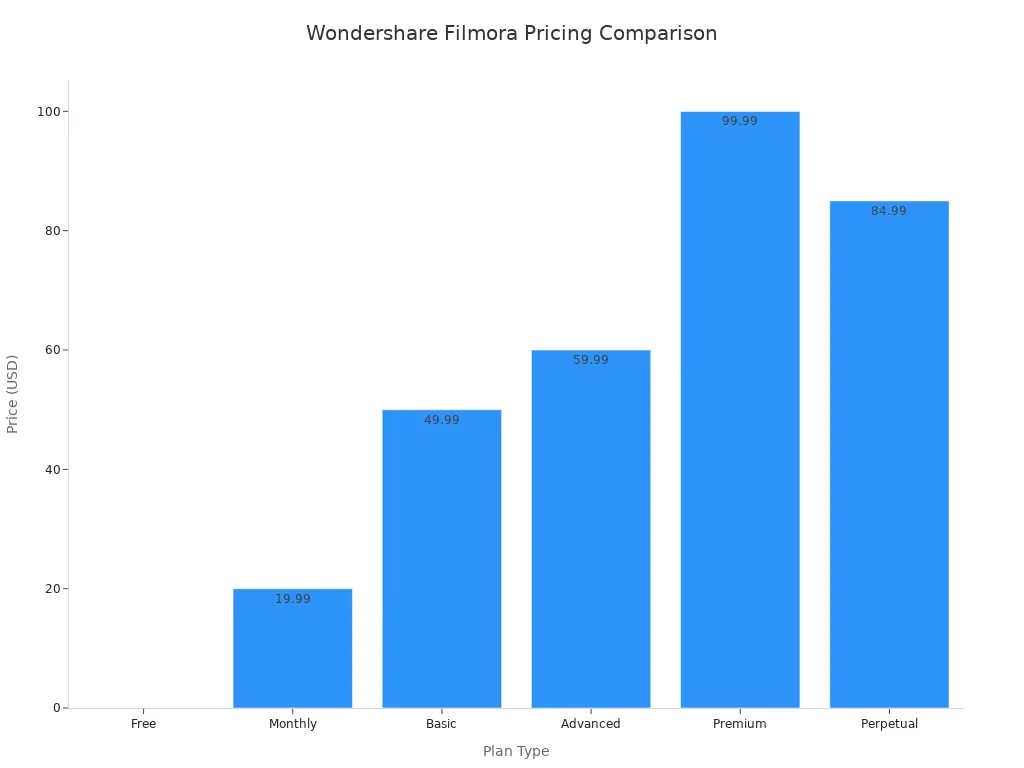
Wondershare Filmora offers a free trial with full-feature access for three days and a special promotion for new users. The free version allows basic editing but exports videos with a watermark. Subscription plans include monthly, annual, and perpetual licenses. Discounts are available for students and educators.
Use Cases
Upscaling low-resolution footage for YouTube and streaming platforms
Improving older videos for high-resolution displays
Restoring archival footage with visible noise or detail loss
Cleaning up noisy clips from low-light or compressed sources
Enhancing selected shots before final delivery
Creating before-and-after comparisons for AI demos or education
4. UniFab Video Upscaler AI
Video Upscale Features
UniFab Video Upscaler AI stands out among video upscalers for its advanced AI-driven technology. The platform uses neural networks and super-resolution models to enhance video sharpness and quality. Users benefit from fast processing speeds, thanks to GPU acceleration. The tool also offers denoising capabilities, which help resolve compression artifacts and noise while preserving the original look. Customization options allow users to adjust format, codec, and resolution for each project.
Feature | Description |
|---|---|
AI Assistance | Neural networks and super-resolution for sharpness and quality |
Video Enhancement Models | Optimized for all video types, balancing speed and quality |
Denoising | Removes noise and artifacts, maintains original quality |
Customization | Personalized settings for format, codec, and resolution |
GPU-Accelerated Speed | Processes videos up to 200 times faster for efficient workflows |
Pros and Cons
Pros:
- Fast batch processing with GPU acceleration
- Effective denoising and artifact removal
- Wide customization for different formats and resolutions
- Supports high-resolution output up to 16K
Cons:
- Advanced features may require a learning curve for new users
- Higher pricing for full-featured licenses
Compatibility
UniFab Video Upscaler AI supports a wide range of video formats, making it one of the most versatile video upscalers available. The software runs on both Windows and Mac platforms. Users can upscale videos to 1080p, 4K, 8K, or even 16K, ensuring compatibility with modern devices and displays.
Feature | Description |
|---|---|
Supported Formats | Broad format support for device compatibility |
Platforms | Windows and Mac |
Best for | Upscaling to 1080p, 4K, 8K, 16K with AI precision |
Pricing
UniFab All-In-One Lifetime License: $299.99
UniFab Video Enhance Pro: $174.99
Single Module (Upscaler AI): $99.99
Free Trial: 30-day full-featured trial with no watermarks
Use Cases
UniFab Video Upscaler AI serves a variety of needs in content creation and restoration. It is ideal for restoring personal archives, such as VHS or DVD footage, to digital quality. Content creators use it to repurpose old footage for documentaries and social media. Museums and studios rely on the tool for preserving historical content while maintaining authenticity.
Use Case | Description |
|---|---|
Personal archives | Restores degraded formats like VHS, MiniDV, and DVDs |
Content repurposing | Enhances old footage for documentaries and social media |
Preservation & compliance | Maintains authenticity for museums and studios |
5. AVCLabs Video Enhancer AI
Best AI Video Enhancer Functions
AVCLabs Video Enhancer AI uses advanced neural networks to restore and upscale video. The software can sharpen blurry footage, remove noise, and enhance facial details. It offers several AI models, including dedicated options for face refinement and motion smoothing. Users can upscale videos to 4K or even 8K. The tool also supports color correction and deinterlacing, making it suitable for both modern and archival content.
Key Features:
AI-powered upscaling to 4K/8K
Face refinement for portrait videos
Color enhancement and noise reduction
Motion smoothing and deinterlacing
Batch processing for multiple files
Pros and Cons
Pros | Cons |
|---|---|
High-quality AI upscaling | Processing can be slow |
Specialized face enhancement | Requires a powerful GPU |
Supports batch processing | Higher price for Pro+ version |
Simple, user-friendly interface | Limited editing features |
Compatibility
AVCLabs Video Enhancer AI works on both Windows and Mac platforms. It supports popular video formats such as MP4, AVI, MOV, and MKV. The software requires a dedicated GPU for optimal performance.
Pricing
Standard License: $99.90 per year
Pro+ License: $299.90 per year (includes advanced models and 8K upscaling)
Free Trial: Available with watermark on output
Use Cases
Tip: AVCLabs is ideal for users who want to restore old family videos, upscale YouTube content, or enhance facial details in interviews. Archivists and content creators often choose this tool for its reliable AI models and batch processing capabilities.
6. VidHex Video Restoration Software
Film Restoration Tools
VidHex Video Restoration Software offers a comprehensive suite of video restoration tools designed for both professionals and enthusiasts. The platform specializes in repairing damaged footage, correcting color, and stabilizing shaky clips. Users can access advanced deinterlacing, scratch removal, and frame-by-frame analysis. VidHex supports restoration of analog and digital sources, making it a versatile choice for anyone working with legacy media. The software also includes batch processing, which streamlines large projects and saves time.
Pros and Cons
Pros:
- Wide range of video restoration tools for film and tape
- Effective stabilization and deinterlacing features
- Supports high video resolution up to 8K
- Batch processing for efficient workflows
Cons:
- Interface may require adjustment for new users
- Advanced features can demand significant system resources
Compatibility
VidHex Video Restoration Software runs on both Windows and Mac systems. It supports popular formats such as MP4, MOV, AVI, and ProRes. The software handles various video resolution standards, including SD, HD, 4K, and 8K. Users can process footage from VHS, MiniDV, and digital cameras.
Pricing
VidHex offers a perpetual license starting at $149.90. This one-time fee includes all core video restoration tools and free updates for one year. Additional modules for advanced video resolution enhancement are available as add-ons.
Use Cases
Restoring archival films for museums and libraries
Enhancing home movies with improved video resolution
Repairing broadcast footage for television studios
Preparing legacy content for streaming platforms
Batch processing large collections with automated video restoration software
7. HitPaw VikPea
Enhance Video Quality Tools
HitPaw VikPea offers a suite of AI-powered tools designed for fast and effective video enhancement. The software uses deep learning to upscale resolution, sharpen blurry footage, and remove noise. Users can apply one-click enhancement to improve color, contrast, and clarity. VikPea also provides specialized filters for restoring old or damaged videos. The interface is simple, making it accessible for beginners and efficient for professionals who need quick results.
Key Features:
AI upscaling to 4K and 8K
Noise reduction and sharpening
Color correction and enhancement
Batch processing for multiple files
Real-time preview before export
Pros and Cons
Pros | Cons |
|---|---|
User-friendly interface | Limited advanced editing features |
Fast processing speeds | Watermark on free version |
Effective for quick enhancements | Some filters require Pro subscription |
Supports batch processing |
Compatibility
HitPaw VikPea runs on both Windows and Mac platforms. It supports popular video formats, including MP4, MOV, AVI, and MKV. The software works well on most modern computers and does not require high-end hardware.
Pricing
Monthly Subscription: $19.99
Annual Subscription: $69.99
Lifetime License: $129.99
Free trial available with watermark
Use Cases
Restoring family videos and home movies
Upscaling YouTube or social media content
Enhancing low-light or smartphone footage
Preparing clips for presentations or online sharing
Quick batch processing for content creators
Tip: HitPaw VikPea is ideal for users who want fast, AI-powered video enhancement without a steep learning curve.
Practical Tips to Enhance Video Quality
Preparing Old Footage
Manually adjust footage to correct common VHS issues such as color bleeding. Use period-accurate presets to maintain the original look when you restore old footage.
Enhance audio by removing hiss, hum, and background noise with specialized tools. Address audio sync problems frame by frame for a seamless experience.
Add personalized elements like titles, dates, and chapter markers to improve navigation and storytelling.
Export cleaned footage in widely supported formats such as MP4 or MOV. Always create master backups to protect your original files.
Archive final videos using high-quality codecs and multiple storage methods, including cloud and external drives, to prevent generation loss.
Optimizing Video Upscale Settings
To achieve the best results with ai video restoration, start with the highest quality input footage available. Place resource-intensive effects like Noise Reduction at the top of your effects list to optimize processing efficiency. Use dedicated GPUs to speed up ai video restoration and improve video quality. Select and fine-tune AI models using diverse datasets for adaptability. Inspect the output for artifacts, such as flickering or color distortion, and apply post-processing if needed. Test the final video on target devices to ensure the video quality meets expectations.
Avoiding Common Mistakes
Overprocessing can make videos look unnatural. Use video quality enhancer tools with moderation.
Neglecting audio restoration reduces the impact of ai video restoration, even if the visuals are improved.
Failing to preserve aspect ratio may distort images or crop important details.
Improper color grading can result in washed-out visuals.
Not backing up files risks losing progress during video quality enhancer workflows.
Tip: Consistent use of ai video restoration tools and careful attention to detail will help you improve video quality and achieve professional results.
Selecting the right video upscale tool depends on your workflow, project size, and technical skill. Review the table below for key factors:
Factor | Details |
|---|---|
Workflow Integration | API, desktop, or mobile options |
Volume | Large-scale or occasional use |
Quality Requirements | Broadcast, web, or professional output |
Budget | Free to enterprise pricing |
Technical Expertise | Beginner to advanced |
Test free trials before purchase. Explore more about AI video enhancement for future projects.
FAQ
The best ai video enhancer uses deep learning to analyze frames, restore lost details, and deliver high quality video. Regular video editing software lacks advanced noise reduction and ai-powered video enhancement.
Yes. Ai video enhancers and best film restoration software can enhance visual quality, increase video clarity, and provide high-resolution output. These tools offer professional quality for archival and personal projects.
Evaluate ai video enhancers based on ai-powered software, video enhancement tools, high-resolution output, and batch processing. Select the best ai video enhancer or film restoration software for your workflow and video quality improvement needs.