Looking for a Cheaper Alternative to UniConverter for MTS file conversion in 2026? Many users want more affordable options with strong features and flexible licensing. Compatibility with MTS files and an easy workflow matter most. Popular choices include:
TotalMedia Video Converter
HandBrake
Recent trends show users prefer tools with broad format support, batch processing, device presets, and AI-powered compression. Some also value user-friendly interfaces and real-time monitoring. Consider your needs, such as batch conversion or device-optimized presets, before making a selection.
1. TotalMedia Video Converter
Features
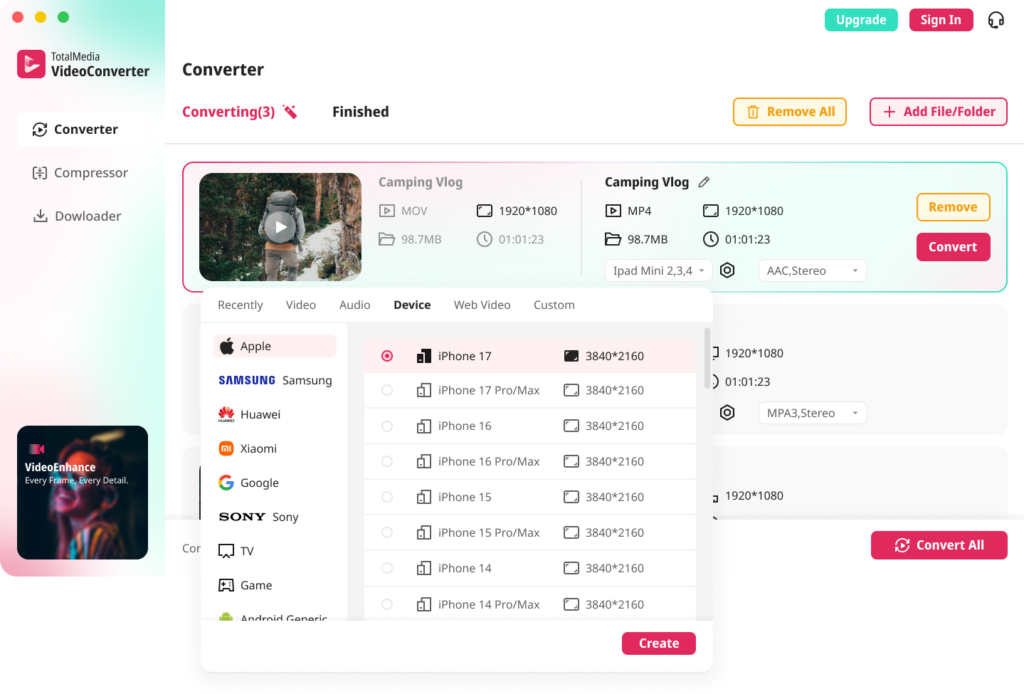
TotalMedia Video Converter stands out as a versatile solution for MTS file conversion. The software offers advanced capabilities that streamline the workflow for professionals and everyday users.
Batch Processing: Convert entire AVCHD STREAM folders at once, which saves time when handling multiple clips from a single event.
Custom Settings for Video Quality: Users can set the encoder to H.264, resolution to 1920×1080, and bitrate between 15–25 Mbps. This ensures high-quality output with minimal file size increase.
Audio Compatibility Solutions: The converter allows adjustment of the audio codec to AAC at a 48kHz sample rate. This feature resolves compatibility issues with MTS files in editing software and operating systems.
AI-Powered Smart Compression: The built-in compressor uses artificial intelligence to reduce file sizes while preserving perceptible quality.
Device-Optimized Presets: One-click presets for Apple, Samsung, Sony, and other brands simplify exporting for specific devices.
Real-Time Conversion Monitoring: Live progress dashboards and pause/cancel controls provide transparency and flexibility during conversion.
Pros & Cons
TotalMedia Video Converter delivers efficient batch conversion, customizable settings, and AI compression. The intuitive interface and device presets make it accessible for users of all skill levels. Real-time monitoring ensures users stay informed throughout the process.
Pricing
For the online video converter: $19.59/month, $39.59/year.
For the PC video converter: $9.59/month, $19.59/year, $39.59/perpetual license.
Conversion Guide
To convert MTS files with TotalMedia Video Converter, add your files or folders to the batch queue. Select the desired device preset or customize video and audio settings for optimal quality. Use the AI compression module to reduce file size if needed. Monitor progress in real time and pause or cancel jobs as required. TotalMedia is a Cheaper Alternative to UniConverter, offering robust features and flexible pricing.
2. HandBrake
Features
HandBrake is a popular Cheaper Alternative for users who need reliable MTS file conversion without high costs. This open-source software supports a wide range of video files, including non-protected DVD and Blu-ray sources. Users can convert MTS files to MP4, MKV, or WebM formats. HandBrake offers advanced video encoders such as H.264 and H.265, which help maintain quality while reducing file size. The software includes basic video editing tools like trim and crop, making it suitable for quick adjustments before conversion. Device presets for Android and iOS simplify the process for users targeting specific devices.
Feature | HandBrake |
|---|---|
License | Freeware |
Supported input files | Non-protected DVD, Blu-ray, Video files |
MP4, MKV, WebM | |
Video encoders | H.264, H.265 |
Video editing features | Trim, crop |
Ease of use | ★★★★☆ |
Learning curve | May require some time |
Pros & Cons
HandBrake stands out for its zero cost and advanced control features. However, some users find the interface complex and the processing speed slower than paid alternatives.
Pros:
Advanced control features for video conversion.
Device presets for Android and iOS.
Batch conversion function for efficiency.
Cons:
Challenging for beginners due to advanced settings.
Limited to three output formats.
Slow loading and converting speed.
Pricing
HandBrake is completely free. There are no hidden fees or subscription costs, making it an attractive option for budget-conscious users.
Conversion Guide
To convert MTS files with HandBrake, launch the application and add your MTS file. Select an output format such as MP4 or MKV. Choose a device preset if needed, or adjust video and audio settings manually. Use the trim or crop tools for basic editing. Start the conversion and monitor progress in the queue panel. HandBrake provides a straightforward workflow for those seeking a Cheaper Alternative to premium converters.
3. FFmpeg
Features
FFmpeg is a powerful, open-source command-line tool for video and audio conversion. It supports a wide range of formats, including MTS, making it suitable for professionals and advanced users. FFmpeg enables batch processing, custom encoding settings, and direct stream copying. Users can convert MTS files to MP4, MOV, AVI, and other popular formats. The software offers flexibility for automation and scripting, which is ideal for large-scale projects.
Feature | FFmpeg | UniConverter |
|---|---|---|
User Interface | Complicated for beginners | User-friendly |
Conversion Speed | Standard | High-speed with GPU acceleration |
Lossless Conversion | Not specified | Yes |
Video Editing Features | Limited | Advanced editing options available |
Supported Formats | Comprehensive but command-line focused | Over 150 audio and video formats |
Target Users | Advanced users | General users |
Pros & Cons
FFmpeg delivers unmatched flexibility and format support. It is a Cheaper Alternative for users who prefer command-line tools and need advanced customization.
Pros:
Free and open-source.
Supports nearly all video and audio formats.
Enables batch conversion and automation.
Highly customizable encoding options.
Cons:
Steep learning curve for beginners.
Limited graphical interface.
Basic editing features only.
Pricing
FFmpeg is completely free. There are no subscription fees or hidden costs. This makes it an attractive choice for users seeking a cost-effective solution.
Conversion Guide
To convert MTS files with FFmpeg, open a terminal or command prompt. Enter a command such as:
ffmpeg -i input.mts -c:v libx264 -preset fast -c:a aac output.mp4
This command converts an MTS file to MP4 using H.264 video and AAC audio codecs. Users can adjust parameters for quality and speed. FFmpeg is a reliable Cheaper Alternative for those comfortable with command-line operations.
4. VLC Media Player

Features
VLC Media Player is a well-known, open-source multimedia player that also offers basic video conversion capabilities. It supports a wide range of file formats, including MTS, without the need for additional codecs. Users can convert MTS files to popular formats such as MP4, AVI, or MOV. VLC runs on Windows, macOS, and Linux, making it accessible for most users. The software includes simple video and audio adjustment tools, which help users optimize their files for playback on different devices.
Pros & Cons
Many users choose VLC Media Player as a Cheaper Alternative because it is free and available on all major platforms. The software supports many file formats and does not require extra codec installations. However, VLC’s conversion features are limited compared to dedicated converters. The conversion process can be slower, and the interface for conversion tasks is less intuitive.
Advantages | Disadvantages |
|---|---|
Free to use | Limited conversion features compared to others |
Supports many file formats without extra codecs | Relatively slow conversion |
Available on all major platforms | Less intuitive interface for conversion tasks |
Pricing
VLC Media Player is completely free. There are no subscription fees or hidden costs. This makes it an attractive option for users who want to avoid expensive software.
Conversion Guide
To convert MTS files with VLC, open the application and select “Media” from the menu. Choose “Convert/Save,” then add your MTS file. Select the desired output format, such as MP4, and adjust any settings if needed. Click “Start” to begin the conversion. VLC provides a straightforward solution for users who need a Cheaper Alternative for basic MTS file conversion.
5. Freemake Video Converter
Features
Freemake Video Converter offers a practical solution for users who want to convert MTS files without a steep learning curve. The software supports over 500 input and output formats, including MTS, MP4, AVI, WMV, and MOV. Users can perform basic video editing tasks such as trimming, joining, and rotating clips. Freemake also provides device presets for smartphones, tablets, and gaming consoles, which simplifies the export process. The interface is clean and intuitive, making it easy for beginners to start converting files right away.
Pros & Cons
Freemake Video Converter receives praise for its user-friendly design and broad format support. Many users appreciate the ability to make simple edits before conversion. However, some reviews mention slower conversion speeds and watermarks on the free version. Advanced editing features are limited compared to professional tools.
Pros | Cons |
|---|---|
User-friendly interface | Slower conversion speeds |
Supports a wide range of formats | Potential watermarks on the free version |
Basic editing features | Limited advanced editing capabilities |
Freemake Video Converter stands out as a Cheaper Alternative for users who need essential conversion features without a high price tag.
Pricing
Freemake Video Converter is available as a free download, but the free version adds a watermark to output files. To remove watermarks and unlock premium features, users can purchase a subscription or a one-time license. Pricing starts at $19.95 per month, with discounts for annual or lifetime plans.
Conversion Guide
To convert MTS files, open Freemake Video Converter and add your files to the main window. Select the desired output format or device preset. Adjust basic settings if needed, then click “Convert” to start the process. The software will display progress and notify you when the conversion is complete.
6. Shutter Encoder
Features
Shutter Encoder is a multi-purpose video tool that appeals to users who want flexibility and control during MTS file conversion. It supports a wide range of video and audio formats, making it suitable for professionals and hobbyists. The software provides custom bitrate settings, which help manage file size without sacrificing quality. Users can access basic editing tools, such as cut, remove, split, and rotate, before converting their files. Shutter Encoder also includes a video downloader with adjustable quality settings, a subtitle embedding feature, and a watermark tool for adding or editing logos.
Feature | Description |
|---|---|
Video compressor | Custom bitrate settings for size management. |
Video converter | Extensive support for various formats. |
Basic editing tools | Includes cut, remove, split, and rotate options. |
Video downloader | Custom quality settings for downloads. |
Subtitle embedding | Allows for embedding and editing subtitles. |
Watermark tool | For adding and editing logos. |
Pros & Cons
Shutter Encoder offers a robust set of features for users seeking a Cheaper Alternative to premium converters. The interface is straightforward, which helps new users get started quickly. The software’s editing and compression tools add value for those who want more than simple conversion.
Pros:
Free to use with donations encouraged.
Supports many formats and codecs.
Includes editing, compression, and subtitle tools.
Cons:
Interface may feel basic for advanced users.
Occasional updates required for new codecs.
Pricing
Shutter Encoder is available for free. The developers encourage donations to support ongoing development, but there are no mandatory fees or subscriptions.
Conversion Guide
To convert MTS files, open Shutter Encoder and add your files to the main window. Select the desired output format and adjust bitrate or quality settings as needed. Use the editing tools to trim or rotate clips before conversion. Start the process and monitor progress in the status panel. Shutter Encoder provides a reliable Cheaper Alternative for users who want flexibility without extra cost.
7. AVS Video Converter
Features
AVS Video Converter provides a comprehensive set of tools for users who need to convert MTS files. The software supports playback of almost any video file extension, including MTS, MP4, AVI, and MOV. Users can create personal playlists and watch videos with subtitles. The program allows taking screenshots during playback, which is useful for content creators. AVS Video Converter is compatible with Windows operating systems, including Windows 10, 8, 7, Vista, and XP.
Pros & Cons
Aspect | Details |
|---|---|
Pros | – Supports playback of almost any video file extension |
– Ability to create personal playlists | |
– Can watch videos with subtitles | |
– Allows taking screenshots | |
Cons | – Some free tools now require payment |
– Interface is highly technical, which may be difficult for beginners | |
– Videos sometimes experience lag | |
Additional Info | – Free version has limitations; full version starts at $39.99 |
– Compatible with Windows 10, 8, 7, Vista, XP but not suitable for Mac users | |
User Rating | 2.8 out of 5 based on 195 reviews |
AVS Video Converter is a Cheaper Alternative for users who want broad format support and playlist features, but it may not be ideal for beginners due to its technical interface.
Pricing
AVS Video Converter: $59 for a full license.
The free version has limitations.
The full version starts at $39.99, depending on the license type.
Conversion Guide
To convert MTS files, open AVS Video Converter and add your files to the main window. Select the output format, such as MP4 or AVI. Adjust settings for video quality or subtitles if needed. Click “Convert Now” to start the process. The software will display progress and notify you when the conversion is complete. AVS Video Converter offers a practical solution for users seeking a Cheaper Alternative to premium converters.
Comparison Table of Cheaper Alternatives
The table below compares seven Cheaper Alternatives to UniConverter for MTS file conversion. Each tool offers unique strengths for different user needs.
Converter | Pricing (PC/Online) | Batch Conversion | Device Presets | AI Compression | Ease of Use | MTS Compatibility |
|---|---|---|---|---|---|---|
PC: $9.59/m, $19.59/y, $39.59/perpetual | ✔️ | ✔️ | ✔️ | ★★★★☆ | ✔️ | |
HandBrake | Free | ✔️ | ✔️ | ✖️ | ★★★★☆ | ✔️ |
FFmpeg | Free | ✔️ | ✖️ | ✖️ | ★★★☆☆ | ✔️ |
VLC Media Player | Free | ✖️ | ✖️ | ✖️ | ★★★☆☆ | ✔️ |
Freemake Video Converter | Free/$19.95/m | ✔️ | ✔️ | ✖️ | ★★★★☆ | ✔️ |
Shutter Encoder | Free (donation) | ✔️ | ✖️ | ✖️ | ★★★★☆ | ✔️ |
AVS Video Converter | $39.99-$59 | ✔️ | ✖️ | ✖️ | ★★★☆☆ | ✔️ |
Tip: Choose a Cheaper Alternative based on your workflow. Batch conversion is best with TotalMedia, HandBrake, FFmpeg, Freemake, Shutter Encoder, and AVS. Device presets are strongest in TotalMedia, HandBrake, and Freemake. AI compression is exclusive to TotalMedia. Free options include HandBrake, FFmpeg, VLC, and Shutter Encoder.
TotalMedia Video Converter is ideal for users who want AI compression and device presets.
HandBrake and FFmpeg suit those who prefer open-source solutions.
Freemake Video Converter offers a user-friendly interface for beginners.
Shutter Encoder provides flexibility for editing and conversion.
AVS Video Converter supports playlists and subtitle features.
The evaluation considered format support, conversion speed, and user-friendliness. Beginners benefit from tools like HandBrake and Freemake. Advanced users prefer FFmpeg or Shutter Encoder. Trial versions and broad format support help users find the right fit. Explore options, test features, and share your experiences for optimal results.
FAQ
HandBrake and FFmpeg both offer free, reliable MTS file conversion. These tools support batch processing and multiple formats without subscription fees.
Yes. The PC version starts at $9.59/month, $19.59/year, or $39.59/perpetual. The online version costs $19.59/month or $39.59/year.
Freemake Video Converter provides a simple interface. HandBrake also offers device presets for quick setup. Both are suitable for users with limited technical experience.