
Why 4K MOV Files Are So Large — and Why It Matters for Delivery
A single minute of 4K footage can run anywhere from 300MB to over 6GB depending on how it was recorded. A ten-minute finished edit exported from Final Cut Pro or DaVinci Resolve at high quality can easily exceed 20–30GB. That is not a file you can email, upload to most cloud platforms on a free tier, or send via WeTransfer without hitting a wall.
The challenge for professionals is not just making the file smaller — it is making it smaller without the client noticing. Quality loss in a delivery file reflects directly on your work. The compression settings you choose communicate your standards as much as the edit itself.
This guide covers the right compression approach for every client delivery scenario — review copies, final deliverables, web assets, and archival exports — with precise settings for each.

The core principle: Client delivery compression is not about making a file as small as possible. It is about finding the right file size for the delivery context while keeping quality above the threshold where clients can see the difference. That threshold is different for a web review link versus a broadcast-ready master.
Delivery Platform Size Limits: Know Your Target Before You Compress
The right compression target depends entirely on where the file is going. Compressing to 4GB when the platform caps at 2GB wastes time. Compressing to 500MB when the client needs a 4K master loses the account.
Common Delivery Platform Limits
| Platform | Free Tier Limit | Paid Tier Limit | Notes |
|---|---|---|---|
| WeTransfer | 2 GB per transfer | 200 GB (Pro) | Most widely used for freelance delivery |
| Google Drive | 15 GB total storage | Up to 30 TB (Google One) | Per-file cap is 5TB — quota is the constraint |
| Dropbox | 2 GB storage | 2 TB+ (Plus/Professional) | No single-file size limit within quota |
| Frame.io | 25 GB (free) | Unlimited (paid) | Purpose-built for video review, handles large files well |
| Vimeo Review | Varies by plan | Unlimited uploads (Premium) | Review links without download don’t require compression |
| Email (Gmail/Outlook) | 25 MB attachment | N/A | Never suitable for 4K delivery — use cloud links |
| Wetransfer (link share) | 2 GB | 200 GB (Pro) | Standard freelance workflow |
Recommended File Size Targets by Delivery Type
| Delivery Type | Target File Size | Rationale |
|---|---|---|
| Web review copy (client approval) | 500 MB – 1.5 GB | Fast loading, good enough for approval decisions |
| Final deliverable (web/social use) | 2 – 5 GB | Full quality for client’s downstream use |
| Broadcast / archival master | Uncompressed or minimal compression | Client needs maximum fidelity |
| Email-friendly preview clip | Under 25 MB | Not suitable for full 4K — use 720p proxy |
| WeTransfer free delivery | Under 2 GB | Hard platform limit |
| Frame.io review | 5 – 20 GB | Platform handles large files, prioritize quality |
Understanding 4K MOV Codecs Before You Compress

Not all 4K MOV files are the same. The codec inside your MOV determines how you should compress it — and what quality you can expect to preserve.
Common 4K MOV codecs by source:
| Source | Typical Codec | Typical Bit Rate | Notes |
|---|---|---|---|
| Final Cut Pro export | ProRes 422 / ProRes 4444 | 470–1000+ Mbps | Very large, designed for editing not delivery |
| DaVinci Resolve export | ProRes / H.264 / H.265 | Varies | Choose codec at export |
| Sony / Canon cameras | H.264 or H.265 | 50–200 Mbps | Camera-native, already compressed |
| DJI drones | H.264 or H.265 | 50–120 Mbps | High bit rate for 4K |
| iPhone (ProRes) | ProRes 422 | ~1.7 GB/min | Very large, needs compression for delivery |
ProRes files — the default export from Final Cut Pro — are the most common source of oversized 4K MOV files in professional workflows. ProRes is an editing codec, not a delivery codec. It is designed for maximum quality during post-production, not for sending to clients. Converting from ProRes to H.264 or H.265 MP4 or MOV is the standard professional delivery step.
Method 1: TotalMedia VideoConverter
TotalMedia VideoConverter handles 4K MOV compression on both Mac and Windows, with AI-assisted compression for quick jobs and full manual control for precise delivery specs. The real-time file size preview is particularly valuable for professional delivery — you know exactly what size the client will receive before you commit to the encode.
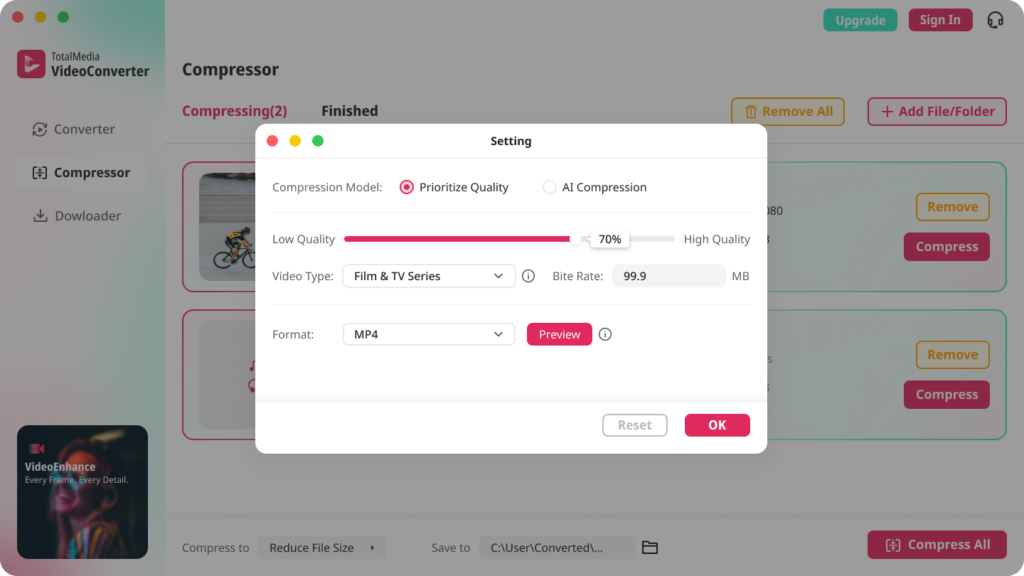
Option A: AI Compression for Fast Delivery
When you need a smaller file quickly and visual quality is the priority over hitting a specific size target:
- Open TotalMedia VideoConverter and click Compressor in the left sidebar.
- Click + Add File for AI Compression and select your 4K MOV file.
- Open the Compress to dropdown and select Reduce File Size.
- Check the real-time file size preview. If the predicted output meets your delivery platform’s limit, proceed. If not, note the gap and switch to Option B for manual control.
- Set your output folder via Save to and click Compress.
- When complete, open the Finished tab to review the before and after file sizes.
Option B: Manual Settings for Precise Delivery Specs
When you need to hit a specific file size — for example, under 2GB for WeTransfer free tier:
- Click Converter in the left sidebar.
- Click + Add File/Folder and add your MOV file or entire project folder.
- In the right panel, select the Video tab and choose MP4 or MOV as the output format depending on client requirements.
- Click the settings gear to open Custom Settings.
- Set the encoder to H.264 for maximum compatibility, or H.265 for smaller file sizes where client playback compatibility is confirmed.
- Set the resolution to 3840×2160 to preserve 4K, or drop to 1920×1080 for review copies.
- Calculate your target bit rate: Target file size (MB) × 8 ÷ duration (seconds) = required bit rate (Mbps). For a 10-minute video under 2GB: 2000 × 8 ÷ 600 ≈ 26 Mbps.
- Enter that bit rate in the Bit Rate field. Set frame rate to match the source exactly.
- Save the configuration as a named preset — for example, “4K Client Review H.264” or “4K Final Deliverable H.265” — for consistent reuse across projects.
- Click Convert All and monitor real-time progress in the dashboard.
Batch compression for multi-deliverable projects
When a single project requires multiple output versions — a web review copy, a compressed final deliverable, and a social media cut — use different saved presets applied to the same source file in sequence. TotalMedia VideoConverter’s batch processing handles all versions in one session.
Method 2: HandBrake (Free, Precise Bit Rate Control)
HandBrake handles 4K MOV compression well and is the best free option for professionals who need accurate file size targeting. Two-pass encoding is particularly important for delivery workflows where hitting a specific size matters.
Recommended settings for 4K MOV client delivery:
- Open HandBrake and add your MOV file via Open Source.
- Under Output Settings, set format to MP4 and codec to H.264 (x264) for compatibility or H.265 (x265) for smaller output.
- Under Dimensions, confirm the resolution is set to 3840×2160 for full 4K output. For review copies, change to 1920×1080.
- Under Video, switch from Constant Quality (RF) to Average Bitrate mode.
- Enter your calculated target bit rate. Enable 2-Pass Encoding for accurate file size results.
- Set Framerate to Same as source — never change this for professional delivery.
- Under Audio, set the output codec to AAC or AC3 depending on client requirements. For web delivery, AAC at 192–320 kbps is standard.
- Set your output destination and click Start Encode.
H.264 vs H.265 for client delivery in HandBrake:
Use H.264 when: client playback compatibility is unknown, deliverable will be used across multiple platforms, or the client uses older hardware.
Use H.265 when: client has confirmed compatible playback, file size reduction is critical, or the deliverable is for archival purposes. H.265 achieves comparable quality to H.264 at roughly half the bit rate — a 26 Mbps H.264 file can be matched in quality at approximately 13–15 Mbps H.265.
Recommended Compression Settings by Delivery Scenario
Scenario 1: Web Review Copy (Client Approval)
The client needs to watch the edit and approve. Quality needs to look professional on a laptop or desktop browser — not broadcast quality.
| Setting | Value |
|---|---|
| Format | MP4 |
| Codec | H.264 |
| Resolution | 1920×1080 (downscale from 4K) |
| Bit Rate | 8–12 Mbps |
| Audio | AAC, 192 kbps |
| Expected file size (10 min) | ~600 MB – 900 MB |
Scenario 2: Final Deliverable (Web / Social Use)
The client will use the file for YouTube, social media, or website embedding. Full 4K is ideal if the platform supports it.
| Setting | Value |
|---|---|
| Format | MP4 |
| Codec | H.264 or H.265 |
| Resolution | 3840×2160 (full 4K) |
| Bit Rate | 35–50 Mbps (H.264) / 18–25 Mbps (H.265) |
| Audio | AAC, 320 kbps |
| Expected file size (10 min) | ~2.5 – 3.5 GB (H.264) / ~1.5 – 2 GB (H.265) |
Scenario 3: WeTransfer Free Tier Delivery (Under 2GB)
Hard platform limit. Must compress to fit.
| Setting | Value |
|---|---|
| Format | MP4 |
| Codec | H.264 |
| Resolution | 1920×1080 for longer pieces / 3840×2160 for short clips |
| Bit Rate | Calculate: 2000MB × 8 ÷ duration(s) |
| Audio | AAC, 192 kbps |
| Target | Under 1.8 GB (leave headroom) |
Scenario 4: Broadcast / Archival Master
Client needs maximum fidelity. Do not compress beyond what the delivery medium requires.
| Setting | Value |
|---|---|
| Format | MOV |
| Codec | ProRes 422 HQ or H.264 at maximum bit rate |
| Resolution | 3840×2160 |
| Bit Rate | 80–100 Mbps minimum |
| Audio | PCM or AAC 320 kbps |
| Delivery method | Frame.io, Aspera, physical drive |
Preserving Color Accuracy in Compressed Deliverables
Color accuracy is non-negotiable in professional delivery. Compression can shift colors subtly if the wrong settings are applied — particularly when compressing Log or wide-gamut
footage.
A few rules that protect color accuracy during compression:
Never change the color space during compression. If your source is Rec. 709, output in Rec. 709. If your source is graded in P3 or Rec. 2020, confirm your client’s playback system supports it before delivering in a wide gamut. Mismatched color spaces cause washed-out or oversaturated output.
Apply color grading before compression. Compress the graded, finalized file — not the raw or Log source. Applying a LUT or grade after the fact in the compressed file is not a professional delivery workflow.
Check the compressed file on a calibrated display before sending. What looks correct on an uncalibrated laptop may have shifted during compression. A two-minute check on a reference monitor before delivery prevents client complaints.
Naming and Organizing Delivery Files
Compressed delivery files need clear naming conventions. A client receiving a file called final_v3_compressed_SMALL.mp4 immediately questions its quality. Naming communicates professionalism before the file even plays.
Recommended naming convention:
[ProjectName]_[Version]_[Resolution]_[Codec]_[Date].mp4
Examples:
BrandFilm_v2_1080p_H264_2026-04.mp4
ProductLaunch_Final_4K_H265_2026-04.mp4
EventHighlights_ReviewCopy_1080p_2026-04.mp4
Clear naming also protects you professionally — it shows the client exactly what they received and when, and prevents confusion between review copies and final deliverables.
FAQ
H.264 in an MP4 container is the safest choice for most client delivery scenarios — it plays on virtually every device and platform without compatibility issues. H.265 achieves equivalent quality at roughly half the bit rate, making it better for large files or tight platform limits, but requires the client’s playback device to support HEVC. For broadcast or archival masters, ProRes 422 HQ in a MOV container remains the professional standard.
Use TotalMedia VideoConverter’s AI Compressor module for fast, quality-preserving compression with a real-time file size preview before encoding. For manual control, use HandBrake with H.264 at 35–50 Mbps for full 4K output. At these bit rates, the compressed file is visually indistinguishable from the ProRes source for most client viewing scenarios. Always keep the original uncompressed file before compressing.
It depends on the delivery context. Web review copies work well at 500MB–1.5GB at 1080p. Full 4K final deliverables for web and social use typically run 2–5GB at H.264 settings. WeTransfer free tier caps at 2GB per transfer. Frame.io handles much larger files cleanly. Match your compression target to the delivery platform and the client’s intended use.
Yes. H.265 (HEVC) achieves roughly equivalent visual quality to H.264 at approximately half the bit rate. At the same file size, H.265 will look noticeably better — especially in fine detail and motion. The trade-off is slower encoding time and reduced compatibility on older playback devices. For clients on modern hardware, H.265 is the better delivery codec. For unknown or mixed playback environments, H.264 is safer.