
Why TikTok Won’t Accept Your AVI File
TikTok accepts MP4 and MOV files. AVI is neither. When you try to upload an AVI directly to TikTok — through the app or the web uploader — you will see a format error or the upload will silently fail.
Even if the upload somehow gets through, AVI files encoded with older codecs like DivX, Xvid, or MPEG-4 Part 2 will fail TikTok’s processing pipeline. The result: a blank video, processing error, or a clip that publishes but plays incorrectly.
There is also a second problem beyond format. Most AVI files are horizontal — 16:9 or 4:3 aspect ratio. TikTok is a vertical-first platform. An unconverted horizontal clip published on TikTok will have black bars on the sides or appear letterboxed, which tanks engagement on the platform.
Fixing both problems — format and aspect ratio — is what this guide covers.
What TikTok actually needs: MP4 container, H.264 video codec, AAC audio, 9:16 vertical aspect ratio at minimum 720p resolution, within the platform’s file size limits. Meet these four requirements and your upload will process cleanly every time.
TikTok Video Upload Specifications
TikTok’s recommended specs vary slightly depending on whether you upload via the mobile app or the web. Here is the full picture:
| Specification | Recommended Value |
|---|---|
| Container format | MP4 (recommended), MOV (accepted) |
| Video codec | H.264 |
| Audio codec | AAC |
| Aspect ratio | 9:16 (vertical, primary) / 1:1 (square) / 16:9 (horizontal) |
| Resolution | Minimum 720p — 1080×1920 recommended for 9:16 |
| Frame rate | 24–60 fps |
| Maximum file size (mobile app) | 287.6 MB (iOS) / 72 MB (Android) |
| Maximum file size (web upload) | Up to 4 GB |
| Maximum duration (standard) | 10 minutes |
| Maximum duration (select accounts) | 60 minutes |
| Minimum duration | 3 seconds |
The file size gap between mobile and web is significant. If you are uploading from a desktop browser via TikTok’s web uploader, the 4GB limit is generous. If you are uploading directly from an Android device, the 72MB cap makes compression essential for anything beyond a short clip.
Step 1: Convert AVI to MP4
Before addressing aspect ratio, get the format right. Converting AVI to H.264 MP4 is the foundation — everything else builds on a clean, compatible file.
Using TotalMedia VideoConverter
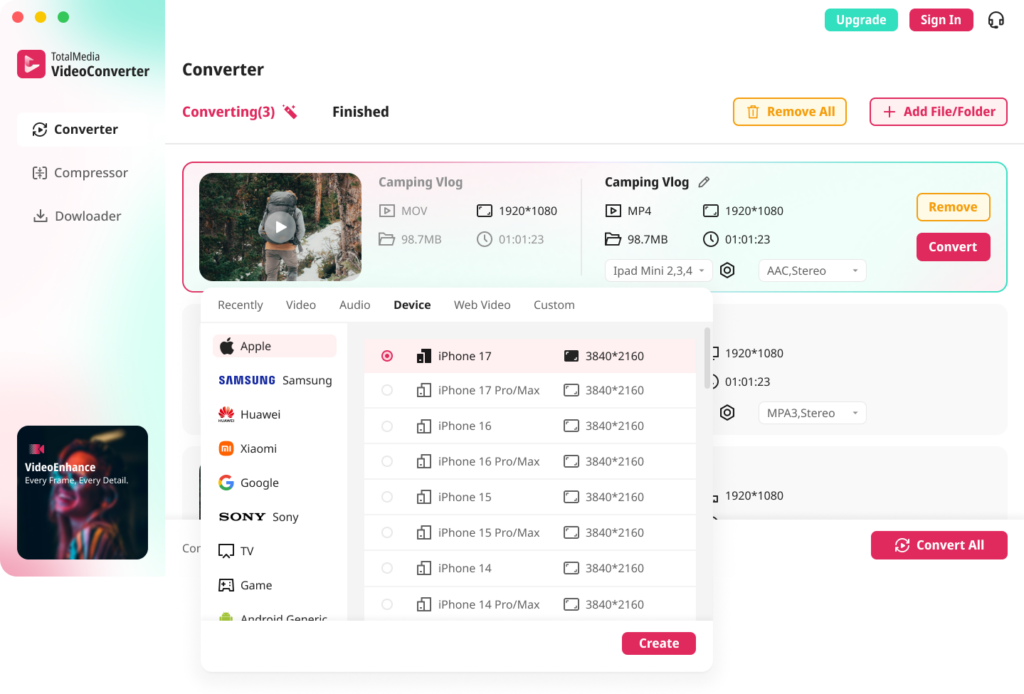
TotalMedia VideoConverter handles AVI to MP4 conversion on both Mac and Windows with full control over codec, resolution, frame rate, and bit rate. For TikTok workflows involving multiple clips, batch processing converts an entire folder in one session.
Step-by-step:
- Open TotalMedia VideoConverter and click Converter in the left sidebar.
- Click + Add File/Folder and select your AVI file or a folder of AVI clips.
- In the right panel, select the Video tab and choose MP4 as the output format.
- Click the settings gear to open Custom Settings.
- Set the encoder to H.264.
- Set the resolution to 1080×1920 for native vertical 9:16 output — or keep the source resolution if you plan to reframe in TikTok’s editor or CapCut afterward.
- Set the frame rate to match the source — 24, 25, or 30fps for most AVI footage.
- Set the bit rate to 8–15 Mbps for 1080p output. This balances quality and file size for TikTok’s processing pipeline.
- Set your audio codec to AAC in the Audio Settings panel.
- Save the configuration as a named preset — for example, “AVI to TikTok MP4” — for reuse across future uploads.
- Set your output folder via Save to and click Convert All.
- Monitor real-time progress in the dashboard. Find converted files in the Finished tab when complete.
Using HandBrake (Free Alternative)
- Open HandBrake and add your AVI file via Open Source.
- Under Output Settings, set format to MP4 and codec to H.264 (x264).
- Under Dimensions, set the resolution. For vertical TikTok output, set width to 1080 and height to 1920 — but only if your source footage is already vertical. For horizontal footage, keep the source dimensions and reframe afterward.
- Under Video, set Framerate to Same as source and Quality (RF) to 18–20.
- Under Audio, set codec to AAC at 192 kbps.
- Choose your output destination and click Start Encode.
Using FFmpeg (Command Line)
Convert AVI to TikTok-ready MP4:
ffmpeg -i input.avi -vcodec libx264 -b:v 8000k -acodec aac -b:a 192k -movflags +faststart output.mp4
Convert and resize to 1080×1920 vertical in one step (if source is already vertical):
ffmpeg -i input.avi -vf scale=1080:1920 -vcodec libx264 -b:v 8000k -acodec aac -b:a 192k -movflags +faststart output.mp4
The -movflags +faststart flag places the MP4 metadata at the beginning of the file, which can improve TikTok’s upload processing speed slightly.
Step 2: Compress for TikTok’s File Size Limits
After conversion, check the file size against your upload method’s limit. A one-minute MP4 at 8 Mbps runs approximately 60MB — comfortable for most scenarios. Longer clips or higher bit rates can push over the mobile app limits quickly.
Using TotalMedia VideoConverter’s AI Compressor
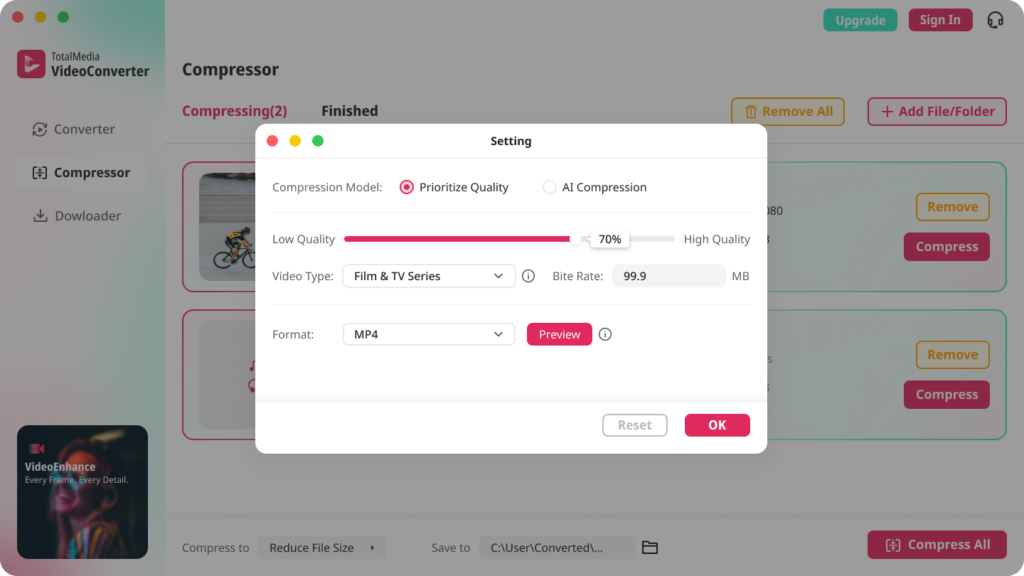
For clips that exceed the target file size after conversion:
- Click Compressor in the left sidebar.
- Click + Add File for AI Compression and select your converted MP4.
- Open the Compress to dropdown and select Reduce File Size.
- Check the real-time file size preview before committing. Confirm the predicted output falls within your target limit — 72MB for Android app upload, 287.6MB for iOS app upload, or 4GB for web upload.
- Set your output folder and click Compress.
- Check the Finished tab to compare before and after sizes.
Quick file size estimation for TikTok
| Duration | Bit Rate | Approximate File Size |
|---|---|---|
| 30 seconds | 8 Mbps | ~30 MB |
| 1 minute | 8 Mbps | ~60 MB |
| 3 minutes | 8 Mbps | ~180 MB |
| 10 minutes | 8 Mbps | ~600 MB |
| 10 minutes | 4 Mbps | ~300 MB |
For Android app uploads with the 72MB cap, keep clips under 90 seconds at 8 Mbps — or drop to 4 Mbps for longer content. Web upload via desktop browser removes the practical file size constraint for most creators.
Step 3: Reframe for TikTok’s Vertical Format
Most AVI files are horizontal — 16:9 from cameras, or 4:3 from older recordings. TikTok’s primary format is 9:16 vertical. Publishing a horizontal video on TikTok without reframing produces a small letterboxed clip surrounded by black bars — or TikTok’s auto-generated blurred background fill, which looks amateurish.
Reframing is a creative decision and requires a video editor. TotalMedia VideoConverter handles format conversion and compression — reframing belongs in a dedicated editing tool. Here are the three standard approaches:
Option A: Crop to 9:16 (Cleanest Look)
Crop the horizontal frame to a vertical 9:16 crop, keeping the most important subject in the frame. This loses the edges of the frame but produces a clean, native-looking TikTok video.
Best tool: CapCut (free, mobile and desktop) — use the Ratio tool to set 9:16 and reposition the crop.
Best for: footage where the main subject is centered and the edges are not critical.
Option B: Add Blurred Background Fill (Most Common)
Keep the full horizontal frame and fill the top and bottom of the 9:16 canvas with a blurred version of the same video. This is the most common approach on TikTok — it looks intentional and retains the full frame.
Best tool: CapCut — place the video on a 9:16 canvas, duplicate the layer, scale the bottom layer to fill the canvas, apply a blur effect, and place the original on top.
Best for: footage where the full frame matters — interviews, events, landscapes.
Option C: Add Text or Graphics to Fill Space
Keep the horizontal video centered in the 9:16 canvas and fill the top and bottom with text overlays, captions, or branded graphics. Popular for educational content and commentary videos.
Best tool: CapCut or TikTok’s built-in editor for text and caption placement.
Best for: talking-head content, tutorials, reaction videos.
Complete AVI to TikTok Workflow
Putting it all together:
AVI source file
    ↓
Convert to H.264 MP4 (TotalMedia VideoConverter or HandBrake)
    ↓
Check file size vs. upload method limit
    ↓
Compress if needed (TotalMedia AI Compressor)
    ↓
Reframe to 9:16 if horizontal (CapCut or TikTok editor)
    ↓
Upload via TikTok app or web uploader
Each step is independent. If your AVI source is already vertical, skip Step 3. If the converted file is under your size limit, skip compression. The full workflow takes 5–10 minutes for a typical clip once your conversion preset is saved.
Common AVI to TikTok Upload Problems and Fixes
“This file format is not supported” on TikTok upload: Your file is likely still in AVI format or contains a non-H.264 codec inside an MP4 container. Check the codec using MediaInfo and reconvert to a clean H.264 MP4 using TotalMedia VideoConverter or HandBrake.
Video uploads but shows as black screen: The codec inside the converted MP4 is not H.264 — possibly MPEG-4 Part 2 or another codec that TikTok’s pipeline does not handle. Explicitly set the encoder to H.264 during conversion and re-upload.
Upload keeps failing on Android: File size almost certainly exceeds the 72MB Android app limit. Compress using TotalMedia VideoConverter’s AI Compressor or reduce the bit rate in your conversion settings. Alternatively, upload via TikTok’s web uploader on desktop where the limit is 4GB.
Video looks blurry after TikTok processes it: TikTok re-encodes every uploaded video and serves lower quality initially while higher resolution processes. Wait 10–30 minutes after upload. If quality is still poor, the source bit rate was too low — re-convert at 8–15 Mbps and re-upload.
Horizontal black bars on TikTok: The video was uploaded in 16:9 or 4:3 without reframing for TikTok’s 9:16 canvas. Reframe using CapCut or TikTok’s built-in editor before or after upload using one of the three approaches in Step 3.
Audio out of sync after conversion: Check that the source AVI’s audio codec is being re-encoded to AAC during conversion. Some AVI files use MP3 or AC3 audio — mishandled audio codec conversion causes sync drift. In TotalMedia VideoConverter, confirm the audio codec is set to AAC in Custom Settings. In HandBrake, check the Audio tab explicitly.
FAQ
No. TikTok accepts MP4 and MOV files. AVI files must be converted to MP4 with H.264 video encoding and AAC audio before uploading. Attempting to upload an AVI file directly results in a format error or a failed upload with no clear error message.
MP4 with H.264 video encoding, AAC audio, and a 9:16 vertical aspect ratio at 1080×1920 resolution. This combination processes fastest through TikTok’s pipeline and produces the best quality output. Frame rate should match the source — 24, 25, or 30fps for most content.
HandBrake is the best free option. Open your AVI file, select H.264 MP4 as the output format, set framerate to Same as source, quality to RF 18–20, and audio to AAC. For batch conversion with a TikTok-optimized preset and real-time file size preview, TotalMedia VideoConverter offers a free tier on both Mac and Windows.