Why iPhone Won’t Play AVI Files
AVI is one of the oldest video container formats still in wide use. It was developed by Microsoft in 1992 and remains common for older recordings, downloaded files, and Windows-originated video content. iPhones have never natively supported it.
Apple’s iOS supports a specific set of video formats — MP4, MOV, and M4V being the primary ones. AVI is not on that list and never has been. When you try to open an AVI file on iPhone, you get a blank screen, an error, or simply nothing at all.
The solution depends on where you want to do the work — on the iPhone itself, in a browser, or on a computer before transferring.
Why MP4 specifically? MP4 with H.264 video and AAC audio is the most universally compatible format across Apple devices. It plays natively in the Photos app, syncs cleanly with iCloud, and uploads without issues to every major platform. It is the right target format for any AVI conversion destined for iPhone use.
Method 1: VLC for iPhone (No Conversion Needed)
The fastest solution is not converting the AVI at all — it is using a player that supports AVI natively on iPhone.
VLC Media Player plays AVI, MKV, MOV, MP4, and dozens of other formats without any conversion step. If your only goal is to watch the AVI file on your iPhone rather than edit or share it, VLC eliminates the problem entirely.
How to use VLC to play AVI on iPhone:
- Download VLC for Mobile from the App Store — it is free.
- Transfer your AVI file to your iPhone using one of these methods:
- AirDrop from a Mac or another iPhone
- iTunes / Finder file sharing via USB cable
- Files app from iCloud Drive, Dropbox, or Google Drive
- Open VLC on your iPhone. Your transferred file will appear in the app’s media library.
- Tap the file to play it immediately — no conversion required.
Limitation: VLC plays the file but does not convert it. If you need the file as an MP4 for editing, sharing via iMessage, or uploading to social media, you will still need to convert it. Use one of the methods below for those use cases.
Method 2: Convert AVI to MP4 Using an iPhone App
For users who need an actual MP4 output — not just playback — a dedicated conversion app is the right tool.
Transcoder
Transcoder is one of the most capable video conversion apps available on iOS. It handles AVI to MP4 conversion directly on the iPhone without requiring a computer or internet connection.
How to convert AVI to MP4 with Transcoder:
- Download Transcoder from the App Store. A free tier is available with limitations; the paid version removes restrictions on file size and output quality.
- Open the app and tap the + button to import your AVI file. You can import from the Files app, iCloud Drive, Dropbox, or Google Drive.
- Tap the imported file and select Convert.
- Set the output format to MP4 and the codec to H.264.
- Adjust resolution and quality if needed — for most use cases, matching the source resolution is the right choice.
- Tap Start and wait for conversion to complete. Conversion time depends on file size and iPhone model.
- Save the output to your Camera Roll or Files app.
Limitation: On-device conversion uses your iPhone’s processor. Large AVI files — anything over 1–2GB — will take significant time and drain battery. For large files, the desktop workflow in Method 4 is faster and produces better results.
Method 3: Convert AVI to MP4 in a Browser (No App Needed)
If you do not want to install an app, browser-based conversion tools work directly from Safari on iPhone. No software installation required.
Several reputable online converters handle AVI to MP4:
- CloudConvert (cloudconvert.com) — supports AVI to MP4, offers quality control, free tier available with daily limits
- Convertio (convertio.co) — straightforward interface, supports files up to 100MB on the free tier
- FreeConvert (freeconvert.com) — handles larger files up to 1GB on the free tier
General workflow for any browser-based converter:
- Open Safari on your iPhone and navigate to your chosen converter.
- Upload your AVI file. Files stored in iCloud Drive, Google Drive, or Dropbox can often be linked directly without uploading from local storage.
- Set the output format to MP4.
- Start the conversion and wait for processing to complete.
- Download the converted MP4 directly to your iPhone’s Files app or Camera Roll.
Limitations to be aware of:
- Free tiers typically cap file size at 100MB–1GB. AVI files are often large — a one-hour AVI can easily exceed 2GB.
- Your file is uploaded to a third-party server. Avoid this method for sensitive or private video content.
- Conversion quality depends on the tool. Browser converters offer less control over output bit rate and encoding profile than desktop software.
For small AVI files or one-off conversions, browser tools are convenient. For regular use or large files, Method 4 gives better results.
Method 4: Convert on PC or Mac, Then Transfer to iPhone (Best Quality)
For large files, batch conversions, or situations where output quality matters — editing footage, archiving recordings, preparing clips for social media — converting on a computer and transferring to iPhone produces the best results.
Desktop software has access to more processing power, better codec implementations, and finer control over output settings than any iPhone app or browser tool.
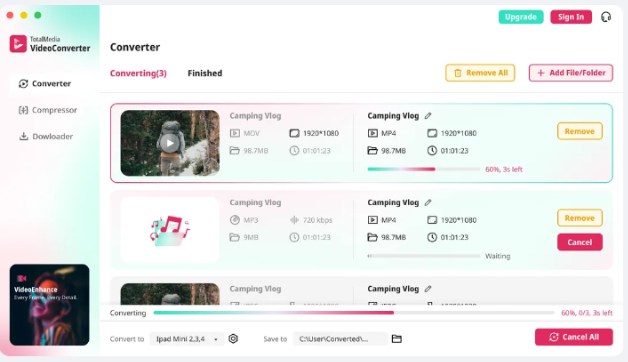
Step 1: Convert on PC or Mac Using TotalMedia VideoConverter
TotalMedia VideoConverter handles AVI to MP4 conversion with full control over encoder, resolution, frame rate, and bit rate — and processes entire folders at once.
Step-by-step:
- Open TotalMedia VideoConverter and click Converter in the left sidebar.
- Click + Add File/Folder and select your AVI file or folder of AVI files.
- In the right panel, select the Video tab and choose MP4 as the output format.
- Click the settings gear to open Custom Settings. Set the encoder to H.264. Match the source resolution and frame rate.
- For iPhone playback, a bit rate of 5–8 Mbps at 1080p is more than sufficient and keeps file sizes manageable for transfer.
- Alternatively, navigate to the Device tab and select Apple > iPhone to apply a device-optimized preset automatically. This sets the correct codec, resolution, and bit rate for your specific iPhone model without manual configuration.
- Save the configuration as a preset for future use.
- Set your output folder via Save to and click Convert All.
- Monitor real-time progress in the dashboard. Converted files appear in the Finished tab when complete.
Step 2: Transfer the Converted MP4 to iPhone
Once conversion is complete, move the MP4 to your iPhone using whichever method suits your setup.
AirDrop (Mac only, wireless):
- On your Mac, right-click the converted MP4 and select Share > AirDrop.
- Select your iPhone from the AirDrop panel.
- Accept the transfer on your iPhone. The file saves to the Files app and can be moved to the Camera Roll from there.
iCloud Drive (Mac or PC, wireless):
- Move the converted MP4 to your iCloud Drive folder on your computer.
- On your iPhone, open the Files app > iCloud Drive and download the file.
- Tap and hold the file to save it to your Camera Roll if needed.
USB Cable (Mac or PC, fastest for large files):
- Connect your iPhone to your computer via USB cable.
- On Mac: open Finder, select your iPhone in the sidebar, go to Files, and drag the MP4 into the VLC or Files section — or use Image Capture to import directly to Photos.
- On PC: open iTunes, select your device, go to File Sharing, select an app like VLC, and drag the MP4 in. Alternatively, your iPhone appears as a drive in File Explorer — drag the MP4 into the DCIM folder.
Which Method Should You Use?
| VLC Playback | iPhone App | Browser Tool | Desktop + Transfer | |
|---|---|---|---|---|
| Converts to MP4 | No | Yes | Yes | Yes |
| Works on iPhone only | Yes | Yes | Yes | No — needs a computer |
| Best for large files | Yes | No | No | Yes |
| Output quality control | N/A | Limited | Limited | Full control |
| Batch processing | No | No | No | Yes |
| Free | Yes | Partially | Partially | Free / Pro tiers |
| Best use case | Just want to watch | Small files, no computer | Quick one-off | Large files, best quality |
FAQ
iPhone does not natively support AVI files. Apple’s iOS is built around MP4, MOV, and M4V formats. To play AVI on iPhone, either use VLC for Mobile — which plays AVI without converting — or convert the AVI to MP4 using an app like Transcoder, a browser-based tool, or desktop software like TotalMedia VideoConverter.
Transcoder is one of the most capable free options available on the App Store for on-device AVI to MP4 conversion. VLC for Mobile is free and plays AVI files without converting, which is faster if playback is all you need. For large files, browser-based tools like CloudConvert handle conversion without requiring an app.
TotalMedia VideoConverter is a desktop application for PC and Mac. It does not have an iPhone app. However, it is an effective part of a desktop-to-iPhone workflow — convert your AVI files to iPhone-optimized MP4 on your computer, then transfer to your iPhone via AirDrop, iCloud Drive, or USB cable.