
Converting one video is easy. Converting fifty is where things get annoying.
Different formats. Different settings. Too many clicks.
The fastest way to convert an entire folder of videos to MP4 is to use batch processing, where all files are converted in one go using the same output settings.
Once you set it up properly, the process becomes almost hands-off.
What does it mean to convert a folder of videos to MP4?
Converting a folder of videos to MP4 means processing multiple video files at once and exporting them into the MP4 format using a single workflow.
Instead of opening each file individually, you:
- Import a full folder
- Apply one format (MP4)
- Convert everything together
This is called batch conversion.
It’s not just faster. It’s more consistent.
Why use MP4 as the output format?
MP4 is the most widely supported video format across devices, platforms, and editing tools.
That’s why it’s usually the default choice.
Broad compatibility
MP4 works on:
- Windows and macOS
- iOS and Android
- YouTube and social platforms
Good balance of quality and size
It keeps video quality high while maintaining manageable file sizes.
Easier sharing and uploading
Most platforms expect MP4. Using anything else often leads to extra conversion later.

How to convert an entire folder of videos to MP4
The simplest method is to use a tool that supports batch processing and folder import.
Here’s the general workflow.
Step 1: Import the entire folder
Start by adding all video files at once instead of selecting them individually.
Most batch tools allow:
- Drag and drop of folders
- “Add Folder” option
This automatically queues every video inside.
Step 2: Select MP4 as output format
Choose MP4 as the output format for all files in the queue.
Look for:
- MP4 (H.264) for general use
- Presets if available (YouTube, mobile, etc.)
Keep it simple unless you need custom settings.
Step 3: Adjust settings (optional)
You only need to tweak settings if you want control over quality or file size.
Key options include:
- Resolution (keep original or scale down)
- Bitrate (higher = better quality, larger size)
- Frame rate (match source for best results)
If you’re unsure, default settings usually work well.
Step 4: Choose output folder
Set where all converted files will be saved.
Tip:
- Use a separate folder to avoid mixing original and converted files
It keeps things clean, especially with large batches.
Step 5: Start batch conversion
Run the conversion once and let it process everything automatically.
This is where batch processing saves time.
You don’t need to:
- Restart for each file
- Reapply settings
- Monitor constantly
A practical way to batch convert videos
Using a tool with built-in batch processing is the most efficient way to handle large folders.
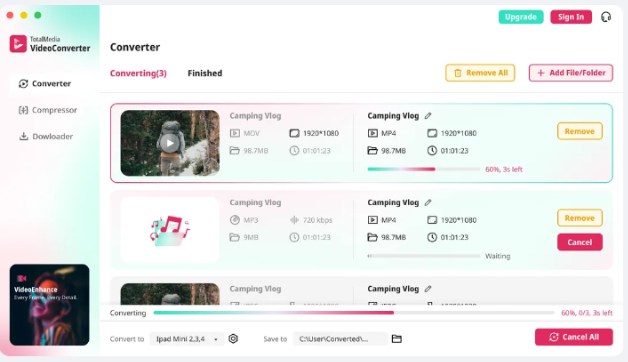
For example, tools like TotalMedia VideoConverter allow you to:
- Import entire folders at once
- Convert multiple videos simultaneously
- Apply the same MP4 settings across all files
- Monitor progress in a single dashboard
The key advantage isn’t just speed. It’s consistency across every output file.
Best settings for converting videos to MP4
The best settings depend on how you plan to use the videos, but a few defaults work in most cases.
Recommended settings
- Format: MP4 (H.264)
- Resolution: Keep original
- Frame rate: Same as source
- Bitrate: Medium to high
These settings preserve quality without creating unnecessarily large files.
Common mistakes to avoid
Batch conversion is simple, but small mistakes can affect every file in the folder.
Using incorrect output settings
One wrong setting applies to all files. Double-check before starting.
Over-compressing videos
Trying to reduce file size too much leads to visible quality loss.
Mixing different resolutions blindly
If your folder contains mixed resolutions, applying one setting may not suit all videos.
Saving over original files
Always export to a new folder to avoid losing original footage.

FAQ: Converting multiple videos to MP4
Use a batch video converter that supports folder import. Add the folder, select MP4 as output, and run conversion in one process.
Batch processing is the fastest method because it converts all files simultaneously or in sequence without manual input.
It can, depending on your settings. Using a higher bitrate and proper resolution helps preserve quality.
Yes. Most batch converters support mixed input formats and convert them all to MP4 in one workflow.