LG Smart TVs officially support MKV. That’s true. It’s also incomplete.
MKV is a container, not a codec. What’s inside the container determines whether your LG TV plays it. An MKV with H.264 video and AAC audio plays fine. An MKV with DTS audio, HEVC video on an older model, or VP9 on certain TVs — doesn’t. Same file extension. Completely different result.
Here’s why it happens and how to fix it.
Why MKV Files Fail on LG Smart TVs
Most new LG TV models from 2022 to 2025 do support MKV video playback. However, if you are having a problem playing an MKV video on LG TV, it’s most likely because your MKV video is not encoded with the H.264 compression method.
Though LG TVs claim to support a wide range of video and audio formats, MKV not playing errors come up frequently. The causes include unsupported format or codec, incompatible audio tracks, and file size limitations.
The three most common causes:
Wrong Video Codec Inside the MKV
MKV is only a container format. Inside it, files can hold different video and audio encoded by various codecs. Most LG TVs only support MP4 video encoded with H.264 codec. So if your MKV video is encoded with AVC, HEVC, MPEG-4, MPEG-2, VP8, VP9, DivX, or Xvid codec, you will most likely fail to play the MKV file.
H.264 is the safest codec for LG TV USB playback across all model years and tiers. Everything else has some model or firmware-specific restriction.
Unsupported Audio Codec
A common MKV playback problem on LG Smart TV is the audio format not being supported. Users report their LG TV plays MKV video but says “Sound format is not supported” or plays video without any audio.
For LG TVs released in 2020, the DTS codec is not supported. DTS is only supported when playing video files via USB and HDMI on earlier models.
MKV files downloaded from the internet — particularly movie rips — frequently contain DTS or Dolby TrueHD audio. Both cause problems on many LG TV models. AAC or AC3 audio is the safe choice.
USB Drive Formatted Incorrectly
USB drives must be formatted in FAT32 or NTFS to be recognized by LG TVs. exFAT drives — which many computers format by default — are not reliably supported for media playback across all LG TV models. If your TV doesn’t recognize the drive at all, file system format is the first thing to check.
FAT32 has a 4GB per-file limit. Large MKV files — particularly 4K movies — regularly exceed this. Format the drive as NTFS for files over 4GB.
LG TV Supported Video Specs for USB Playback
The safest combination for guaranteed playback across all LG Smart TV models:
| Setting | Safe Value |
|---|---|
| Container | MP4 or MKV |
| Video codec | H.264 |
| Audio codec | AAC or AC3 |
| Resolution | Up to 3840×2160 for 4K models |
| Frame rate | Up to 60fps |
| USB file system | FAT32 (under 4GB) or NTFS |
From LG’s official specifications, almost all LG TVs including OLED, NANOCELL, ULTRA HD 4K, and LED models support ASF, WMV, DIVX, AVI, MP4, M4V, MOV, 3GP, 3G2, MKV, TS, TRP, TP, MTS, MPG, and DAT container formats — but codec support within each container varies significantly by model year.
MKV with MPEG-2, MPEG-4, H.264, VP8, VP9, HEVC with Dolby Digital, DTS, MP3, or AAC audio is listed as supported for some LG 4K TV models — but note that VP9 playback support depends on the specific LG TV model.
The practical conclusion: H.264 with AAC audio in either MKV or MP4 plays on every LG TV without exception. Everything else has some asterisk.
Method 1: TotalMedia VideoConverter — LG Device Preset
TotalMedia VideoConverter includes an LG TV device preset that automatically applies the correct codec, resolution, and audio settings for LG TV USB playback.
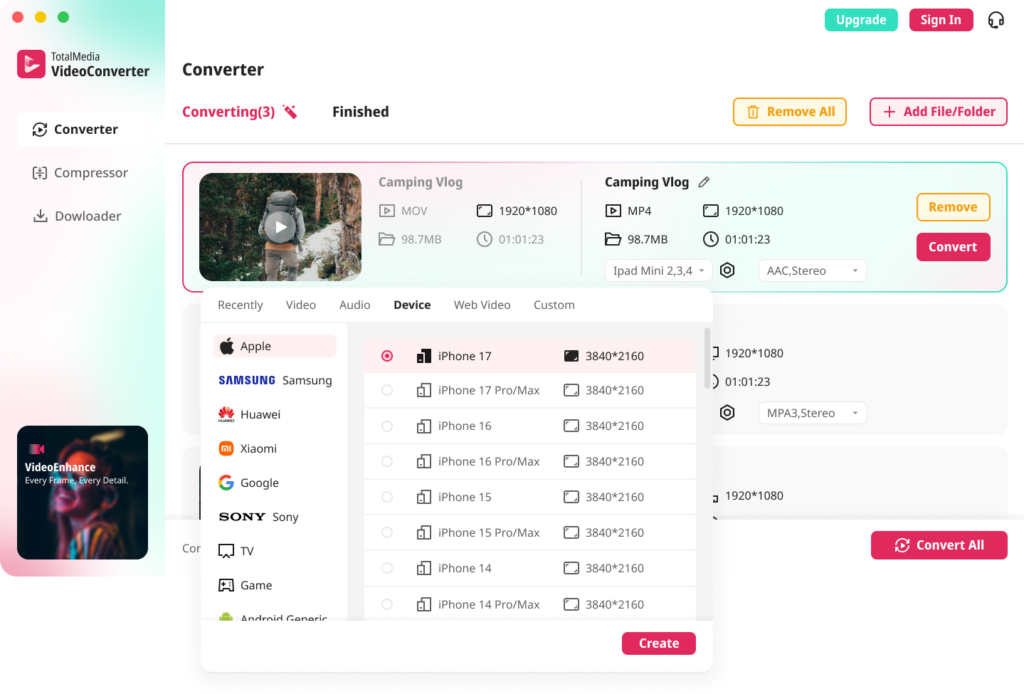
- Open TotalMedia VideoConverter and click Converter in the left sidebar
- Add your MKV file — drag and drop or use Add File/Folder for batch conversion
- Click the Device tab and navigate to the LG TV preset — this automatically sets H.264 video and AAC audio in an MP4 container
- For custom control, open Custom Settings — confirm encoder is H.264, audio codec is AAC, resolution matches source
- Set output folder and click Convert
For a library of MKV files — a collection of downloaded movies or TV series — batch processing converts the entire folder in one session with consistent output settings. Available as both a desktop application and a web app. No installation required for the browser version.
Method 2: HandBrake — Free, No File Size Limits
HandBrake handles MKV to MP4 conversion on Windows and Mac.
- Download HandBrake from handbrake.fr
- Load your MKV file via File under Source Selection
- Under Summary, confirm output format is MP4
- Go to the Video tab — confirm encoder is H.264
- Go to the Audio tab — set codec to AAC. Remove any DTS or Dolby TrueHD tracks. If you want surround sound, add an AC3 passthrough track
- Under Dimensions, confirm resolution matches source
- Click Start Encode
One specific note for LG TV audio: if your MKV has DTS audio and you want to keep surround sound, add both an AAC stereo track and an AC3 5.1 track in the Audio tab. The LG TV uses AAC as fallback if AC3 isn’t supported on your specific model.
Method 3: VLC — Quick Fix for Compatible MKV Files
VLC on your computer can remux MKV to MP4 without re-encoding — much faster than a full conversion when the video codec is already H.264 and only the container or audio needs changing.
- Open VLC and click Media, then Convert/Save
- Add your MKV file and click Convert/Save
- Select Video — H.264 + MP3 (MP4) from the profile dropdown
- Click the profile settings icon — under Audio Codec, switch to AAC
- Set output file with .mp4 extension
- Click Start
This remux approach preserves video quality entirely — no re-encoding, no quality loss. It only works correctly when the source MKV uses H.264 video. If the source uses HEVC or another codec, use HandBrake or TotalMedia VideoConverter for a full transcode.
USB Drive Setup for LG TV
Getting the drive configured correctly is as important as the file format.
- Format the USB drive as NTFS — right-click the drive on Windows, select Format, choose NTFS. For Mac, use Disk Utility and select ExFAT only if your LG TV model explicitly supports it — otherwise use a Windows PC to format as NTFS
- Create a folder in the root directory of the drive — name it “Movies” or “Video”
- Copy your converted MP4 or MKV files into that folder
- Safely eject the drive
- Connect to any USB port on your LG TV
- Press the Home button on your remote, navigate to the USB device in the media player, and select your video file
If only pictures and music files display on screen when a USB device is connected to your LG TV, it indicates that the model does not support video playback via USB at all — this affects some lower-end LG TV models regardless of file format. Check your TV’s user manual if no video files appear regardless of format.
Troubleshooting Guide
| Problem | Cause | Fix |
|---|---|---|
| “Invalid format” error | Wrong video codec inside MKV | Convert to H.264 video in MP4 container |
| Video plays but no audio | DTS or unsupported audio codec | Re-encode audio to AAC or AC3 |
| USB drive not recognized | Wrong file system format | Reformat to NTFS |
| 4K MKV won’t play | HEVC codec on older LG model | Convert to H.264 — or check if your model supports HEVC |
| Some MKV files play, others don’t | Mixed codecs across files | Check individual file codec with VLC Media Information |
| No video files appear at all | Model doesn’t support USB video playback | Check TV manual — some budget LG models have no video USB support |
| File plays but choppy | Bitrate exceeds TV’s decoding limit | Convert at lower bitrate — try 15–20 Mbps for 1080p |
How to Check What Codec Is Inside Your MKV Before Converting
Before converting, check whether conversion is actually needed.
In VLC on Windows or Mac: open the MKV file, go to Tools, then Media Information, then the Codec tab. Look for the video codec — if it shows H.264 or AVC, the video is compatible. Check the audio codec — if it shows AAC or AC3, audio is compatible. If the video shows HEVC or H.265 and your LG TV is an older model, conversion is needed.
On Windows, right-click the MKV file, select Properties, then Details — the file details panel shows codec information for many common codecs without additional software.
This check takes 30 seconds and tells you exactly whether you need to convert or just remux.
Frequently Asked Questions
LG TVs claim to support MKV but the error typically comes from unsupported codec inside the container — not the MKV format itself. Check the video codec inside the file. If it’s HEVC, VP9, or DivX on an older model, convert to H.264 in an MP4 container. If it’s H.264 but audio is DTS, re-encode audio to AAC.
MP4 with H.264 video codec and AAC audio is the safest combination — it plays on every LG TV model without exception. MP4 with H264 and AAC is the best LG TV USB movie format for playback across all model years. MKV with H.264 and AAC also works on most models but has more edge cases than MP4.
For MP4 format, most LG TVs support H.264 and HEVC video codecs — but some ULTRA HD models do not support MP4 with HEVC codec. HEVC support in MKV is similarly inconsistent across model years. For guaranteed playback on any LG TV, convert HEVC to H.264.
USB drives must be formatted in FAT32 or NTFS to be recognized by LG TVs. FAT32 has a 4GB per-file limit — use NTFS for large movie files. exFAT is not reliably supported across all LG TV models for media playback.
For LG TVs released in 2020, the DTS codec is not supported. Most MKV movie files use DTS or Dolby TrueHD audio — both cause the “sound format not supported” error on many LG models. Re-encode the audio track to AAC or AC3 using HandBrake or TotalMedia VideoConverter to resolve the issue.