
Why iMovie Won’t Open MKV Files
MKV (Matroska Video) is one of the most capable video container formats available. It supports virtually any codec, multiple audio tracks, subtitles, and chapter markers — all in a single file. It is widely used for high-quality video downloads, Blu-ray remuxes, and recordings from certain cameras and screen capture tools.
iMovie supports none of it.
Apple’s iMovie is built around a tightly controlled set of formats — MP4 and MOV being the primary ones, encoded with H.264 or H.265. MKV is not on that list. When you drag an MKV file into iMovie, you get an import error or the file simply does not appear in the media browser at all.
The fix is straightforward: convert the MKV to an MP4 or MOV file with H.264 encoding before importing into iMovie. The video content does not change — only the container and, if necessary, the codec.
Why MP4 over MOV for iMovie? Both work. MP4 with H.264 is the safer choice for cross-platform compatibility if you plan to share the project or move files between Mac and other systems. MOV with H.264 integrates slightly more natively with Apple’s ecosystem. Either format imports into iMovie without issues.
What Is Actually Inside Your MKV File
MKV is a container — not a codec. The video and audio inside can be encoded in dozens of different ways. Knowing what is inside your MKV determines how much work the conversion actually involves.
Common MKV video codecs:
- H.264 — already iMovie-compatible codec, just needs re-containerizing to MP4 or MOV
- H.265 (HEVC) — supported in iMovie on Macs with Apple Silicon or recent Intel chips
- VP9 / AV1 — not supported by iMovie, requires full re-encoding to H.264
- MPEG-2 / MPEG-4 — older codecs, requires re-encoding
What this means practically: If your MKV contains H.264 video, the conversion is fast because only the container changes — the video stream does not need to be re-encoded. If the video is VP9 or AV1, full re-encoding is required and takes longer.
To check what codec is inside your MKV, use MediaInfo — a free tool available at mediaarea.net/en/MediaInfo. Open your file and check the codec listed under the Video track before choosing your conversion method.
Method 1: TotalMedia VideoConverter (Recommended for Mac and Windows)
TotalMedia VideoConverter runs natively on both Mac and Windows and handles MKV conversion with full control over output format, encoder, resolution, and bit rate. The Apple device preset category makes it particularly well suited for iMovie workflows — it applies the right settings for Apple’s ecosystem automatically.
Converting MKV to MP4 for iMovie
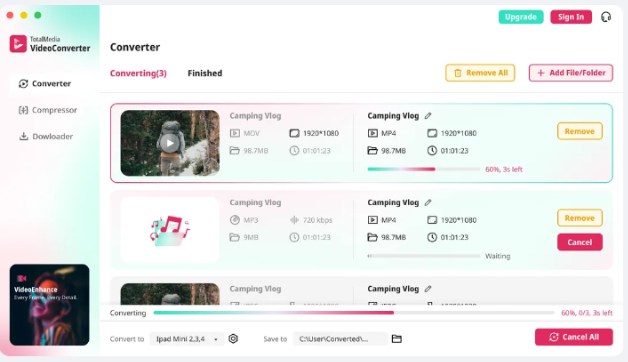
- Open TotalMedia VideoConverter and click Converter in the left sidebar.
- Click + Add File/Folder and select your MKV file or an entire folder of MKV files.
- In the right panel, select the Video tab and choose MP4 as the output format.
- Click the settings gear to open Custom Settings. Set the encoder to H.264. Match the source resolution and frame rate exactly — do not change either unless you have a specific reason to.
- For bit rate, match or slightly exceed the source bit rate for editing-quality output. For most MKV files, 8–20 Mbps at 1080p is appropriate.
- Set your output folder via Save to and click Convert or Convert All for batch processing.
- Monitor real-time progress in the dashboard. Find converted files in the Finished tab when complete.
Using the Apple Device Preset
For users who want iMovie-optimized output without manual configuration:
- After adding your MKV file, navigate to the Device tab in the right panel instead of the Video tab.
- Select Apple from the device category list.
- Choose your Mac model or a general Apple preset. This applies codec, resolution, and bit rate settings optimized for Apple’s ecosystem automatically.
- Click Convert All.
Saving a preset for repeated use
If you regularly convert MKV files for iMovie, save your settings as a named preset — for example, “MKV to iMovie MP4” — so future batches require no reconfiguration.
Method 2: HandBrake (Free, Mac Native)
HandBrake is a free, open source video converter with a native Mac application. It handles MKV files reliably and is a strong choice for users who want fine-grained quality control without spending anything.
Step-by-step: MKV to MP4 for iMovie using HandBrake
- Download HandBrake from handbrake.fr — the Mac version is a standard .dmg installer.
- Open HandBrake and click Open Source. Select your MKV file.
- Under Output Settings, confirm the format is set to MP4 and the codec to H.264 (x264).
- Under Video, set Framerate to Same as source. This is critical — changing the frame rate causes audio sync drift in iMovie.
- Set Quality (RF) to 18–20 for near-lossless output. Lower RF values mean higher quality and larger files. For editing-quality output, RF 18 is a safe choice.
- If your MKV contains multiple audio tracks, go to the Audio tab and confirm the correct track is selected. Set the output codec to AAC for maximum iMovie compatibility.
- Choose your output destination and click Start Encode.
Handling H.264 MKV files faster in HandBrake:
If MediaInfo confirmed your MKV contains H.264 video, you can use HandBrake’s passthrough option to re-containerize without re-encoding:
- Under Video, set the codec to H.264 (x264).
- Set quality to RF 0 (lossless passthrough behavior) — or simply keep RF at 18 for a clean editing copy.
Full passthrough in HandBrake requires the video codec to exactly match the output requirements. For most iMovie use cases, re-encoding at RF 18–20 is simpler and more reliable than attempting passthrough.

Method 3: VLC for Mac (Quick One-Off Conversions)
VLC is already installed on many Macs and includes a basic conversion function. It is not a dedicated converter — output quality control is limited — but it handles quick one-off MKV to MP4 conversions without installing anything new.
- Open VLC on your Mac. Go to File > Convert/Stream.
- Click Open Media and select your MKV file.
- Click Convert/Stream to proceed to the settings screen.
- Under Choose Profile, select Video — H.264 + MP3 (MP4) or Video — H.264 + AAC (MP4) if available.
- Click Save as File, set your output destination and filename, and click Save.
- Click Go to begin conversion.
Limitation: VLC’s conversion output is reliable for playback but offers less bit rate control than HandBrake or TotalMedia VideoConverter. For footage you plan to edit seriously in iMovie, use Method 1 or 2 for better output quality. Use VLC when speed and convenience matter more than fine-tuned results.
Method 4: FFmpeg in Mac Terminal (Advanced)
FFmpeg is the compression and conversion engine running behind many video tools — including parts of HandBrake. Using it directly from Terminal gives you maximum control and is useful for scripted batch workflows or automated pipelines.
Install FFmpeg on Mac:
The easiest installation method uses Homebrew. If Homebrew is not already installed, run this in Terminal first:
/bin/bash -c "$(curl -fsSL https://raw.githubusercontent.com/Homebrew/install/HEAD/install.sh)"
Then install FFmpeg:
brew install ffmpeg
Convert MKV to MP4 for iMovie:
ffmpeg -i input.mkv -vcodec libx264 -acodec aac -b:v 8000k -b:a 192k output.mp4
Breaking this down:
-vcodec libx264— encodes video as H.264-acodec aac— encodes audio as AAC, required for iMovie compatibility-b:v 8000k— sets video bitrate to 8 Mbps (adjust for your source)-b:a 192k— sets audio bitrate to 192 kbps
Re-containerize without re-encoding (if MKV already contains H.264):
ffmpeg -i input.mkv -vcodec copy -acodec aac output.mp4
-vcodec copy copies the video stream without re-encoding — making this extremely fast. Only the container changes. Use this when MediaInfo confirms the MKV contains H.264 video and you want the fastest possible conversion with zero quality loss.
Batch convert an entire folder of MKV files:
for f in *.mkv; do ffmpeg -i "$f" -vcodec libx264 -acodec aac "${f%.mkv}.mp4"; done
Run this command from inside the folder containing your MKV files. Each file is converted to MP4 with the same base filename.
Who should use FFmpeg: Developers, power users, and anyone processing large libraries of MKV files who wants a scriptable, repeatable workflow. For everyone else, Method 1 or 2 produces equivalent results with far less setup.
Choosing the Right Output Format for iMovie
Both MP4 and MOV work in iMovie. The choice depends on your downstream workflow.
| MP4 (H.264) | MOV (H.264) | |
|---|---|---|
| iMovie compatibility | Full | Full |
| Cross-platform sharing | Excellent | Good |
| File size | Slightly smaller | Slightly larger |
| Apple ecosystem integration | Very good | Native |
| YouTube / social upload | Ideal | Compatible |
| Best for | General use, sharing, uploading | Mac-only projects, Final Cut Pro handoff |
For most iMovie users, MP4 with H.264 is the right target. If your project will eventually move to Final Cut Pro or stay entirely within Apple’s ecosystem, MOV is a reasonable alternative.
Common MKV to iMovie Conversion Problems and Fixes
Converted file imports into iMovie but has no audio: The MKV likely contained audio in a format iMovie cannot handle — commonly DTS or Dolby TrueHD. Re-convert the file and explicitly set the audio output codec to AAC in your converter. In HandBrake, check the Audio tab and set the codec to AAC. In TotalMedia VideoConverter, set the audio codec in the Custom Settings panel.
Converted MP4 plays in QuickTime but not in iMovie: iMovie is stricter than QuickTime about encoding profiles. Re-convert using a clean H.264 MP4 preset. In HandBrake, use the Fast 1080p30 or HQ 1080p30 preset as a starting point — both are iMovie-safe.
Conversion is very slow: Full re-encoding of H.265 or VP9 MKV files is computationally intensive. If your Mac supports it, enable hardware acceleration in your converter. In HandBrake, this is available under Video > Video Encoder > H.264 (VideoToolbox) — Apple’s hardware encoder, which is significantly faster than software encoding on Apple Silicon and recent Intel Macs.
iMovie project is choppy after importing the converted file: This is a performance issue, not a conversion issue. iMovie struggles with high-bitrate files on older Macs. Create proxy media in iMovie: go to File > Generate Proxy Media after import. iMovie edits using the proxy and switches to the full-quality file at export.
Converted file has the wrong aspect ratio in iMovie: The MKV may have used anamorphic pixel encoding — common in DVD-sourced MKV files. In HandBrake, check the Dimensions tab and confirm the storage and display aspect ratios match. Enable Anamorphic: None and set the correct display resolution manually if needed.
Method Comparison
| TotalMedia VideoConverter | HandBrake | VLC | FFmpeg | |
|---|---|---|---|---|
| Mac native | Yes | Yes | Yes | Yes (via Homebrew) |
| Batch processing | Yes — folder level | Yes — queue | No | Yes — scripted |
| Apple device preset | Yes | No | No | No |
| Hardware acceleration | Yes | Yes (VideoToolbox) | No | Yes |
| File size preview | Yes | No | No | No |
| Audio codec control | Yes | Yes | Limited | Full |
| Technical skill needed | Low | Low–Moderate | Low | High |
| Cost | Free / Pro tiers | Free | Free | Free |
| Best for | Batch jobs, presets, Apple workflow | Single files, free control | Quick one-offs | Scripted pipelines |
FAQ
iMovie does not support the MKV container format. It only accepts MP4 and MOV files encoded with H.264 or H.265. Converting your MKV to MP4 with H.264 encoding using a tool like TotalMedia VideoConverter or HandBrake resolves the import error and makes the file fully compatible with iMovie.
MP4 with H.264 video encoding and AAC audio is the best target format for iMovie on Mac. It imports cleanly, plays back smoothly, and is compatible across all iMovie versions. MOV with H.264 is equally compatible but is a better choice only if your project will stay entirely within Apple’s ecosystem.
HandBrake is the best free option for MKV to MP4 conversion on Mac. Download it from handbrake.fr, open your MKV file, select H.264 MP4 as the output, set framerate to Same as source, and encode. VLC for Mac handles quick one-off conversions via File > Convert/Stream. For batch conversion with an Apple device preset and file size preview, TotalMedia VideoConverter offers a free tier.