
You put a video on a USB drive, plug it into your PS5, and nothing plays. Or the file shows up in Media Gallery but refuses to start. Same file plays fine on your laptop. Nothing obvious went wrong.
PS5’s USB video support is more restrictive than most consoles before it — and more restrictive than many users expect. The fix is straightforward once you know what it actually requires.
What Formats PS5 Supports for USB Video Playback
PS5 only supports video formats in MP4 with H.264 and AAC, MKV with H.264 and AAC, and WebM with VP9 and Opus.
That’s a short list. No HEVC. No H.265. No AVI. No MOV. No WMV. No FLV. The codec support for PS5 is H.264 video only and AAC audio only — a significant limitation compared to what many users expect from a modern console.
The full supported spec from PlayStation’s official documentation:
| Container | Video Codec | Audio Codec |
|---|---|---|
| MP4 | H.264/MPEG-4 AVC High Profile Level 5.2 | AAC LC |
| MKV | H.264/MPEG-4 AVC High Profile Level 4.2 | AAC LC |
| WebM | VP9 | Opus |
Maximum resolution: 3840×2160 — full 4K is supported.
One important nuance on MKV: the PS5 supports MKV video in a specific encoded format when played through a USB device, especially when encoded in H.264/MPEG-4 AVC High Profile. Whether PS5 can play MKV files may depend on the specific hardware version and system software. If MKV files are inconsistent, MP4 H.264 is the more reliable container choice.
Why Your Video Won’t Play on PS5 USB
Wrong Codec Inside the Container
This is the most common cause. MP4 is a container that can hold many different codecs. An MP4 with HEVC video won’t play on PS5 even though MP4 is listed as a supported format. The codec inside the container is what matters — not the file extension.
MP4 and MKV are file containers, not audio or video formats. It depends on the type of encoding of the video and audio inside the container and the level of codec support of the playing device.
Common codec mismatches that cause PS5 playback failure:
- MP4 or MKV with H.265/HEVC video — not supported
- MP4 with AC-3 or DTS audio — not supported
- Any file with Dolby TrueHD audio — not supported
- MOV, AVI, WMV, FLV containers — not supported at all
USB Drive Formatted Incorrectly
PS5 supports USB drives formatted with exFAT or FAT32 file systems. NTFS drives are supported only when used for game storage — not for media playback.
If your USB drive is formatted as NTFS, PS5 won’t read it for video playback even if the files are in the correct format.
exFAT is the recommended file system for media playback USB drives because it supports single files larger than 4GB — essential for 4K video files. FAT32 works but has a 4GB per file limit, which 4K video regularly exceeds.
Files Not in a Folder
PS5 will not see content if it’s not in a folder. Create a folder in the root directory of the USB drive and place video files inside it. Files dropped directly into the root of the drive without a folder don’t appear in Media Gallery.
Create a folder called “Movies” or “Video” in the root directory of the USB drive. Within that folder, you can create subfolders for each type of content.
File Too Large
PS5 might not be able to play some files due to their data type or file size. Very large files — particularly high-bitrate 4K encodes over several GB — can cause playback failure even in a supported format. If a large file fails, try a compressed version at a lower bitrate first to rule out file size as the cause.
How to Convert Video for PS5 USB Playback
The target for any conversion is MP4 with H.264 video and AAC audio. This is the most consistently supported combination across all PS5 hardware versions and system software versions.
Using TotalMedia VideoConverter
TotalMedia VideoConverter includes a Sony device preset that automatically applies the correct codec, resolution, and audio settings for PS5 playback — no manual configuration required.
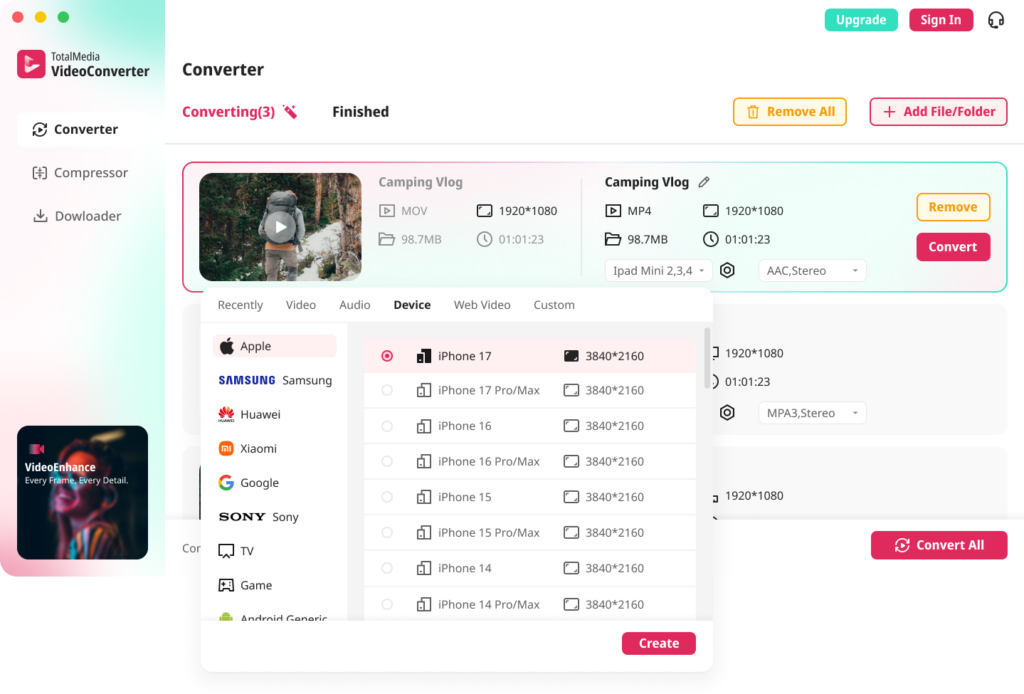
- Open TotalMedia VideoConverter and click Converter in the left sidebar
- Add your video files — drag and drop or use Add File/Folder for batch conversion
- Click the Device tab and navigate to Sony to find the PS5 preset, or select the Video tab and choose MP4
- Open Custom Settings — confirm encoder is H.264, audio codec is AAC, resolution is your target output
- Set your output folder and click Convert All
- Copy converted files to a folder on your exFAT-formatted USB drive
Batch processing converts an entire folder of files in one session — useful for large video libraries where multiple formats need converting before they’ll play on PS5.
Using HandBrake — Free Desktop Option
HandBrake handles the conversion cleanly and is free.
- Open HandBrake and load your video file
- Under Presets, select a General preset — Fast 1080p30 works for most content
- Go to the Video tab and confirm encoder is H.264
- Go to the Audio tab — set codec to AAC and remove any AC-3 or DTS tracks
- Under Summary, confirm output format is MP4
- Click Start Encode
One note on HandBrake and PS5: users report inconsistency with HandBrake-encoded files on PS5 — some files encoded with identical settings play and others don’t. If a HandBrake-encoded MP4 fails, try re-encoding with the Profile Level set to 4.2 for MKV or 5.2 for MP4. If that still fails, switching to TotalMedia VideoConverter’s Sony preset eliminates the manual profile configuration entirely.

USB Drive Setup — Step by Step
Getting the drive configured correctly is as important as the file format.
- Format the USB drive as exFAT — right-click the drive on Windows and select Format, choose exFAT. On Mac, use Disk Utility and select exFAT
- Create a folder in the root directory of the drive — name it “Video” or “Movies”
- Place your converted MP4 files inside that folder
- Safely eject the drive from your computer
- Connect the USB drive to a USB port on the PS5
- Long-press the PS button on your controller and select Media Gallery
- Select USB from the Media Gallery — your video folder appears
- Select a file to play
Don’t go to the Media section on the PS5 home screen — that’s only for streaming and content purchased on the PlayStation Store. To play USB videos, long-press the PS button and select Media Gallery, then click USB.
PS5 USB Video Troubleshooting
| Problem | Likely Cause | Fix |
|---|---|---|
| File doesn’t appear in Media Gallery | Wrong codec or file not in a folder | Convert to MP4 H.264 AAC, place in a folder |
| File appears but won’t play | HEVC video or AC-3/DTS audio inside MP4 | Re-encode with H.264 video and AAC audio |
| USB drive not recognised | Drive formatted as NTFS | Reformat to exFAT |
| 4GB file limit error | Drive formatted as FAT32 | Reformat to exFAT |
| File plays on laptop but not PS5 | Codec mismatch — player handles it, PS5 doesn’t | Convert to H.264 AAC specifically |
| Some files play, identical settings don’t | Profile level mismatch | Set H.264 Profile Level to 5.2 for MP4 |
Frequently Asked Questions
PS5 supports video formats in MP4 with H.264 and AAC, MKV with H.264 and AAC, and WebM with VP9 and Opus. HEVC, H.265, AVI, MOV, WMV, and AC-3 or DTS audio are not supported. H.264 video with AAC audio in an MP4 container is the most reliably compatible combination.
The MP4 container is supported but the codec inside isn’t. MP4 files with HEVC/H.265 video, AC-3 audio, or DTS audio fail on PS5 even though the container format is on the supported list. Convert to MP4 with H.264 video and AAC audio specifically — not just MP4 — and the file plays correctly.
exFAT is the recommended file system for PS5 media playback USB drives because it supports single files larger than 4GB, which is essential for 4K video files. FAT32 works for files under 4GB. NTFS is not supported for media playback on PS5.