
What Is a VOB File and Why Won’t It Open in Your Editor?
VOB stands for Video Object. It is the primary video format used on DVD discs — the file type that actually stores the video, audio, subtitles, and menu data on a standard DVD. If you have ever looked at the contents of a DVD and seen files named VTS_01_1.VOB or VIDEO_TS.VOB, those are the files that contain the actual footage.
The problem is that VOB is a DVD-specific format. Most modern video editors — Adobe Premiere Pro, DaVinci Resolve, Final Cut Pro, iMovie — either do not support VOB natively or handle it poorly. Even when an editor technically accepts a VOB file, playback is often choppy, audio sync is off, or the file simply refuses to import.
Converting to MP4 with H.264 encoding solves all of these issues. MP4 is universally supported across every major editing platform, plays back smoothly on any hardware, and produces files that are significantly smaller than the original VOB without visible quality loss.
The core issue: VOB uses MPEG-2 video encoding — a format from the late 1990s that predates modern editing workflows. MP4 with H.264 is the current standard. Converting bridges that 25-year gap in format compatibility.
A Note on DVD Copy Protection
Not all VOB files are the same from a legal standpoint.
VOB files you can freely convert:
- Home movies recorded to DVD with a DVD recorder
- Self-authored DVDs created with DVD authoring software
- VOB files you have already copied from your own disc to your hard drive
VOB files that involve legal complexity:
- Commercial DVDs — movies, TV shows, software discs — are protected by CSS (Content Scramble System) encryption. Circumventing CSS encryption is restricted under the DMCA in the United States and similar legislation in other countries, regardless of whether you own the disc.
This guide covers conversion of unencrypted VOB files — personal recordings, home videos, and self-authored DVDs. If your VOB files came from a commercial disc, consult the applicable laws in your country before proceeding.
Understanding the VOB File Structure
Before converting, it helps to understand how VOB files are organized — especially if your DVD contains multiple VOB files.
A standard DVD stores video across several VOB files, typically named sequentially:
VIDEO_TS/
├── VIDEO_TS.VOB       ← Menu
├── VTS_01_0.VOB       ← Title menu
├── VTS_01_1.VOB       ← Main content, part 1
├── VTS_01_2.VOB       ← Main content, part 2
├── VTS_01_3.VOB       ← Main content, part 3
Each numbered VOB file is a segment of the full video, split to fit within DVD file size limits. To get a single continuous MP4, you need to either convert and join them in sequence or use a tool that handles the joining automatically.
Most converters handle this — but it is worth knowing before you start so you do not end up with multiple separate MP4 clips when you expected one.
Method 1: TotalMedia VideoConverter (Recommended)
TotalMedia VideoConverter handles VOB to MP4 conversion with batch processing — useful when dealing with multiple VOB segments from a single DVD. The custom settings panel gives full control over encoder, resolution, and bit rate, and the real-time progress dashboard keeps you informed throughout.
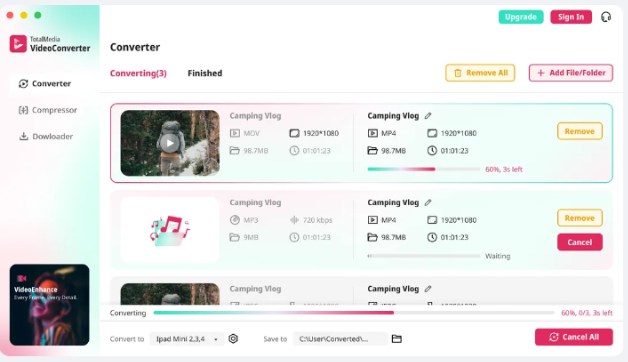
Converting a single VOB file
- Open TotalMedia VideoConverter and click Converter in the left sidebar.
- Click + Add File and select your VOB file.
- In the right panel, select the Video tab and choose MP4 as the output format.
- Click the settings gear to open Custom Settings. Set the encoder to H.264. Match the source resolution — most DVDs are 720×480 (NTSC) or 720×576 (PAL). Set the frame rate to match the source: 29.97fps for NTSC, 25fps for PAL.
- For bit rate, 3–5 Mbps at DVD resolution produces a clean, editor-ready MP4 that is significantly smaller than the original VOB.
- Set your output folder via Save to and click Convert.
Batch converting multiple VOB segments
- Click + Add File/Folder and add all VOB files from the VIDEO_TS folder at once.
- Apply the same MP4 output settings to all files.
- Click Convert All to process the entire batch simultaneously.
- Monitor real-time progress for each file in the dashboard.
- Find all converted files in the Finished tab when complete.
Tip: If you need one continuous MP4 rather than separate clips, convert each VOB to MP4 first, then join them in your video editor by placing them sequentially on the timeline. Most editors handle this without re-encoding.
Saving a preset for repeated use
If you regularly work with DVD footage, save your VOB conversion settings as a named preset — for example, “DVD VOB to H.264” — so every future batch conversion takes seconds to configure.
Method 2: HandBrake (Free, Open Source)
HandBrake is one of the most capable free tools for VOB conversion and has native support for DVD file structures — including the ability to read directly from a VIDEO_TS folder rather than individual VOB files.
Converting using the VIDEO_TS folder
- Open HandBrake. On the welcome screen, click Open Source and select the VIDEO_TS folder — not an individual VOB file. HandBrake reads the full DVD structure and identifies the main title automatically.
- Under Output Settings, set the format to MP4 and the codec to H.264 (x264).
- Set Quality (RF) to 18–20 for near-lossless output. Lower RF = higher quality, larger file.
- Under Video, set Framerate to Same as source.
- Choose your output destination and click Start Encode.
HandBrake’s VIDEO_TS folder reading is a significant advantage over tools that only handle individual VOB files — it produces one continuous MP4 from a multi-segment DVD without any manual joining.
Converting individual VOB files
If you only have individual VOB files rather than the full DVD folder structure:
- Click Open Source and select the VOB file directly.
- Apply the same H.264 MP4 settings above.
- Repeat for each VOB file, or use HandBrake’s queue feature to batch process multiple files.
Limitation: HandBrake does not show a file size preview before encoding. For large batches, TotalMedia VideoConverter’s real-time size preview is more practical.

Method 3: VLC Media Player (Quick Conversion, No Extra Software)
VLC is primarily a media player but includes a basic conversion function that handles VOB to MP4 without installing dedicated converter software. It is the fastest option for a single file when you already have VLC installed.
- Open VLC and go to Media > Convert/Save (Windows) or File > Convert/Stream (Mac).
- Click Add and select your VOB file.
- Click Convert/Save.
- Under Profile, select Video — H.264 + MP3 (MP4).
- Click the settings icon next to the profile to adjust video codec, bit rate, or resolution if needed.
- Set your output file destination and click Start.
Limitations: VLC’s conversion quality is adequate for quick jobs but gives less control than HandBrake or TotalMedia VideoConverter. It also does not support batch processing. Use VLC for one-off conversions where speed matters more than fine-tuned output.
Recommended Settings by Use Case
| Use Case | Resolution | Codec | Bit Rate | Notes |
|---|---|---|---|---|
| Editing in Premiere / Resolve | Source (480p/576p) | H.264 | 5–8 Mbps | Keeps file editor-ready without upscaling |
| Archiving for long-term storage | Source | H.264 | 3–5 Mbps | Smaller files, visually clean |
| Uploading to YouTube | 720p or 1080p upscale | H.264 | 8–12 Mbps | Upscale in VideoEnhance first for best results |
| Sharing via email or cloud | 480p | H.264 | 1.5–2 Mbps | Compact files, acceptable quality for sharing |
| Preserving highest quality | Source | H.264 | 8–10 Mbps | Closest to original DVD quality |
Should You Upscale VOB Footage Before Editing?
Standard DVD video is 480p (NTSC) or 576p (PAL) — resolutions that look soft on modern HD and 4K displays. If you are converting old home movies for YouTube, a family archive, or any display on a modern screen, upscaling before or after conversion is worth considering.
Converting VOB to MP4 at the source resolution preserves the original quality faithfully. Upscaling that MP4 using AI enhancement can recover perceived sharpness, reduce MPEG-2 compression artifacts, and produce footage that holds up better on large screens — without introducing the artificial look of simple bicubic upscaling.
This is a separate step from conversion and belongs in a dedicated enhancement tool after the VOB-to-MP4 conversion is complete.
Common VOB Conversion Problems and Fixes
VOB file converts but audio is out of sync: This almost always comes from a frame rate mismatch. NTSC DVDs run at 29.97fps — not 30fps. The difference is small but causes drift over long clips. Always set frame rate to exactly 29.97fps for NTSC source material, not the rounded 30fps value.
Multiple VOB files produce choppy output at join points: Each VOB segment may have a slightly different encoding profile. Convert all segments first, then join them in your video editor on a timeline rather than attempting to concatenate the raw files. Most editors handle VOB-sourced MP4 joins cleanly on the timeline.
Converted MP4 has no audio: Some DVD VOB files use AC3 (Dolby Digital) audio. Not all converters handle AC3 to AAC transcoding automatically. In HandBrake, check the Audio tab and confirm the output codec is set to AAC. In TotalMedia VideoConverter, the audio settings in the Custom Settings panel let you set the output codec to AAC independently.
VOB file appears to have two audio tracks: DVD audio often includes multiple tracks — commentary, alternate language, descriptive audio. Check your converter’s audio track settings and select the primary track before converting.
Converted file is larger than the original VOB: This happens when the output bit rate is set higher than the source. Match or stay below the source bit rate for a smaller output. VOB files typically encode at 3–6 Mbps — setting your MP4 output above that adds file size without adding quality.
Method Comparison at a Glance
| TotalMedia VideoConverter | HandBrake | VLC | |
|---|---|---|---|
| Batch processing | Yes — folder level | Yes — queue based | No |
| VIDEO_TS folder support | Yes | Yes | Limited |
| File size preview | Yes | No | No |
| Output quality control | Full | Full | Basic |
| AC3 audio handling | Yes | Yes | Basic |
| Ease of use | High | Moderate | High |
| Cost | Free / Pro tiers | Free | Free |
| Best for | Batch jobs, presets, regular workflow | Single titles, maximum free control | Quick one-off conversions |
FAQ
A VOB (Video Object) file is the primary video format used on DVD discs. It stores video, audio, subtitles, and navigation data for DVD playback. VOB files use MPEG-2 video encoding, which is not natively supported by most modern video editors. Converting to MP4 with H.264 encoding makes the content compatible with all current editing software and playback devices.
HandBrake and VLC are both free tools that convert VOB to MP4. HandBrake offers the most control — open the VIDEO_TS folder directly, select H.264 MP4 as the output, set quality to RF 18–20, and encode. VLC handles quick single-file conversions via Media > Convert/Save. For batch jobs with a file size preview, TotalMedia VideoConverter offers a free tier with conversion capabilities.
Set the output frame rate to exactly 29.97fps for NTSC DVD source material. Using the rounded 30fps value instead causes audio drift over longer clips. In HandBrake, selecting “Same as source” handles this automatically. In TotalMedia VideoConverter, set the frame rate manually to 29.97 in the Custom Settings panel.