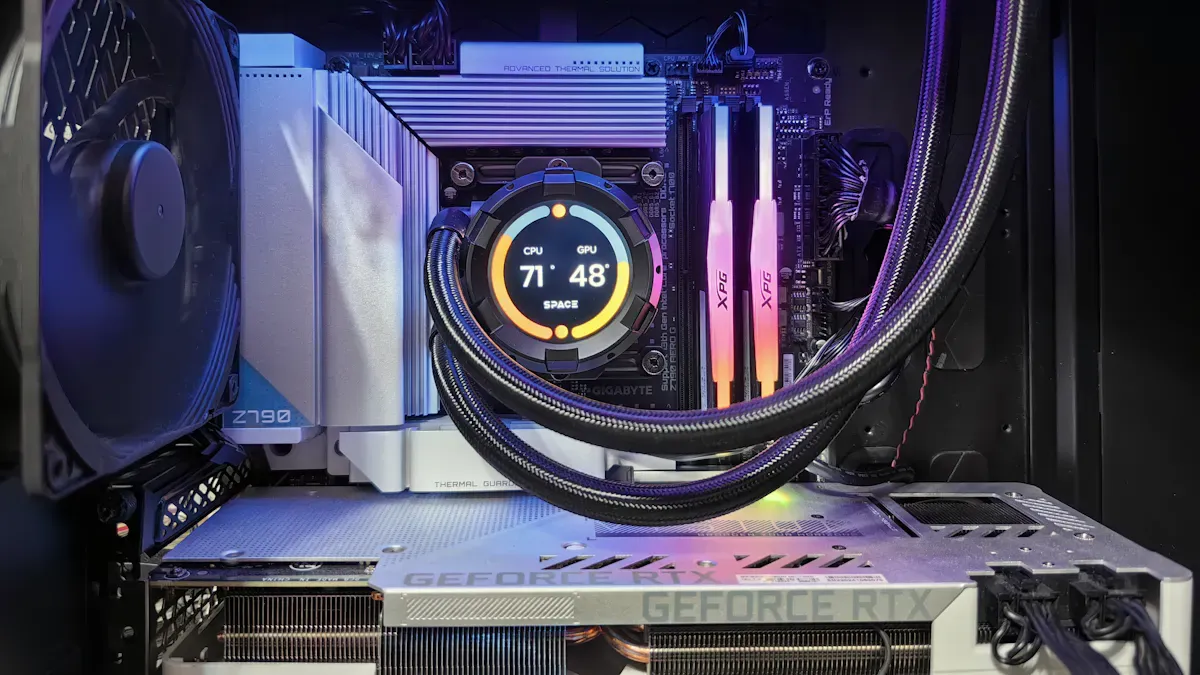
Smooth video editing depends on the power of cpu and gpu working together. Modern AI tools, such as TotalMedia VideoEnhance, use both parts for upscaling, noise reduction, and frame interpolation. Understanding these roles helps anyone in content creation pick the best hardware for impressive results.
CPU and GPU Roles in Video Editing
CPU Tasks in Video Editing
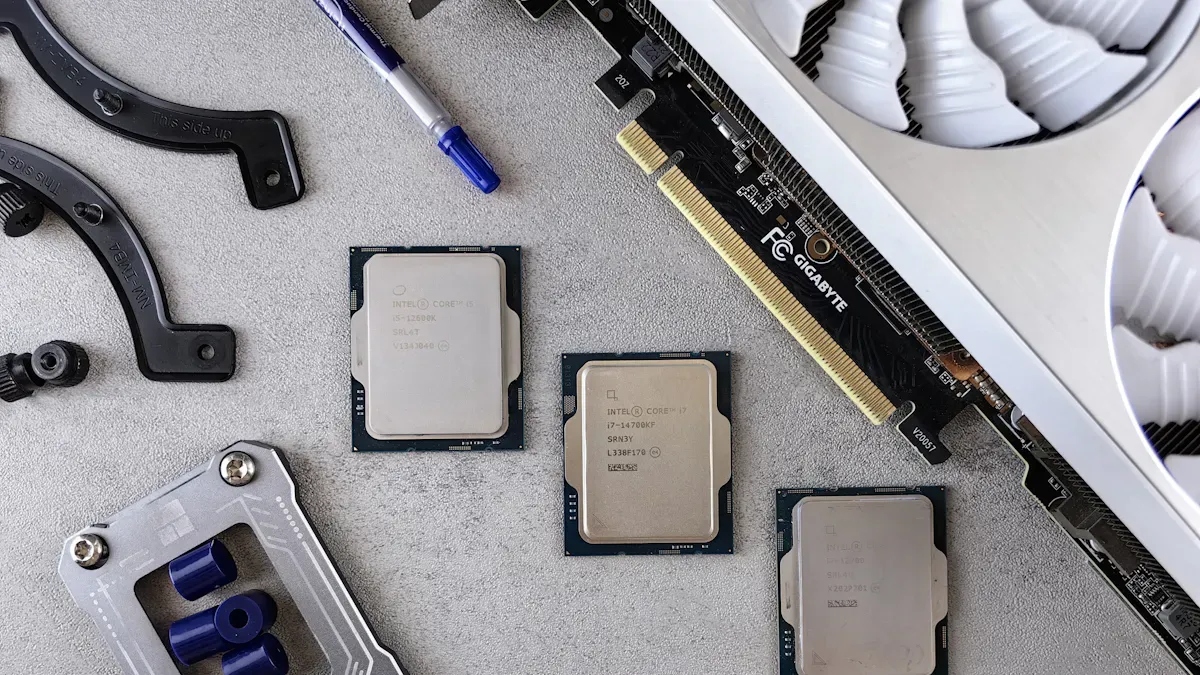
The cpu is the main processor in a computer. It handles many important tasks during video editing. When you scrub through a timeline, the cpu decompresses video files and processes effects. It also manages the software and background tasks. During exporting, the cpu re-encodes the video, which requires a lot of computing power. Higher resolutions and complex codecs make these tasks even more demanding. The cpu also decodes video files, applies certain effects and transitions, manages the overall project, and processes audio. Multi-threading and a large cache help the cpu handle these jobs quickly and efficiently.
The cpu decompresses video files.
It processes effects applied to the video.
The cpu re-encodes the video during export.
Decoding high-resolution footage needs fast cache and multi-threading.
The cpu manages audio processing and background tasks.
Key CPU Features
High performance in video editing depends on several cpu features. More cpu cores can improve performance, especially for complex editing tasks. However, not all editing software uses every core equally. For example, Adobe Premiere Pro benefits from more cores during exporting, but sometimes a cpu with fewer, faster cores works better than one with many slower cores. The architecture and speed of the cpu also matter. A larger cache and strong multi-threading help with decoding, applying effects, and managing multiple tasks at once. These features make the cpu a key part of any high performance editing system.
GPU Acceleration in Editing
The gpu is designed for handling graphics and visual tasks. In video editing, the gpu accelerates effects, real-time playback, and AI-powered features. Many editing programs use the gpu for rendering, color grading, and working with high-resolution footage. The gpu can process many tasks at once, making it much faster than the cpu for certain jobs. This is especially true for 4K and 8K video, where rendering can take a long time without gpu acceleration. Tools like TotalMedia VideoEnhance use both the cpu and gpu for deep learning enhancement, frame interpolation, and upscaling. AI-powered features, such as automatic color correction and noise reduction, rely on the gpu for high performance.
Feature/Effect | Description |
|---|---|
4:2:2 Encoding/Decoding | 10x acceleration in 4:2:2 encoding and can decode up to 8K 75 fps. |
Motion Tracking | Accelerated by CUDA cores for efficient processing. |
Sharpening | Enhanced through gpu acceleration for better image quality. |
Upsampling | Speeded up by CUDA cores for improved resolution. |
Transition Effects | gpu acceleration reduces rendering times for smoother transitions. |
Real-time Previews | Enabled while working with high-resolution footage. |
AI Features | Includes automatic color correction, object removal, and noise reduction. |
NVDEC Support | Allows smooth playback and scrubbing of high-resolution and multi-stream videos without proxies. |
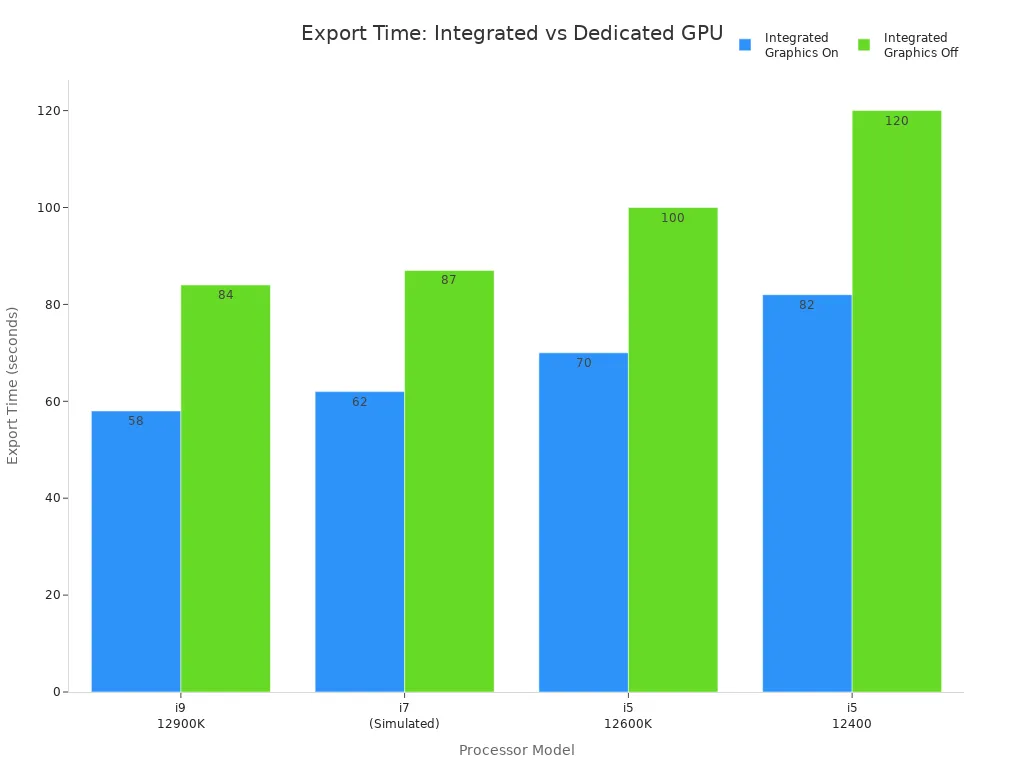
Upgrading from integrated graphics to a dedicated gpu can make a big difference in export times and overall editing speed.
Important GPU Features
A high performance gpu has several important features for video editing. The amount of VRAM (video memory) is crucial. More VRAM allows the gpu to handle larger models and datasets, which is important for AI-powered features like frame interpolation and upscaling. Modern gpu architectures, such as those with Tensor cores, speed up AI inference and data processing. This makes creative workflows, including video post-production and visual effects, much faster. Many editing tools now require a strong gpu for best results, especially when using AI upscaling or enhancement. Compared to traditional methods, AI-powered video enhancement tools need more powerful hardware, often relying on the gpu or cloud-based resources.
Specification | Details |
|---|---|
VRAM | 96GB of GDDR7 VRAM, allowing for larger models and datasets to run on a single gpu. |
Performance Enhancement | Blackwell Tensor cores accelerate AI inference and compute-heavy data processing tasks. |
Infrastructure | Enables single-node inference, reducing operational complexity by avoiding multiple gpus. |
Application Areas | Effective for AI-assisted creative workflows, including video post-production and visual effects. |
Tip: For smooth video editing, balance the power of your cpu and gpu. Both are essential for high performance, especially with modern AI tools like VideoEnhance.
Balancing CPU and GPU for Smooth Editing
Task Breakdown: CPU vs. GPU
Video editing tasks place different demands on the cpu and gpu. The cpu manages decoding, encoding, and organizing project files. The gpu handles rendering visuals, real-time effects, and AI-powered enhancements. Editing 4K video requires much more processing power than 1080p. The table below shows how requirements change with resolution:
Aspect | 4K Video Editing | 1080p Video Editing |
|---|---|---|
Pixel Data | Over 8 million pixels per frame | About 2 million pixels per frame |
Processing Demand | Much higher cpu and gpu power needed | Lower cpu and gpu power needed |
Hardware Requirements | Advanced cpu and gpu required | Standard hardware sufficient |
Real-time Processing | Essential for smooth editing | Less critical for smooth editing |
A balanced system with both a strong cpu and gpu prevents lag and supports real-time editing, especially for high-resolution projects.
Software Optimization and Hardware Bottlenecks
Modern editing software uses both cpu multi-threading and gpu acceleration. Programs like Adobe Premiere Pro and DaVinci Resolve rely on the cpu for organizing and exporting, while the gpu speeds up effects and playback. Common bottlenecks include insufficient RAM, slow storage, or mismatched cpu and gpu performance. For smooth editing, aim for at least 16 GB of RAM, though 32 GB or more is ideal for AI-powered tools. SSDs, especially NVMe drives, help prevent slowdowns during editing.
Tip: Avoid pairing a powerful gpu with a weak cpu. This creates bottlenecks and wastes performance.
Choosing the Right Hardware
To choose a gpu and cpu, consider your editing workload. Large projects with 4K or AI features need a fast cpu with many cores and a gpu with at least 6GB of VRAM. Match your hardware to your software’s needs. Nvidia cards work well for Adobe products, while AMD cards offer flexibility. Always check power supply and cooling requirements. Avoid focusing on only one component. A balanced system delivers the best results for video editing and AI-powered enhancement.
A balanced CPU and GPU setup makes video editing faster and more efficient. This combination supports high-resolution footage, real-time playback, and advanced AI features.
Handle complex timelines and large files with ease
Speed up rendering and encoding
Achieve professional results with modern AI tools
Category | Professional Workstations ($2,000 to $4,000+) | |
|---|---|---|
Suitable For | Beginners, students, straightforward video editing | Heavy color grading, RAW footage, agency-level content |
Performance | Can edit 4K footage using optimized media or proxies | High-end GPUs, 64GB+ RAM, extremely fast NVMe storage |
Key Components | SSD, mid-range GPU | Powerful GPUs, advanced RAM, high-speed storage |
FAQ
Both matter. The CPU handles project management and exporting. The GPU speeds up effects and AI features. Balanced hardware gives the best results.
Most editors need at least 16 GB of RAM. For 4K projects or AI tools, 32 GB or more is recommended.
Integrated graphics can run basic tasks. For advanced AI features like upscaling or frame interpolation, a dedicated GPU works much better.