
No one should assume that a larger digital file size means better video quality in 2026. Many people still link big files with great quality, but this idea does not hold up today. Modern AI-powered tools can shrink a video without hurting digital file quality. Now, file quality depends on more than just size.
File Size vs. Video Quality
What Affects File Size
Many people think that a bigger digital file size means better video quality, but that is not true. Several technical factors shape file size, and not all of them relate to quality. Here are the main things that affect how large a video file becomes:
Resolution: Higher resolution, like 4k or HD, means more pixels in each frame. More pixels need more data, so the file size grows.
Bitrate: Bitrate controls how much data the video uses each second. A higher bitrate can improve quality, but it also increases file size.
Codec: The codec is the method used to compress and store the video. Modern codecs like H.265 can keep quality high while making files smaller.
Frame Rate: Videos with more frames per second (like 60fps instead of 30fps) need more data, which increases file size.
Compression Type: Lossy compression removes some data to shrink the file, while lossless compression keeps all the data but makes the file larger.
Tip: Choosing the right codec and adjusting bitrate can help balance quality and file size. Tools like TotalMedia VideoConverter make this easy with smart presets and AI-powered compression.
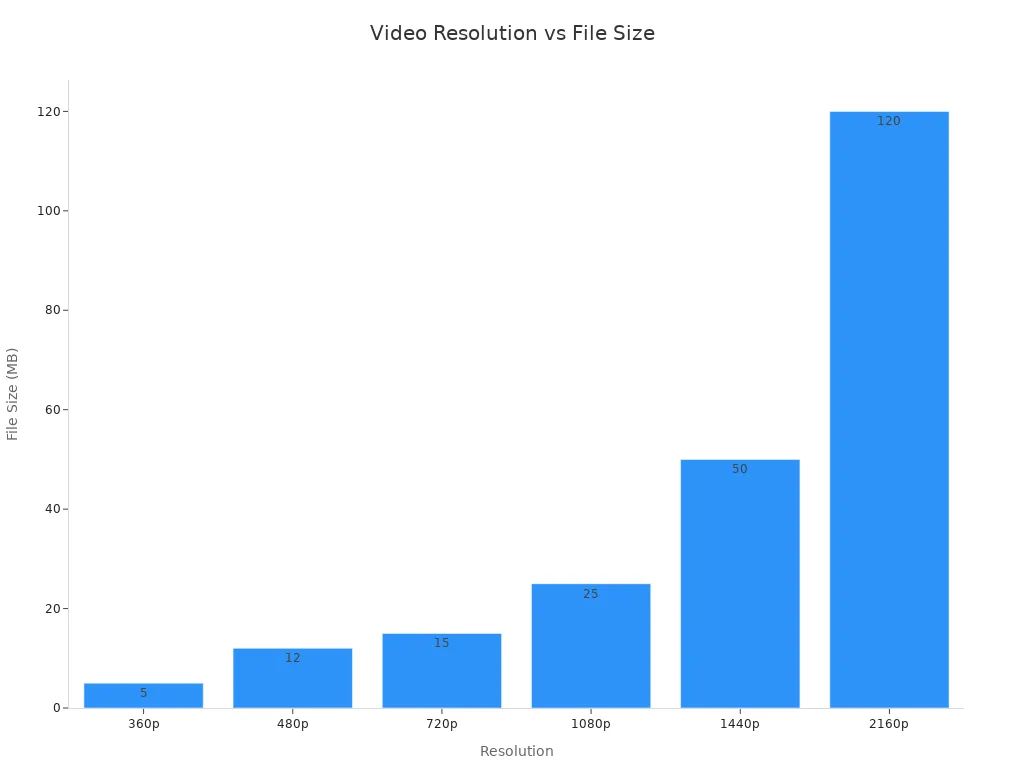
The table below shows how resolution affects file size for a one-minute video:
Resolution | File Size (1 minute) |
|---|---|
360p | 5 MB |
480p | 12 MB |
720p | 15 MB |
1080p | 25 MB |
1440p | 50 MB |
2160p (4k) | 120 MB |
You can see that higher resolution leads to a much larger file size. The jump from 1080p to 4k is huge.
Why Bigger Isn’t Always Better
A large file does not always mean better quality. Sometimes, a smaller file can look just as good—or even better—than a bigger one. Here’s why:
Smart Compression: Modern tools like TotalMedia VideoConverter use AI to shrink files without hurting digital file quality. The software can reduce file size while keeping the video clear and sharp.
Codec Efficiency: New codecs, such as H.265, can store the same video quality in a much smaller file compared to older codecs like H.264.
Bitrate Management: Setting the right bitrate is key. Too high, and you waste space. Too low, and you lose quality. Smart tools can find the perfect balance.
Device Optimization: Not every screen needs the highest resolution. A video made for a phone does not need the same file quality as one for a big TV.
Streaming platforms in 2026 use adaptive bitrate streaming. This means they adjust the video quality in real time based on your internet speed and device. You get smooth playback without huge files.
Note: Large files can slow down streaming, fill up storage, and even use more energy. Smaller, well-optimized files are better for the environment and easier to share.
Let’s look at an example. Imagine two videos:
Video A: 1080p, 25 MB, compressed with H.265 using smart settings.
Video B: 1080p, 50 MB, compressed with an old codec and no optimization.
Video A can look just as good as Video B, even though its file size is half as big. That’s the power of modern compression and smart encoding.
In 2026, people should focus on the right settings and tools, not just the numbers on the file. With the right approach, you can get great video quality without a massive file.
Key Factors for Video Quality

Codec and Compression
Codec choice and compression methods play a huge role in shaping video quality. Different codecs balance quality and digital file size in unique ways. Streaming services in 2026 often use codecs that keep quality high while reducing size for faster streaming. For example, H.265 and AV1 can deliver a 4k file at a fraction of the size of older codecs. The table below shows how codecs compare:
Codec | Compression Efficiency | Use Case |
|---|---|---|
H.264 | Standard | Widely deployed |
H.265 | Up to 50% smaller | 4K/8K delivery |
AV1 | Up to 30% more efficient | 4K/8K video |
VP9 | Superior compression | Web streaming |
Modern converters, like TotalMedia VideoConverter, offer advanced settings for codec selection and smart compression. These tools help users impact digital file quality without creating an uncompressed file that eats up storage.
Bitrate and Resolution
Bitrate and resolution work together to define both file quality and digital file size. Bitrate, measured in kbps, controls how much data the video uses each second. Higher bitrate means better quality, but also a larger size. The table below shows how bitrate affects file size for a one-hour hd file:
Bitrate (kbps) | File Size (MB) for 1 Hour Video |
|---|---|
1500 | 675 |
1000 | 450 |
600 | 270 |
Choosing the highest resolution, like 4k or even 8k, creates a high-resolution raw file. However, not every device needs higher video resolution. For most social media, 1080p or 1440p works best. Downscaling from a high resolution file to hd can keep quality strong while shrinking size.
Frame rate also matters. A higher frame rate, such as 60fps, makes motion smoother but increases file size. Lower frame rates can make fast scenes look choppy, especially in a high-resolution file.
Assessing Quality in Practice
People often wonder how to judge digital file quality beyond just looking at the numbers. Here are some practical tips:
Use objective metrics like PSNR and SSIM to compare the original and compressed files.
Try subjective evaluation by watching the video for sharpness, color, and smoothness.
Check technical specs, such as codec, bitrate, and resolution, using software tools.
Take advantage of device-optimized presets in converters to match the output to your screen.
Clarity and production quality matter most to viewers. In fact, 89% of consumers say video quality affects trust. Scripting and delivery also boost engagement. Professional editors often use a high-resolution raw file or even an uncompressed file for editing, then export to a smaller, optimized version for sharing.
Tip: Always match the resolution and quality settings to your device and platform. A 4k file looks stunning on a big TV, but a hd file is perfect for mobile.
Many creators still link digital file size with quality, but that myth fades in 2026. Codec, compression, and editing matter more for digital file quality. A 4k or hd video can look stunning with the right file quality settings. Smart tools help users judge quality, not just numbers.
FAQ
File size shows how much storage a video needs. Video quality depends on resolution, codec, and compression. A large size does not always mean better quality.
Yes! With smart compression, a small file size can keep sharp details in 4k. The right codec and settings help keep quality high while reducing size.
They can use modern tools to adjust bitrate, pick efficient codecs, and set the right resolution. These steps shrink file size while keeping the video clear.