Every user in 2026 should look for these five features in a video converter: hardware-accelerated speed, AI video enhancement, universal format support, batch processing, and privacy with no watermark. These features help users achieve ease of use, high quality, compatibility, efficiency, and data protection. The table below shows how top video converter software meet these needs. When seeking a video converter and editor with editing tools, ease of use matters most. TotalMedia VideoConverter offers a simple interface and AI-powered features.
Choosing video converter software with these features ensures ease of use and future-proof performance.
Software Name | Speed | Quality | Compatibility | Efficiency | Privacy |
|---|---|---|---|---|---|
Tipard Video Converter Ultimate | Supports 500+ formats | Mac and Windows | Batch processing, high speed | Does not save videos before/after conversion | |
Fast | High quality | Various formats | N/A | Never saves uploaded videos | |
Movavi Video Converter | Fast | Quality retention | Various formats | Batch processing | N/A |
Miro Video Converter | Slow | Quality loss | Various OS | Batch conversion | N/A |
1. Hardware-Accelerated Conversion Speed

Why Fast Conversion Matters
Fast conversion speed is essential for anyone working with high-resolution video. Large HD and 4K files can take hours to process using traditional software-only methods. Hardware acceleration changes this by using the power of your computer’s GPU and CPU together. This technology allows the video conversion process to finish much faster, even with demanding formats and high resolution. Users who need quick results for editing, sharing, or archiving benefit from reduced wait times and improved productivity.
Tip: Always check if your video converter supports hardware acceleration for both decoding and encoding tasks.
Hardware Acceleration in Best Video Converters
The best video converters in 2026 rely on hardware acceleration to deliver top performance. Here are some real-world improvements:
VideoProc Converter AI 8.0 achieves 40–80% faster AI super resolution processing than earlier versions. Upscaling a 720×480 video to double the resolution now runs at 20.47 fps, up from 11.42 fps, marking a 79% speed boost.
Macxvideo AI uses Intel QSV, Nvidia, and AMD acceleration for SD, HD, and 4K video. It achieves 5-8X faster 4K Ultra HD video processing compared to software-only solutions.
Winxvideo AI and XMedia Recode both use full GPU acceleration, handling 4K resolution at 60fps smoothly and without system slowdowns.
Feature | Impact on Conversion Time |
|---|---|
GPU Acceleration | Significantly enhances speed for HD and 4K |
Reduced CPU Load | Improves processing times for high-resolution formats |
Speed vs. Quality Trade-Offs
Hardware acceleration not only speeds up the video conversion process but also maintains perceptual quality. For example, the Real Smooth V3 model for 4K resolution shows a 42% speed improvement with no loss in visual detail. Users can convert multiple high-resolution files quickly without sacrificing output quality. TotalMedia VideoConverter also supports hardware acceleration, making it a practical choice for those who need efficient, high-quality results.
2. AI Video Enhancement

AI Features in Video Converter Software
AI-powered features have become essential in video converter software. These tools use artificial intelligence to improve video resolution, reduce noise, and optimize videos for different platforms. Many converters now offer AI-powered encoding and optimization, which help compress videos while keeping high-quality results. Some tools also provide AI enhancements that upscale low-resolution videos, stabilize shaky footage, and create high-frame-rate videos. Integration with editing tools allows users to streamline their workflow and make quick adjustments.
AI-Powered Feature | Description |
|---|---|
AI-Powered Encoding and Optimization | Optimizes compression, improves quality, and speeds up conversion. |
AI-Powered Enhancements | Upscales resolution, stabilizes footage, and creates smoother videos. |
Integration with Editing Tools | Connects with editing tools for easier customization and workflow. |
Improving Quality with AI
AI upscaling uses deep learning to enhance resolution and visual quality. It can reconstruct details and reduce artifacts, making videos look sharper and more vibrant. Here are some ways AI outperforms traditional methods:
AI upscaling can boost resolution up to 16K, far beyond manual adjustments.
AI tools automate complex tasks, such as generating new frames for smoother slow-motion.
Features like facial recognition and motion tracking improve customization and social media optimization.
AI reduces noise and improves color and stabilization more effectively than older techniques.
While AI upscaling may take longer and use more resources, it delivers better visual quality and advanced customization.
Choosing the Best AI Tools
When selecting video converter software with advanced AI, users should consider several factors:
Criteria | Description |
|---|---|
Output Quality | Check the maximum supported resolution and frame rates. |
Customization | Look for adjustable settings and presets for different needs. |
Hardware Requirements | Ensure your system meets memory and processing needs for smooth operation. |
Editing Tools | Choose software that integrates with editing tools for easier workflow. |
Batch Processing | Essential for handling multiple files at once. |
A video converter for advanced users should offer advanced customization, editing tools, and support for high-resolution output. TotalMedia VideoConverter includes AI-powered features and editing tools, making it suitable for users who want control over resolution, output file size, and social media optimization.
3. Universal Format & Codec Support
Handling New and Legacy Formats
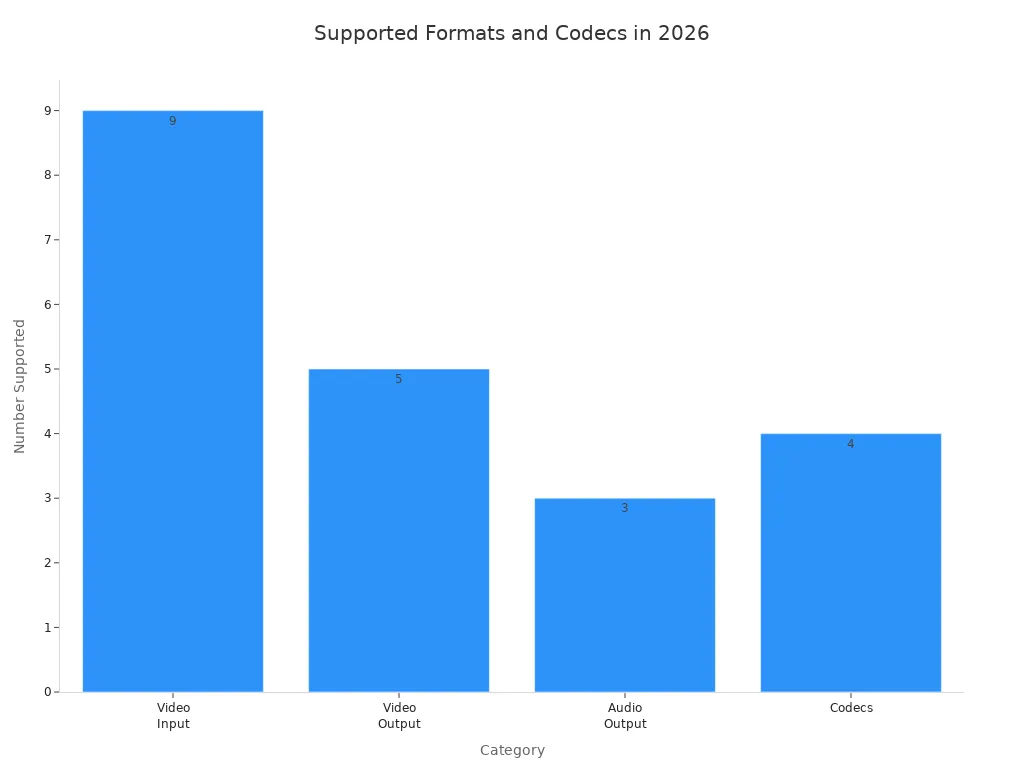
A video format converter must support a wide range of formats to meet the needs of users in 2026. Many converters handle both new and legacy formats, such as MP4, AVI, MOV, MKV, and FLV. This flexibility allows users to perform video format conversion for different devices and platforms. The table below shows the formats and codecs supported by the most versatile converters:
Category | Formats |
|---|---|
Video Input | MP4, WebM, MOV, AVI, MKV, WMV, FLV, MPEG, 3GP |
Video Output | MP4, WebM, MOV, AVI, GIF |
Audio Output | MP3, WAV, AAC |
Codecs | H.264, H.265/HEVC, VP9, AV1 |
Challenges arise when converting between new and legacy formats. Quality assurance issues can occur, and experts note that it is impossible to test every device. Companies often create tailored solutions and manage bit rates based on device family to ensure smooth conversion.
Challenge | Description |
|---|---|
Quality Assurance Issues | Experts acknowledge that it is impossible to QA everything, leading to potential issues on various devices. |
Tailored Solutions | Companies like Globo create applications and microservices to deliver tailored video experiences based on device capabilities. |
Bit Rate Management | Implementing bit rate policies based on device family helps manage streaming quality for older devices. |
Ensuring Device Compatibility
Platform compatibility is important for a video format converter. Different devices require specific formats. Social media platforms like Instagram, TikTok, and YouTube need MP4 with H.264. Web browsers prefer WebM. Apple devices use MOV and HEVC. Professional editing software relies on ProRes and DNxHD. Legacy devices often require AVI and WMV. A converter must offer presets for these devices to simplify the process.
Social media platforms: MP4 with H.264
Web browsers: WebM
Apple ecosystem: MOV and HEVC
Professional editing software: ProRes and DNxHD
Legacy devices: AVI and WMV
Future-Proofing Your Video Library
Video format converter software must keep up with emerging standards. Leading converters update regularly to support new codecs and HDR formats. They maintain original resolution and color fidelity while allowing users to control frame rate and codec settings. Regular updates ensure users can access the latest features and optimizations. This approach helps future-proof your video library and ensures smooth video format conversion as technology evolves.
TotalMedia VideoConverter supports a broad range of input and output formats, including MP4, MOV, MKV, AVI, MP3, and AAC. It offers device-optimized presets and custom settings for resolution, codec, and bit rate.
4. Batch Processing & Automation
Efficient Conversion Workflows
Batch processing is a must-have feature for anyone who works with multiple video files. Instead of converting each file one by one, users can add all their videos to a single queue and let the video converter handle everything at once. This approach can reduce the time spent on conversion by about 10 times compared to manual methods. Tasks that would take hours can now finish in just a few minutes. Batch video conversion is especially helpful for content creators and professionals who need to process large media libraries.
Queue Systems in Best Free Video Converters
The best free video converters and the best free video format converter often include queue systems. These systems allow users to drag and drop files, set output preferences, and start the process with a single click. Many free video format converter tools also offer basic customization options, such as choosing resolution or codec for each file in the queue. Some even support device-specific presets, making it easy to prepare videos for different platforms.
Feature | Free Video Converter | Paid Video Converter |
|---|---|---|
Batch Processing | ✔️ | ✔️ |
Customization | Basic | Advanced |
Automation Tools | Limited | Extensive |
Queue Management | Simple | Advanced |
Manual vs. Automated Conversion
Automation features in video converter software provide several benefits over manual workflows:
AI-powered clip selection identifies engaging segments automatically.
Automatic caption generation improves accessibility and saves time.
Batch processing converts multiple videos at once, speeding up workflows.
Streamlined distribution helps share videos across platforms quickly.
Customization options are usually more advanced in paid tools, but the best free video converters and the best free video format converter still offer essential features for most users. TotalMedia VideoConverter supports batch processing, advanced customization, and real-time monitoring, making it suitable for both beginners and power users.
5. Privacy & No Watermark Guarantee
Protecting Your Data in Video Converter Software
Privacy is a top concern when using a video converter in 2026. Many users upload personal or sensitive videos to an online converter or cloud processing service. This can expose files to risks like unauthorized access, data harvesting, or malware. The table below shows common privacy risks:
Privacy Risk | Description |
|---|---|
Uploading Sensitive Content | Uploading to third-party servers can lead to unauthorized access. |
Data Harvesting | Unreliable sources may collect user data without consent. |
Malware Exposure | Third-party sites may contain malware that threatens device security. |
Some best free video converters use strong security measures. For example, Convertio deletes input files immediately and output files after 24 hours. CloudConvert erases files right after processing. Zamzar follows GDPR rules and deletes files after a set period. These practices help protect user privacy during fast cloud processing.
Benefits of No Watermark Conversion
A watermark-free output is essential for professional and personal use. Watermarks can distract viewers and lower the quality of your videos. The best free video format converter options keep your videos clean and ready for sharing or editing. Here are some advantages:
Maintains original video quality and appearance.
Produces professional-looking results for social media or business.
Avoids negative impressions from visible branding.
Supports batch conversion and multiple formats for efficient workflows.
Many free video format converter tools, such as Any Video Converter and Miro Video Converter, offer no watermark output. This makes them popular choices for users who want high-quality results without extra branding.
Best Free Video Converters for Privacy
The best free video converters in 2026 combine privacy protection with no watermark output. Any Video Converter supports over 100 input and 160 output formats, with editing features like cropping and rotation. WaveSpeed Video Converter is another top choice. It uses fast cloud processing, requires no sign-up or installation, and deletes videos after conversion. Users can convert videos quickly and securely, with no watermarks or file size limits.
TotalMedia VideoConverter also supports privacy-focused conversion and watermark-free output, making it a reliable option for users who value data protection and quality.
Choosing the right tool means focusing on speed, AI enhancement, format support, batch processing, and privacy. Experts recommend checking resolution options and user interface. Common mistakes include mismatched frame rates and poor quality. Free options like HandBrake and Shutter Encoder balance quality and privacy. TotalMedia VideoConverter supports these essentials.
FAQ
Hardware acceleration uses your computer’s GPU and CPU to speed up video conversion. This process reduces wait times and improves performance for high-resolution files.
AI upscaling enhances resolution and color. It reduces noise and stabilizes footage. AI tools automate tasks and deliver sharper, more vibrant videos.
TotalMedia VideoConverter provides fast video and audio conversion, AI-powered compression, device presets, broad format support, and real-time monitoring.