You have WMV files that play fine on your Windows PC. You copy them to a USB drive, plug it into your Samsung TV, and get an “unsupported format” error — or the file refuses to open at all.
This is a more complicated problem than it looks. WMV support on Samsung TVs has never been consistent. On 2025 models, it’s been removed entirely. Here’s the full picture — what’s happening, which devices are affected, and how to fix it permanently.
The Critical Update: WMV Is Gone on 2025 Samsung TVs
This is the most important thing to know before troubleshooting.
The WMV, VC-1, and WMA codecs are no longer supported on Samsung’s 2025 and later device models. This applies across the full 2025 Samsung TV lineup. If your Samsung TV was purchased in 2025 or later, WMV files will never play — regardless of what you do with the USB drive, file system, or settings.
The DTS Audio codec is also not supported on 2024 Samsung TVs. Combined with the 2025 WMV removal, Samsung has steadily narrowed the codec support window on newer models.
If your TV is pre-2025 and WMV isn’t playing, the cause is different — likely a codec mismatch or USB formatting issue that is fixable. If your TV is 2025 or newer, conversion is the only path.
Why WMV Fails on Older Samsung TVs
On Samsung TVs manufactured before 2025, WMV support is technically present but inconsistent.
Codec variants. WMV is a family of codecs — WMV1, WMV2, WMV3, and VC-1. Samsung TV-supported video codecs include WMV1 and WMV2 on older models — but VC-1 AP L4 is not supported. A WMV file encoded with VC-1 fails on most Samsung TVs even though the WMV container format is listed as supported.
WMA audio inside WMV. WMV files almost always carry WMA audio — Windows Media Audio. WMA codecs are no longer supported on 2025 and later Samsung TV models. On older models, WMA support is partial — WMA 9 Pro Lossless and Voice are not supported, while standard WMA plays on most models.
Bitrate and frame rate limits. Samsung TVs are limited to playing video files at certain bitrates and frame rates. Your video will stutter, drop frames, or become unplayable if the bitrate or frame rate is too high. High-bitrate WMV files from HD recording software or screen capture tools often exceed what Samsung’s media player can handle.
USB file system incompatibility. File formats not supported by Samsung TV include F4V, M4V, SWF, DivX, Xvid, AVCHD, ProRes, and DTS audio. Beyond codec issues, a USB drive formatted incorrectly prevents the TV from reading any files at all.
How to Check Your Samsung TV Model Year
Before spending time troubleshooting, confirm your TV’s model year.
The model number is on a sticker on the back of the TV. Samsung model numbers include the year as a letter code — UN55Q80B, for example. The letter after the screen size indicates the year:
| Letter | Year |
|---|---|
| T | 2020 |
| A | 2021 |
| B | 2022 |
| C | 2023 |
| D | 2024 |
| F | 2025 |
If your model number contains F after the screen size — 2025 or newer — WMV will never play natively. Convert to MP4 H.264 first.
The Safe Target Format for Samsung TV USB Playback
The combination that plays on every Samsung Smart TV model without exception:
| Setting | Safe Value |
|---|---|
| Container | MP4 |
| Video codec | H.264 |
| Audio codec | AAC |
| Resolution | Match source |
| Frame rate | Constant — match source |
| Bitrate | 8–15 Mbps for 1080p |
| USB file system | FAT32 or exFAT |
For playing all media files on Samsung Smart TV freely, convert video files to MP4 containing AAC audio codec and H.264 video codec. MP4 with H.264 video and AAC audio plays on almost all devices including Samsung Smart TVs.
MP4 H.264 with AAC is more reliable than any WMV variant on any Samsung TV model — including pre-2025 models where WMV is technically listed as supported.
Method 1: TotalMedia VideoConverter — Samsung Device Preset
TotalMedia VideoConverter includes a Samsung TV device preset that automatically applies the correct codec, resolution, and audio settings — no manual configuration needed.
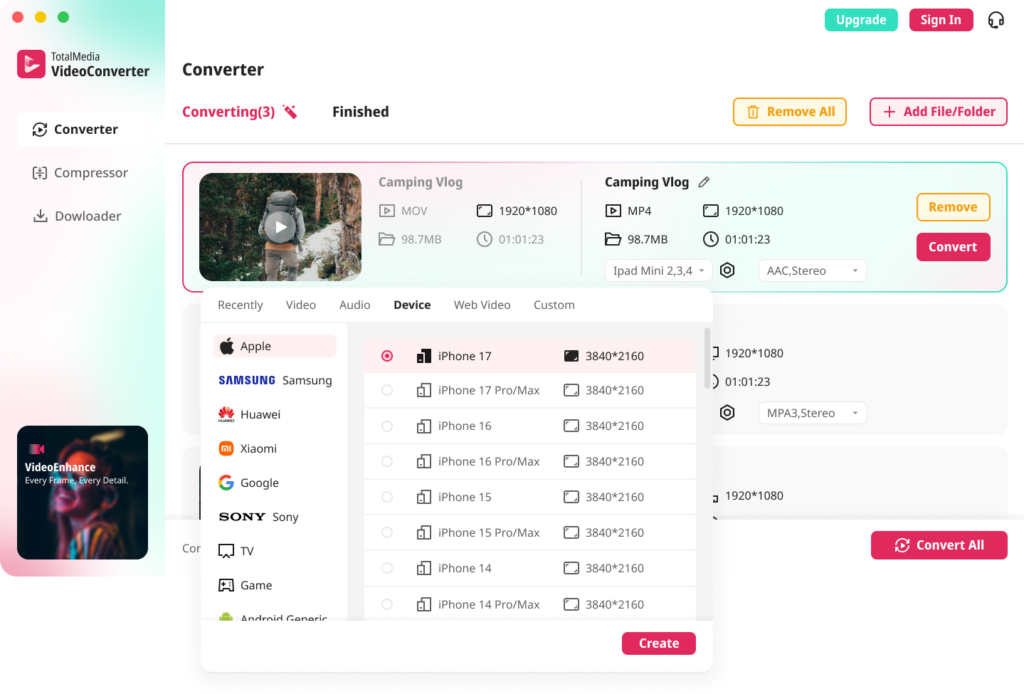
- Open TotalMedia VideoConverter and click Converter in the left sidebar
- Add your WMV file — drag and drop or use Add File/Folder for batch conversion
- Click the Device tab and navigate to Samsung — select the TV preset
- For manual control, open Custom Settings — confirm encoder is H.264, audio codec is AAC, resolution matches source
- Set output folder and click Convert
For a collection of WMV files — old home videos from Windows Movie Maker, corporate training recordings, screen captures — batch processing converts the entire folder in one session with consistent output settings.
Method 2: HandBrake — Free, No File Size Limits
HandBrake is free, open-source, and handles WMV to MP4 conversion reliably on Windows and Mac.
- Download HandBrake from handbrake.fr
- Load your WMV file via File under Source Selection
- Under Summary, confirm output format is MP4
- Go to the Video tab — confirm encoder is H.264
- Go to the Audio tab — set codec to AAC at 192kbps. Remove any WMA tracks
- Under Dimensions, confirm resolution matches source
- Enable 2-pass encoding for better quality at the same bitrate
- Click Start Encode
HandBrake outputs MP4, MKV, and WebM only — MP4 is exactly what Samsung TV needs. No watermarks, no file size limits, no restrictions.
Method 3: VLC — Quick Remux for Compatible Files
If your WMV file uses a compatible video codec and only the container needs changing, VLC can remux to MP4 without re-encoding — much faster than a full conversion.
- Open VLC and click Media, then Convert/Save
- Add your WMV file and click Convert/Save
- Select a profile with H.264 video and AAC audio
- Set output file with .mp4 extension
- Click Start
VLC remux only works when the video codec is already H.264 or MPEG-4. For WMV3 or VC-1 encoded files — the most common WMV variants — a full re-encode in HandBrake or TotalMedia VideoConverter is required.
Method 4: Online Tools — No Install, One-Off Conversions
Browser-based converters handle single files without software installation.
CloudConvert handles WMV to MP4 with custom codec, resolution, and audio settings. Free tier includes limited conversion minutes per day. Suitable for files under 1GB.
FreeConvert supports files up to 1GB on the free tier. Set output to MP4, confirm H.264 video and AAC audio, download.
For large WMV files over 1GB or batch conversion of multiple files, a desktop tool is faster and more reliable than browser-based options.
USB Drive Setup for Samsung TV
Samsung TV has USB ports on the back or sides which make it easy to play video from USB. You need to ensure the video format is supported by your Samsung TV first so it can be successfully recognized and played.
Correct file system setup:
- Format as FAT32 for files under 4GB — the most compatible option across all Samsung TV model years
- Format as exFAT for files over 4GB — FAT32’s 4GB per-file limit blocks large HD and 4K files from transferring
How to access media on Samsung TV via USB:
- Connect USB drive to the USB port on the side or back of the TV
- Press the Home button on the remote
- Navigate to Source, then select the connected USB device
- Browse to your video file and press play
VLC is available for some Samsung TV models — search for VLC in the App Store and install it on your Smart TV. But please note that VLC is not available for all Samsung TV models. If your Samsung TV model supports VLC, it handles a significantly wider range of formats than the native media player — worth installing before converting an entire library.
Troubleshooting Guide
| Problem | Cause | Fix |
|---|---|---|
| “Unsupported format” on 2025 TV | WMV removed from 2025 Samsung TVs | Convert to MP4 H.264 AAC — no other fix exists |
| “Unsupported format” on older TV | VC-1 or incompatible WMV variant | Convert to MP4 H.264 |
| File plays video but no audio | WMA audio not supported | Re-encode audio to AAC |
| USB drive not recognized | Wrong file system | Reformat to FAT32 or exFAT |
| File shows in list but won’t open | Corrupt WMV header or bitrate too high | Re-encode with HandBrake at lower bitrate |
| Choppy playback | Bitrate exceeds TV’s decoding limit | Re-encode at 8–12 Mbps for 1080p |
| No video files appear at all | Budget Samsung model with limited USB support | Check TV manual — some models have no USB video support |
Frequently Asked Questions
WMV, VC-1, and WMA codecs are no longer supported on 2025 and later Samsung TV models. On Samsung TVs from 2024 and earlier, WMV1 and WMV2 codec variants are supported with limitations — VC-1 and high-bitrate WMV files fail even on models that list WMV as supported. Converting to MP4 H.264 is the reliable solution regardless of model year.
Convert video files to MP4 containing AAC audio codec and H.264 video codec for playing all media files on Samsung Smart TV freely. MP4 H.264 with AAC audio plays on every Samsung Smart TV model without exception — including 2025 and later models where WMV support was removed.
No. WMV, VC-1, and WMA codecs are no longer supported on Samsung’s 2025 and later device models — this is a hardware and firmware decision, not a settings issue. No app or workaround restores native WMV playback on 2025 Samsung TVs. Converting to MP4 H.264 is the only path to playback on these models.