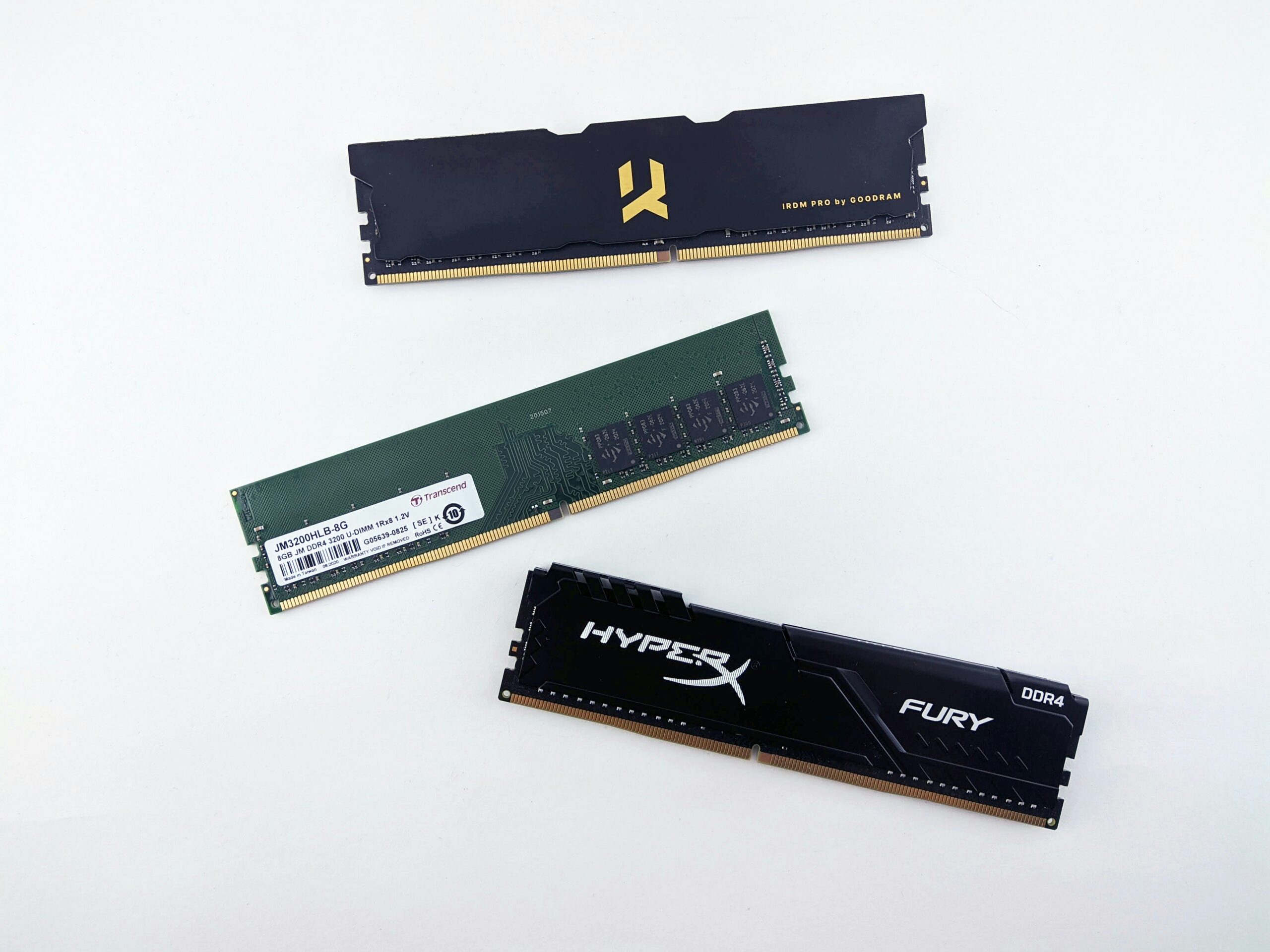
RAM is the most impactful upgrade for video editing performance. Here’s exactly what 8GB, 16GB, 32GB, and 64GB get you — by resolution, software, and workflow type.
RAM is the single most impactful hardware upgrade for video editing performance. More than GPU. More than CPU clock speed in many workflows. When your editing software runs out of RAM, it starts reading from your hard drive instead — and everything slows to a crawl.
The question isn’t whether more RAM helps. It always does. The question is how much you actually need for your specific workflow — and where the point of diminishing returns is.
What RAM Actually Does in a Video Editing Workflow
RAM — Random Access Memory — is your computer’s short-term working memory. Video editing software uses more RAM than what most computers come with. Without having enough memory, it’s almost impossible to edit a video without the computer crashing or freezing. The exact amount you need is determined by the software you use, the type of footage, and the number of applications you want to run simultaneously.
When RAM runs out, the operating system uses a swap file on your hard drive to compensate. The page file is a hidden file on your hard drive. Your computer stores files and programs in RAM because it’s much faster to read from RAM than from a hard drive. When RAM fills up, the page file takes over — and everything slows down because disk read speeds are far slower than RAM speeds.
This is why editing feels sluggish even on a fast CPU. The bottleneck isn’t processing power. It’s memory bandwidth.

8GB RAM — The Honest Picture
8GB RAM should only be used for projects smaller than 1080p and only if you are fine with closing down background programs.
4K editing will be nearly impossible with 8GB, and you will need a lot of patience to preview video files. 8GB of RAM will only allow for basic productivity and therefore shouldn’t be considered if you want an efficient video editing experience.
What 8GB can handle in 2026:
- 720p editing with minimal effects
- Simple 1080p cuts with no background apps running
- Basic social media clip trimming
What it can’t handle:
- 4K editing of any kind without constant lag
- Multiple applications open simultaneously
- Any project with color effects, transitions, or audio mixing on top of raw footage
Editing with 8GB of RAM is doable, but the editing process falters with files larger than 720p HD. You might need to close all background programs while editing.
The bottom line on 8GB: it’s a starting point, not a working point. If your machine has 8GB and you’re editing anything above 720p, upgrading RAM is the first thing worth doing.
16GB RAM — The Current Baseline
16GB RAM will work for projects that are 1080p to 4K 8-bit. This will allow minor usage of background projects as well.
Considering most computers come with 4GB RAM, 16GB gives you enough memory to do multiple things at once without the computer struggling. 16GB is enough for editing 1080p projects or 4K files with minimum effects. However, with background tasks running and multiple applications open, the computer might struggle to work efficiently.
What 16GB handles well:
- 1080p editing with effects, color correction, and audio work
- 4K editing with a proxy workflow in Premiere Pro or DaVinci Resolve
- Light multicam editing at 1080p
- Premiere Pro or DaVinci Resolve open alongside a browser and basic background apps
Where 16GB hits its limits:
- 4K editing without proxies — playback becomes choppy
- Multiple resource-heavy apps open simultaneously — After Effects alongside Premiere Pro, for example
- Long-form 4K projects with complex timelines and many effects layers
While 16GB might be enough for simple HD video timelines, you will feel the difference with 4K footage. As soon as you move into 4K video production or use complex effects in software like Adobe Premiere Pro, memory demands increase rapidly.
16GB is workable for most freelance and hobbyist workflows in 2026. It’s not comfortable for 4K-heavy professional work.
32GB RAM — The Practical Sweet Spot
By purchasing at least 32GB of RAM, you will significantly improve your video editing experience and be able to perform all the tasks needed without slowing down your computer.
32GB RAM can carry a heavy load for video editing while still using background projects. Each non-linear editing software will have its own specs but in general 32GB of RAM is sufficient for video editing.
With new multitasking possibilities, quicker renders, and faster caching, 32GB RAM is likely all you will ever need for video editing. Even if you work professionally, you are more likely to run out of hard disk space than RAM.
What 32GB handles well:
- 4K editing without proxies in most workflows
- 6K footage with proxy workflow
- Premiere Pro, DaVinci Resolve, or Final Cut running alongside After Effects or Photoshop
- Long-form documentary and commercial editing
- Multicam 4K projects with multiple effects layers
In 2026, 32GB is considered a realistic baseline for many creative professionals to work smoothly without slowdowns.
For most video editors — freelancers, YouTube creators, wedding videographers, corporate video producers — 32GB is the target. It removes RAM as a bottleneck for almost every common editing workflow. The upgrade from 16GB to 32GB produces a more noticeable performance improvement than almost any other single hardware change at the same price point.
64GB RAM — When It Actually Makes Sense
64GB RAM can handle 8K footage in 10-bit or more. You can also have other programs like After Effects running simultaneously.
64GB is a must for those who plan to edit 8K files or work with advanced motion graphics in Adobe After Effects in combination with 3D modeling and animation in Cinema 4D. These files will be slowed down with 32GB in the most demanding scenarios.
Who actually needs 64GB:
- Editors working with 8K RAW footage
- Motion graphics artists running After Effects alongside 3D applications like Cinema 4D or Blender
- Colorists working with 4K or 6K RAW in DaVinci Resolve with multiple node-heavy grades
- Editors managing multiple concurrent client projects on the same machine
Going above 32GB won’t hurt, but it is unnecessary in most cases — especially if you’re just starting out. Having less than 32GB might hinder your workflow when dealing with professional-grade projects, but 64GB is overkill for the majority of video editors.
Software RAM Requirements
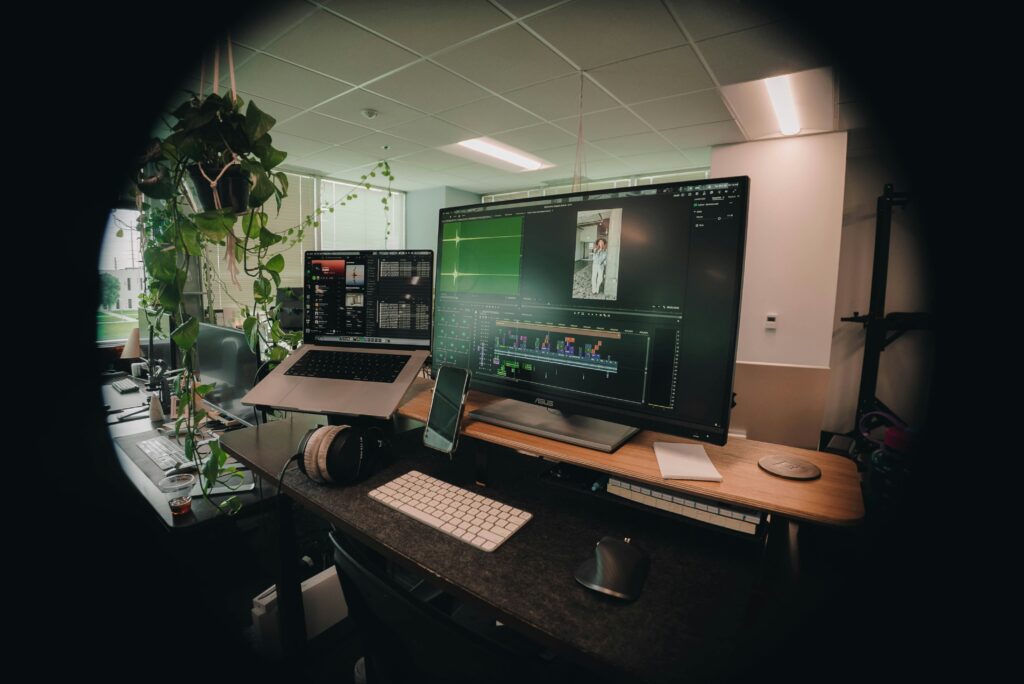
Different editing applications have different baseline requirements and different behaviors when RAM fills up.
Adobe Premiere Pro The minimum requirement for Premiere Pro is 8GB of RAM for basic edit work. However, if you intend to work with HD or 4K footage, you will need to upgrade to 16GB or 32GB. Adobe’s own recommendation for 4K and above is 16GB minimum with 32GB recommended. For workflows combining Premiere Pro with After Effects and Media Encoder simultaneously, 32GB is the functional minimum.
DaVinci Resolve Blackmagic Design recommends 16GB for standard workflows and 32GB for collaborative and Fusion workflows. DaVinci Resolve is generally considered more RAM-efficient than Premiere Pro at equivalent tasks — but the color science engine and Fusion node system consume significant memory on complex projects.
Final Cut Pro Apple’s own recommendation is 4GB minimum with 8GB recommended for 4K, ProRes RAW, and 360-degree video. Final Cut Pro’s tight integration with macOS and Apple Silicon makes it significantly more memory-efficient than cross-platform alternatives at equivalent resolution tasks.
RAM Speed and Type — Does It Matter?
For video editing specifically, RAM capacity matters more than RAM speed. Doubling from 16GB to 32GB produces a far more significant performance improvement than upgrading from DDR4-3200 to DDR4-3600 at the same capacity.
That said: when choosing RAM, make sure that the type — DDR4 vs DDR5 — and amount are both supported by your motherboard. Consider RAM speeds measured in MHz and latency values — lower latency means faster response times. Higher speeds can slightly improve performance but are not always significant for video editing specifically.
For new builds in 2025, DDR5 is worth choosing for longevity. For existing systems, adding more DDR4 RAM is almost always a better value than switching to DDR5 at the same capacity.
One practical note: do not mix RAM kits. Buy matched pairs from the same manufacturer and kit. Mixed RAM can cause instability and prevents the system from running in dual-channel mode, which reduces memory bandwidth.
How to Check If RAM Is Your Bottleneck
Before buying more RAM, verify it’s actually the problem.
On Windows: open Task Manager, click the Performance tab, and select Memory. Watch RAM usage while editing. If usage stays consistently above 80% during normal editing tasks, more RAM will help. If it stays below 60%, RAM is not your bottleneck.
On Mac: open Activity Monitor, click the Memory tab. The Memory Pressure graph at the bottom tells the story — green means RAM is sufficient, yellow means some pressure, red means you’re regularly hitting the limit and performance is suffering.
Quick Reference: RAM by Use Case
| Use Case | Minimum | Recommended | Comfortable |
|---|---|---|---|
| 720p social media clips | 8GB | 16GB | 16GB |
| 1080p freelance editing | 16GB | 16GB | 32GB |
| 4K with proxy workflow | 16GB | 32GB | 32GB |
| 4K without proxy workflow | 32GB | 32GB | 64GB |
| 6K/8K RAW editing | 32GB | 64GB | 64GB+ |
| After Effects + Premiere simultaneously | 32GB | 32GB | 64GB |
| DaVinci Resolve color + Fusion | 16GB | 32GB | 64GB |
Frequently Asked Questions
In general, 32GB of RAM is sufficient for video editing. 16GB will work for 1080p to 4K 8-bit projects with minor background usage. 32GB handles heavy loads including 4K editing with background projects running. 64GB is recommended for 8K footage in 10-bit or more. For most freelance and hobbyist video editors, 32GB is the practical target.
16GB is enough for 4K editing with a proxy workflow — where low-resolution copies of the footage are used during editing and the originals are used for export. Without proxies, 4K editing on 16GB produces choppy playback and frequent slowdowns on most systems. As soon as you move into 4K video production or use complex effects, memory demands increase rapidly, making 32GB a compelling case.
The practical difference is most visible during 4K editing without proxies, multicam workflows, and running multiple applications simultaneously. With each upgrade from 16GB to 32GB, the computer runs smoother and handles multitasking better. 32GB RAM provides new multitasking possibilities, quicker renders, and faster caching. For 1080p editing, the difference is less significant. For 4K and above, it’s substantial.
Only for specific high-demand workflows. Most video editors won’t need to use 64GB RAM. If you plan to edit 8K files or work with motion graphics in After Effects alongside 3D software, then 64GB might be useful — but it might cost more than it’s worth for general video editing. For the vast majority of editors, 32GB is the ceiling before returns diminish significantly.