
4K video is sharp. It’s also large, demanding on older hardware, and incompatible with many devices and platforms. You may need to convert 4K videos to 1080p when you can’t play them smoothly on your PC, when they take up too much storage space, or when they keep stuttering and lagging due to high CPU usage.
Converting 4K to 1080p is called downscaling. Done correctly, the result is a significantly smaller file that looks virtually identical to the original on most screens. Done wrong — wrong codec, wrong bitrate, wrong settings — you get a smaller file that looks noticeably worse.
Here’s how to do it correctly.
What Changes When You Convert 4K to 1080p
4K refers to a resolution of 3840×2160 pixels. 1080p — Full HD — is 1920×1080. 4K is much sharper than 1080p. But for most viewers on most screens, the difference is minimal — especially on smaller displays like laptops and phones.
Converting 4K to 1080p often reduces file size significantly — commonly by more than half — while keeping the video visually sharp for most screens. The reduction depends on the codec and bitrate settings you choose. Get those right and the quality difference is negligible.
It’s not possible to convert from 4K to 1080p without any loss of quality since you’re reducing the pixel count significantly. The honest goal is minimizing visible quality loss — not eliminating it entirely.
The Right Settings for 4K to 1080p Conversion
Settings matter more than the tool you use. These variables determine whether the output looks good or not.
Resolution: Set output to 1920×1080. This is the standard 16:9 Full HD resolution. Match your source aspect ratio — a 4K DCI source at 4096×2160 needs a different output crop than a standard 3840×2160 frame.
Codec: H.264 offers the best compatibility across devices and players. H.265 produces smaller file sizes at similar quality but may require newer devices for smooth playback. For sharing online or maximum compatibility, choose H.264. For smaller files where you control the playback device, choose H.265.
Bitrate: Drop the bitrate to around 8 to 10 Mbps for most videos — or a bit higher for action scenes — and you’ll keep sharp detail without ballooning the file size. Bitrate is an important factor that affects video quality and file size. However, when bitrate reaches a critical point, eyes will no longer notice quality enhancement — only file size increase. A high quality mode setting gives smaller 1080p video with quality unaffected visually.
Frame rate: Match your source. Don’t change the frame rate during a resolution conversion — it adds unnecessary complexity and can affect motion quality.
Audio: AAC at 192kbps. No reason to change audio settings when converting resolution.
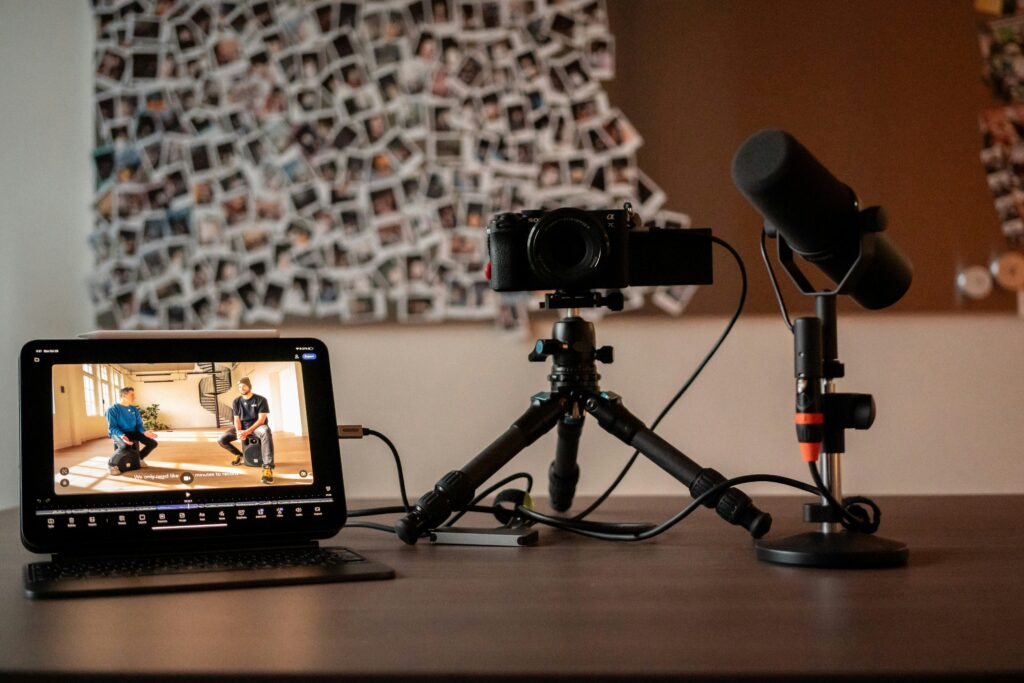
Method 1: HandBrake — Free, No Limits, Maximum Control
HandBrake is free, open-source, and handles 4K to 1080p conversion reliably. No file size limits. No watermarks. Works on Windows, Mac, and Linux.
HandBrake accepts 4K at 24, 25, 30, 50, and 60fps in almost any format including H.264, H.265, VP9, MP4, MKV, MXF, and WebM.
Step by step:
- Download HandBrake from handbrake.fr — the only official download source
- Open HandBrake and load your 4K video via File under Source Selection
- Under the Dimensions tab, set Resolution Limit to 1920×1080
- Go to the Video tab and set Video Encoder to H.264 for broad compatibility or H.265 for smaller files
- Switch to Average Bitrate and enter 8,000 to 10,000 kbps
- Enable 2-pass encoding for better quality at the same bitrate
- Under Audio, confirm AAC at 192kbps
- Click Start Encode
One honest note: HandBrake is CPU-heavy — it often uses over 90% CPU and runs slowly even with hardware acceleration enabled. For long 4K files, encoding time is significant. For occasional use, the wait is worthwhile for a free tool with no restrictions.
Method 2: TotalMedia VideoConverter — Device Presets and Batch Processing
TotalMedia VideoConverter handles the conversion without requiring manual bitrate calculation. Add your 4K file, select an output format and resolution, and convert.
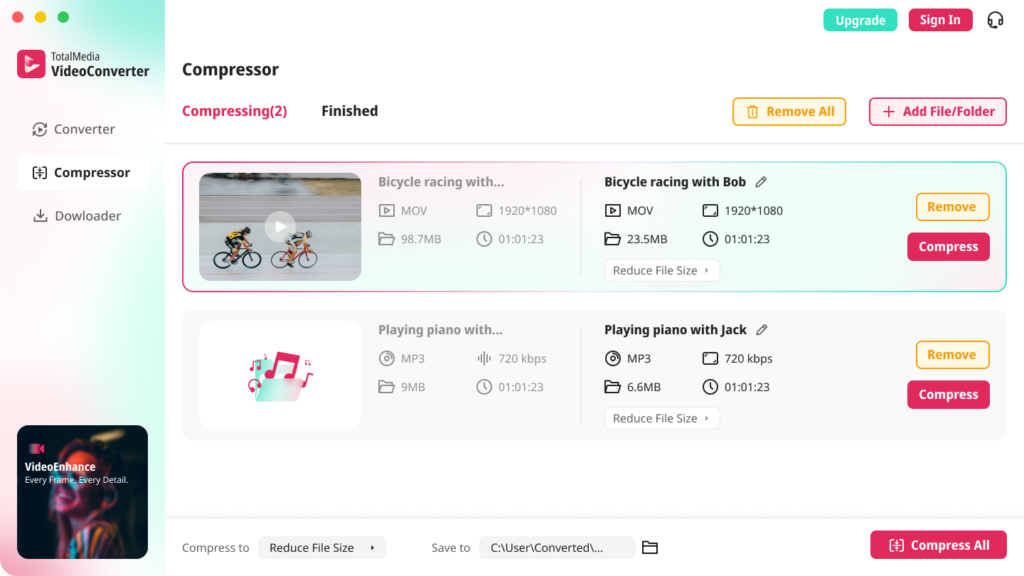
The Device tab includes presets for major brands — Apple, Samsung, Sony, and others — that automatically apply the correct codec, resolution, and bitrate for each device. For general 1080p output, the Video tab with custom settings gives full control over encoder, resolution, frame rate, and bitrate.
For multiple 4K files, batch processing converts the entire folder in one session with consistent output settings. The web app version requires no installation — useful for one-off conversions on any device with a browser.
Step by step:
- Open TotalMedia VideoConverter and click Converter in the left sidebar
- Add your 4K video file or drag an entire folder for batch conversion
- Under the Video tab, select MP4 as output format
- Open Custom Settings — set resolution to 1920×1080, encoder to H.264, bitrate to 8,000 to 10,000 kbps
- Confirm frame rate matches source
- Set output folder and click Convert All
Method 3: VLC — Already Installed, No Download Needed
VLC is on most computers already. It handles basic 4K to 1080p conversion without any additional software.
VLC is free, open-source, and compatible with all popular operating systems. It supports a wide range of formats including MKV, MP4, WMV, AVI, and OGG.
One limitation worth knowing: VLC lacks support for H.265, also known as HEVC, and VP9 codec. Most 4K videos are compressed by H.265 or VP9. VLC also doesn’t support hardware acceleration, so it has weak performance in speed. For H.265 source files, VLC may struggle.
Step by step:
- Open VLC and click Media in the top left
- Select Convert/Save
- Click Add and select your 4K video, then click Convert/Save
- Click the settings icon next to the profile dropdown
- Under Video Codec, go to the Resolution tab and set width to 1920 and height to 1080
- Save the profile, set output file name and location
- Click Start
Method 4: Online Tools — No Install Required
Browser-based converters handle one-off jobs without software installation. File size limits apply on free tiers — most 4K files exceed those limits.
FreeConvert supports files up to 1GB on free tier. Set output resolution to 1920×1080, choose MP4 with H.264, and convert. Straightforward for short clips.
HDconvert is another browser option. It handles a range of resolutions from 360p to 1080p and requires no device storage. Free tier has file size restrictions.
The practical limitation: online tools choke on bigger projects. Desktop apps handle longer files and give extras like batch conversion. For anything longer than a few minutes or larger than 1GB, a desktop tool is more reliable.
4K to 1080p Settings Reference
| Setting | Recommended Value |
|---|---|
| Output resolution | 1920×1080 |
| Video codec | H.264 for compatibility / H.265 for smaller files |
| Bitrate | 8,000–10,000 kbps for standard content |
| Bitrate (action/fast motion) | 12,000–15,000 kbps |
| Frame rate | Match source |
| Audio codec | AAC |
| Audio bitrate | 192 kbps |
| Container | MP4 |
When to Keep 4K — and When to Downscale
Not every 4K file needs converting. Downscaling is the right choice when:
- The target device or platform maxes out at 1080p
- File size is the primary concern — storage, sharing, or upload time
- Playback is choppy on the target device due to high CPU demands
- The platform re-encodes to 1080p anyway — converting first gives you more control over quality
Keep 4K when:
- The final output is for a 4K display
- The file is a master archive — compress a delivery copy, keep the 4K original
- The platform accepts and displays 4K — YouTube delivers sharper results from 4K uploads even on 1080p screens due to better encoder treatment
Frequently Asked Questions
Yes — converting 4K to 1080p preserves most visual quality. The process reduces pixel count but with correct codec and bitrate settings, the result is visually sharp for most screens. The quality difference between a well-converted 1080p file and the original 4K source is minimal on displays smaller than 55 inches.
HandBrake is the best free desktop option — no file size limits, no watermarks, full control over output settings. For users who don’t want to install software, FreeConvert and HDconvert handle short clips in a browser. For batch conversion and device presets, TotalMedia VideoConverter’s web app requires no installation and covers the most common use cases without manual bitrate calculation.
8,000 to 10,000 kbps for standard content at 1080p. Increase to 12,000 to 15,000 kbps for fast-motion content — sports, action, gaming — where lower bitrates introduce visible artifacts on moving subjects. Drop the bitrate to around 8 to 10 Mbps for most videos to keep sharp detail without ballooning the file size.
Converting 4K to 1080p commonly reduces file size by more than half, depending on codec and bitrate settings. A 10GB 4K file typically becomes 3 to 5GB at 1080p with H.264 encoding at standard bitrate settings. Switching from H.264 to H.265 encoding reduces file size further — typically 30 to 50% smaller at the same visual quality.