Why Drone Footage Breaks in Video Editors
You land your drone, transfer the clips, drag them into your editor — and nothing works.
This is one of the most common frustrations in drone videography, and it is almost never a hardware problem. It is a compatibility problem. Drone manufacturers optimize their cameras for capture quality, not editor compatibility. That gap causes real friction for editors at every level.
The good news: every compatibility issue has a clear cause and a straightforward fix.
The core issue: Most modern drones record in formats or codecs that consumer and even professional video editors do not natively support without additional configuration or conversion.
What Format Does Your Drone Actually Record In?
Before fixing anything, you need to know what you are working with. Different drone manufacturers use different default formats and codecs.
DJI (the most widely used consumer and prosumer brand) records in:
- MP4 or MOV containers
- H.264 or H.265 (HEVC) codec depending on model and quality setting
- D-Log, D-Log M, or D-Cinelike color profiles on higher-end models
Autel drones typically record in:
- MP4 with H.264 or H.265
Parrot drones output:
- MP4 with H.264
The container format (MP4, MOV) is rarely the problem. The codec — particularly H.265 — is where most compatibility issues begin.
The H.265 Problem: Why Your Drone Clips Won’t Import
H.265 (also called HEVC) is the dominant codec in modern drones because it delivers exceptional image quality at smaller file sizes. DJI’s mid-range and flagship models default to H.265 for 4K recording.
The problem: H.265 is computationally demanding to decode, and many video editors either do not support it natively or require hardware that can handle it.
Editor compatibility at a glance:
| Video Editor | H.264 Support | H.265 Support |
|---|---|---|
| Adobe Premiere Pro | Native | Native (with hardware) |
| DaVinci Resolve | Native | Native (Studio version full support) |
| Final Cut Pro | Native | Native (Apple Silicon) |
| iMovie | Native | Limited / often fails |
| Vegas Pro | Native | Requires plugin |
| Kdenlive | Native | Depends on system codec |
| Windows Photos / basic editors | Native | Often fails |
If your editor is on the limited or fails side of that table, converting H.265 to H.264 before editing is the cleanest solution.
How to Convert Drone Footage to an Editor-Compatible Format
Converting drone footage to a widely supported format is the most reliable fix for import and playback errors. The target in most cases is H.264 in an MP4 container — the closest thing to a universal standard in video editing.
Using TotalMedia VideoConverter
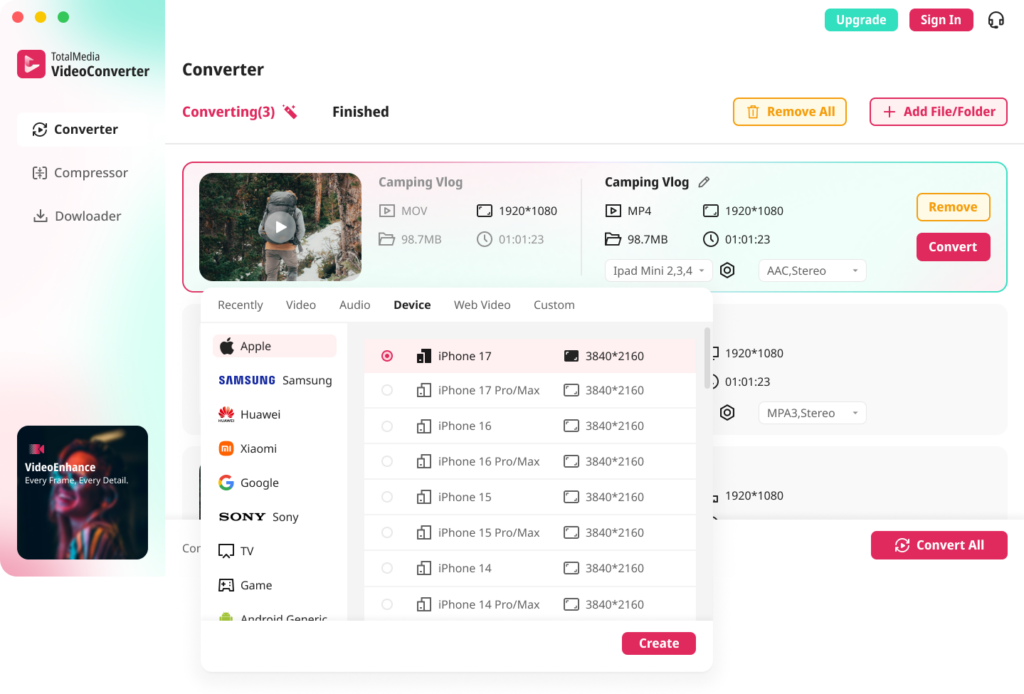
TotalMedia VideoConverter handles drone footage conversion with batch processing — useful when you return from a shoot with dozens of clips that all need the same treatment.
Step-by-step:
- Open TotalMedia VideoConverter and click Converter in the left sidebar.
- Click + Add File/Folder and select your drone clips. You can add an entire folder at once.
- In the right panel, select the Video tab and choose MP4 as your output format.
- Click the settings gear to open Custom Settings. Set the encoder to H.264, confirm your resolution and frame rate match the source, and adjust bit rate if needed.
- Save this configuration as a named preset — for example, “Drone to H.264 Edit” — so you can apply it to every future shoot in seconds.
- Set your output folder via Save to.
- Click Convert All to process the entire batch. Monitor progress in real time.
Tip: Match the output frame rate exactly to your source. If your drone recorded at 29.97fps, do not convert to 30fps — subtle frame rate mismatches cause audio sync drift over longer clips.
Using HandBrake (Free Alternative)
HandBrake is a reliable free option for users who need to convert one or a few files without a dedicated tool.
Recommended settings for drone footage:
- Codec: H.264 (x264)
- Preset: HQ 1080p30 or HQ 2160p60 4K depending on your source
- Quality (RF): 18–22 for near-lossless output
- Frame rate: Same as source — select “Same as source” in HandBrake
For 4K drone footage converting to H.264, use RF 18–20 to avoid visible quality degradation. HandBrake does not offer batch folder import as cleanly as a dedicated converter, so it is best for smaller jobs.
Understanding Proxy Workflows: Edit Fast, Export Full Quality
If your computer struggles with 4K or 6K drone footage even after converting to H.264 — choppy timeline, dropped frames, slow scrubbing — the issue is not your editor. It is your hardware hitting its limit decoding high-resolution video in real time.
The solution used by professionals is a proxy workflow.
How it works:
- Convert your original high-resolution clips to low-resolution proxy files (typically 1080p or 720p, H.264, low bitrate).
- Edit using the proxy files — the timeline runs smoothly because the files are lightweight.
- Before exporting, relink your timeline to the original high-resolution files.
- Export at full quality.
Your editor never touches the heavy originals during the editing phase. The final export does.
Most professional editors support proxy workflows natively. In Premiere Pro, this is handled under Proxy > Create Proxies. In DaVinci Resolve, it is under Playback > Proxy Mode. In Final Cut Pro, use File > Generate Proxy Media.
Fixing Frame Rate Mismatches
Drone footage shot at 24fps, 25fps, 29.97fps, 30fps, 60fps, and 120fps can all end up in the same project — and mismatches cause visual stuttering, slow motion playback in the wrong places, and audio sync issues.
The fix depends on the intent:
If you want normal speed playback: Convert the clip to match your project’s frame rate exactly. Use “Same as source” when possible and set your project timeline to match the majority of your clips.
If you shot at high frame rate intentionally for slow motion: Do not convert. Import the 60fps or 120fps clip into your editor and interpret the footage at 24fps or 30fps for smooth slow motion.
If clips from the same shoot have mixed frame rates: This happens when switching between video modes mid-flight. Convert all clips to a single target frame rate before editing to keep the timeline clean.
Log Footage: What It Is and Why Your Clips Look Washed Out
If your drone has a Log shooting mode — D-Log on DJI Mavic and Inspire series, D-Log M on newer DJI models, D-Cinelike on older DJI drones — your footage will look flat, grey, and desaturated when you import it.
This is not a problem. It is by design.
Log color profiles preserve far more dynamic range than standard color profiles. The footage looks flat because the camera compressed highlights and shadows into a narrower range to capture detail in both extremes simultaneously. That detail is all there in the file — it just needs to be unlocked.
Log footage is not a compatibility issue. It is a color grading step.
To restore natural color and contrast from Log footage, you need to apply a LUT (Look-Up Table) in your video editor:
- In DaVinci Resolve: Right-click the clip in the Color page > Apply LUT. DJI provides official LUTs for download on their support site.
- In Adobe Premiere Pro: Use the Lumetri Color panel > Creative > Look, or apply a LUT directly under Basic Correction.
- In Final Cut Pro: Apply a Custom LUT effect from the effects browser.
DJI publishes official LUTs for D-Log and D-Log M footage at no cost. Download them directly from DJI’s support pages for the most accurate starting point.
Format conversion will not fix Log footage appearance. This step must happen inside your editor after import.
Audio Issues: Why Drone Clip Audio Sounds Wrong
Some drone footage imports with no audio, distorted audio, or audio that falls out of sync. A few common causes:
No audio track at all: Some drones — particularly racing drones and certain DJI models in specific recording modes — do not capture audio. This is expected behavior, not a conversion error.
Audio sync drift: Almost always caused by frame rate conversion or mismatched project settings. If you converted a 29.97fps clip to 30fps, audio and video will drift apart over time. Always match frame rates precisely.
Distorted or wind noise: This is a capture issue, not a compatibility issue. Drone audio is notoriously poor due to propeller noise. Most editors use only the video track and replace audio entirely in post.
Recommended Conversion Settings by Editing Software
| Target Editor | Container | Codec | Notes |
|---|---|---|---|
| Adobe Premiere Pro | MP4 | H.264 | Match source frame rate |
| DaVinci Resolve (free) | MP4 | H.264 | Resolve Free struggles with H.265; convert first |
| Final Cut Pro | MOV | H.264 | Or use native ProRes if storage allows |
| iMovie | MP4 | H.264 | 1080p maximum recommended |
| Vegas Pro | MP4 | H.264 | Avoid MKV container |
| Kdenlive | MP4 | H.264 | Ensure system H.265 codec is installed |
FAQ
The most common cause is codec incompatibility — specifically H.265 (HEVC), which many editors do not support natively. Convert your drone clips to H.264 in an MP4 container using a tool like TotalMedia VideoConverter or HandBrake, then reimport. This resolves the majority of import errors.
DJI footage in H.265 or MOV format can be converted to H.264 MP4 using TotalMedia VideoConverter or HandBrake. In TotalMedia VideoConverter, add your clips, select MP4 as the output, set the encoder to H.264 in Custom Settings, and run Convert All. Premiere Pro handles H.264 MP4 natively with no additional steps.
H.264 codec in an MP4 container is the most universally compatible format across all major video editors. It balances file size, quality, and playback performance. For professional workflows with high-end hardware, ProRes (MOV) offers higher quality at larger file sizes.