The best way to ensure smooth editing of gopro hevc final cut pro footage is to convert videos using a reliable tool like TotalMedia VideoConverter. Always check your Mac’s hardware and software compatibility. Following these steps helps you avoid import errors and playback issues during your editing workflow.
Key Takeaways
Always check your Mac’s compatibility with Final Cut Pro before importing GoPro HEVC footage. This step prevents import errors and playback issues.
Use TotalMedia VideoConverter to convert GoPro HEVC files to ProRes or H.264 for smoother editing in Final Cut Pro. This conversion enhances performance and reduces lag.
Maintain organized storage with fast drives to improve playback speeds. A hard drive with at least 1TB capacity and 400M/S speed is recommended for 4K video editing.
Compatibility Checklist
macOS and Final Cut Pro Requirements
Final Cut Pro works best with the latest macOS versions. Always check that your software is up to date before importing GoPro HEVC footage. Final Cut Pro supports HEVC, but older versions may not handle it well. Newer releases offer improved codec support and smoother playback. Make sure your Mac meets the minimum requirements for Final Cut Pro. This step helps prevent editing delays and import errors.
Hardware Support for HEVC
Hardware acceleration makes a big difference when editing GoPro HEVC Final Cut Pro videos. Macs with Apple Silicon chips, such as M1, M2, or M3 series, provide strong hardware acceleration for HEVC decoding. These models process video faster and reduce lag during playback. Older Intel Macs may experience slower performance and more frame drops. Consider upgrading your hardware if you plan to edit high-resolution footage often.
Macs with Apple Silicon (M1/M2/M3 series) offer excellent HEVC decoding.
Intel Macs may not perform as well with HEVC files.
Storage and Performance Tips
Editing 4K or 5K GoPro HEVC footage requires fast and reliable storage. A hard drive with at least 1TB capacity and a minimum transmission speed of 400M/S is recommended for smooth 4K video editing. Using a fast SSD or RAID setup can further improve performance. Keep your storage organized and avoid filling your drive to capacity. This practice ensures Final Cut Pro runs efficiently and reduces the risk of dropped frames.
Minimum System Requirements | 4K HEVC video Playback |
|---|---|
Hard Drive | 1TB with at least 400M/S transmission speed for 4k video editing |
Tip: Use external SSDs for faster read and write speeds when working with large GoPro HEVC files.
Import Solutions for GoPro HEVC Final Cut Pro
Convert GoPro HEVC with TotalMedia VideoConverter
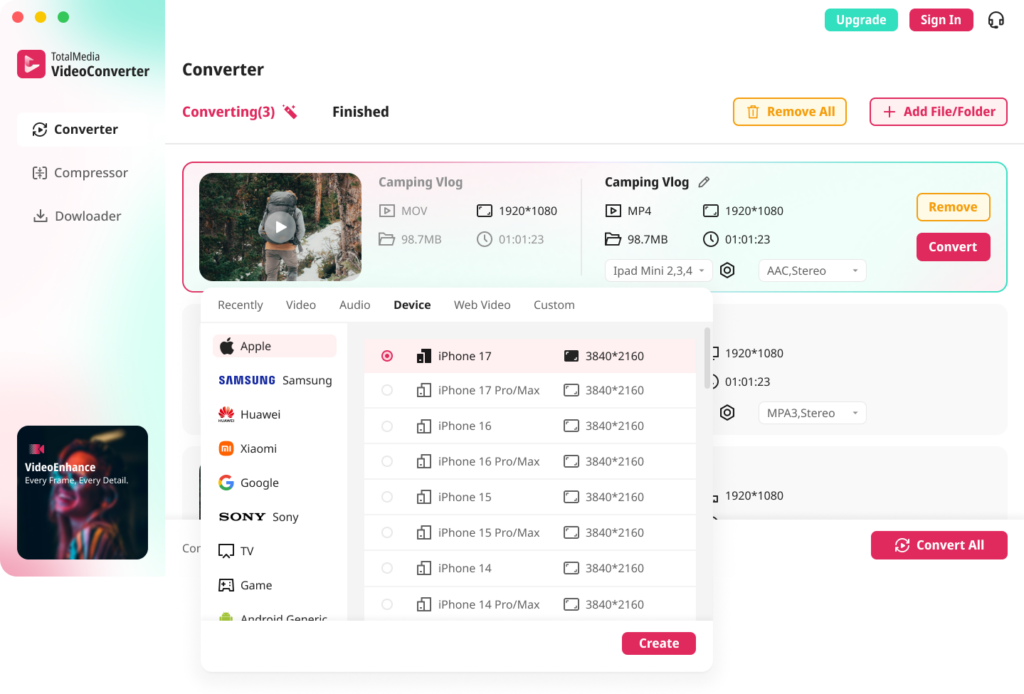
TotalMedia VideoConverter offers a fast and reliable way to convert GoPro HEVC footage for editing in Final Cut Pro. The software supports many video formats and provides device-optimized presets. You can convert multiple files at once using batch processing. This feature saves time and helps you manage large projects.
Batch processing lets you add entire folders and convert all files together.
Device presets make it easy to choose the best settings for Apple devices.
AI-powered compression reduces file size while keeping high video quality.
Tip: Use the “Reduce File Size” preset to shrink large GoPro HEVC files. This helps when storage space is limited.
The software also allows you to customize video and audio settings. You can select the video encoder, resolution, frame rate, and bit rate. For Final Cut Pro, choose ProRes or H.264 as the output format. These formats work well and provide smooth editing performance.
Feature | Benefit |
|---|---|
Batch Processing | Converts many files at once |
Device Presets | Optimizes for Apple and other devices |
AI Compression | Shrinks files without losing quality |
Custom Settings | Lets you adjust video and audio options |
Direct Import to Final Cut Pro
Final Cut Pro supports GoPro HEVC files, but not all versions handle them equally well. If your Mac meets the compatibility checklist, you can import GoPro HEVC footage directly. Open Final Cut Pro, click “Import,” and select your files. The software will process the videos and add them to your project.
Some users may see lag or dropped frames during playback. This happens when the hardware or software does not fully support HEVC. If you notice performance issues, convert your files to ProRes or H.264 before importing. This step improves editing speed and reduces errors.
Note: Always check your Final Cut Pro version and macOS updates before importing GoPro HEVC files.
GoPro Export Settings for Smooth Editing
GoPro cameras offer several export settings. Choosing the right settings makes editing easier in Final Cut Pro. Set your camera to record in H.264 if you want faster imports. If you prefer HEVC for smaller file sizes, use TotalMedia VideoConverter to convert the footage.
Use 4K resolution for high-quality projects.
Set frame rate to 30fps or 60fps for smooth motion.
Choose H.264 or ProRes as the final output format for gopro hevc final cut pro editing.
Callout: ProRes provides the best quality and performance in Final Cut Pro. H.264 is a good choice for smaller file sizes and faster uploads.
When exporting from GoPro, keep audio settings simple. Use AAC audio codec for compatibility. Make sure your files are organized before importing into Final Cut Pro. This practice helps you find clips quickly and keeps your workflow efficient.
Troubleshooting & Tips
Fixing Import and Playback Issues
Many users face problems like frame drops or lag when working with GoPro HEVC files in Final Cut Pro. These issues often come from outdated software or slow storage devices. Make sure Final Cut Pro and macOS are updated to the latest versions. Use fast SSDs or RAID drives to improve playback and rendering speeds. Hardware acceleration on newer Macs helps process gopro hevc final cut pro footage more efficiently. If playback remains choppy, convert files to ProRes or H.264 before importing.
Tip: Keep your storage organized and avoid filling drives to capacity. This helps Final Cut Pro run smoothly.
Resolving Color and Audio Problems
Audio sync drift can happen if the audio and video sample rates do not match, especially when changing frame rates during compression. To prevent this, keep the frame rate consistent throughout the workflow. For color grading, apply a grade to flat profile footage before compression. This step gives your videos a vibrant look and avoids a washed-out appearance. Compressing without grading can reduce visual quality.
Always check audio sample rates before exporting.
Grade footage before compressing for best results.
Optimizing Final Cut Pro Workflow
Maintaining updated software and hardware brings long-term benefits for editing GoPro HEVC files. Updates improve rendering speeds, compatibility, and access to advanced features. The table below shows these advantages:
Benefit | Description |
|---|---|
Enhanced Rendering Speeds | Updated software and hardware allow for faster processing of GoPro HEVC footage in Final Cut Pro. |
Improved Compatibility | Ensures that the latest hardware works seamlessly with the editing software, reducing issues. |
Access to Advanced Features | New updates provide tools that enhance the editing experience, making it more efficient. |
GoPro Player is useful for equirectangular exports and reframing. Use it to prepare 360-degree footage before importing into Final Cut Pro.
Note: Regularly update your editing tools and hardware for the best workflow and fewer technical problems.
Making GoPro HEVC footage compatible with Final Cut Pro starts with conversion and proper import steps. Using TotalMedia VideoConverter and following compatibility guidelines helps prevent editing issues.
Create proxy media for easier editing.
Change playback settings for better performance.
Use fast storage drives to avoid playback stutter.
FAQ
Yes, you can edit GoPro HEVC files in Final Cut Pro. For best results, update your software and hardware. Convert files if you see playback issues.
ProRes and H.264 formats work best for editing. ProRes gives top quality and smooth playback. H.264 is good for smaller file sizes.
Yes! TotalMedia VideoConverter lets you convert many GoPro HEVC files at once. This feature saves time and keeps your workflow efficient.