
Can iPhone Play MKV Files Natively?
Not reliably. iPhone’s native media framework — the one powering the Photos app and default video player — supports MP4, MOV, and M4V. MKV is not on Apple’s supported format list and has never been.
In practice, some MKV files will open in the iOS Files app depending on the codec inside. An MKV containing H.264 video and AAC audio might preview on a recent iPhone running iOS 17 or later. But this is inconsistent — the same file that previews on one device may show a blank screen or “unable to open” error on another. It depends on the codec, the iOS version, and the specific file’s encoding profile.
The honest answer: native MKV playback on iPhone is not a reliable solution. For consistent results, you need either a third-party player app or to convert the file before transferring it.
Key distinction: “Playing MKV without converting” means using an app that handles MKV natively on the device — not playing it through iPhone’s built-in player, which does not support it reliably. The “without converting” in most searches refers to avoiding a desktop conversion step, not avoiding apps entirely.
Why iPhone Does Not Support MKV Natively
Apple controls its media playback framework tightly. iOS supports formats that optimize for hardware decoding on Apple Silicon — primarily H.264 and H.265 in MP4 and MOV containers. These formats are accelerated by Apple’s dedicated video decode hardware, which is why they play smoothly without draining battery.
MKV is a flexible open-source container that can hold almost any codec. That flexibility is its strength on desktop platforms — and the exact reason Apple’s closed media framework does not embrace it. Supporting MKV natively would require Apple to handle every possible codec combination inside the container, which conflicts with its hardware-optimized approach.
This is unlikely to change. The workarounds below are the practical solutions available today.
Method 1: What Actually Works Without Any App
Before downloading anything, it is worth knowing exactly what iPhone can and cannot do natively.
The Files app: On iOS 16 and later, the Files app can preview some MKV files inline. If your MKV contains H.264 video and AAC audio, tap the file in the Files app and it may play. This is not guaranteed — it depends on the codec combination and iOS version.
How to test:
- Transfer your MKV to iPhone via AirDrop, iCloud Drive, or a USB cable.
- Open the Files app and navigate to the file.
- Tap it. If it plays, you are done. If it shows an error or black screen, proceed to the methods below.
What will not work natively:
- MKV files with H.265, VP9, AV1, or MPEG-2 video
- MKV files with DTS, TrueHD, or AC3 audio
- MKV files with multiple audio or subtitle tracks
- Any MKV file on iOS 15 or earlier
For anything beyond a basic H.264/AAC MKV on a recent iPhone, a third-party app is the right tool.
Method 2: VLC for iPhone (Best Free Option)
VLC for Mobile is the most widely used and consistently reliable MKV player on iPhone. It is free, handles virtually every codec combination inside an MKV, and requires no conversion whatsoever.
What VLC supports on iPhone:
- MKV with H.264, H.265, VP9, AV1, MPEG-2, MPEG-4 video
- MKV with AAC, MP3, AC3, DTS, TrueHD, FLAC audio
- Multiple audio track switching within the app
- Embedded subtitle rendering
- Hardware decoding on supported devices
How to get MKV files into VLC on iPhone
Via AirDrop (from Mac):
- On your Mac, right-click the MKV file and select Share > AirDrop.
- Select your iPhone. Accept the transfer on your iPhone.
- When prompted to open with an app, select VLC. The file saves to VLC’s local library.
Via Files app / iCloud Drive:
- Move the MKV to your iCloud Drive on your Mac or PC.
- On iPhone, open the Files app > iCloud Drive and locate the file.
- Tap and hold the file, select Share, then Copy to VLC. The file transfers to VLC’s local library.
Via VLC’s built-in Wi-Fi transfer:
- Open VLC on iPhone and tap the Network tab at the bottom.
- Tap Wi-Fi Upload and note the IP address shown.
- On your computer, open a browser and navigate to that IP address.
- Drag and drop your MKV files into the browser upload interface.
- Files appear in VLC’s library automatically when the transfer completes.
Via USB cable (iTunes / Finder file sharing):
- Connect your iPhone to your Mac or PC with a USB cable.
- On Mac: open Finder, select your iPhone, go to the Files tab, expand VLC, and drag your MKV files in.
- On PC: open iTunes, select your device, go to File Sharing, select VLC, and drag the MKV files into the panel.
- The files sync to VLC’s local library on your iPhone.
Playing the file: Once transferred, open VLC on iPhone, tap the file in your library, and it plays immediately. Tap the screen during playback for controls — audio track selection, subtitle toggle, and playback speed adjustment are all available.
Limitation: VLC is a playback-only app. It does not convert MKV files to MP4 or make them available in your Camera Roll. If you need the file in your Photos app or want to edit it in iMovie, you still need to convert it. See Method 4 for that workflow.
Method 3: Documents by Readdle (Best Multi-Purpose Option)
Documents by Readdle is a file manager app with a built-in media player that handles MKV files natively on iPhone. Unlike VLC — which is a dedicated video player — Documents doubles as a full file management tool, making it the better choice for users who want to organize, transfer, and play video files in one app.
What Documents supports for MKV playback:
- MKV with H.264 and H.265 video
- Standard AAC and MP3 audio tracks
- Basic subtitle support
Documents handles a narrower codec range than VLC. For straightforward MKV files — H.264 or H.265 video with AAC audio — it works well. For MKV files with DTS audio, VP9 video, or complex multi-track streams, VLC is the more reliable option.
How to play MKV files in Documents
Download and setup:
- Download Documents by Readdle free from the App Store.
- Open the app and navigate to the Files section.
Transfer your MKV:
- Use the built-in Wi-Fi Transfer feature (similar to VLC’s approach) or
- Save the file from iCloud Drive directly into Documents, or
- Use AirDrop — when prompted to open with an app, select Documents
Playback: Tap the MKV file within the Documents file browser. The built-in player launches and begins playback immediately for supported codec combinations.
Where Documents outperforms VLC:
- File organization — Documents lets you create folders, rename files, and manage your library more flexibly than VLC’s flat list
- Multi-purpose workflow — browse the web, download files, manage documents, and play video all in one app
- Cleaner interface for users who find VLC’s feature density overwhelming
Method 4: Convert on Desktop, Transfer to iPhone (Best Quality & Compatibility)
If you need the MKV file available in iPhone’s Photos app — for editing in iMovie, sharing via iMessage, or posting to social media — conversion is the only path. The Files app and third-party players do not add files to your Camera Roll.
Converting on a desktop computer produces better results than any on-device conversion, with full control over output quality and codec settings.
Step 1: Convert MKV to iPhone-Compatible MP4 Using TotalMedia VideoConverter
TotalMedia VideoConverter runs on both Mac and Windows and includes an Apple device preset category that applies the correct codec, resolution, and bit rate for iPhone automatically.
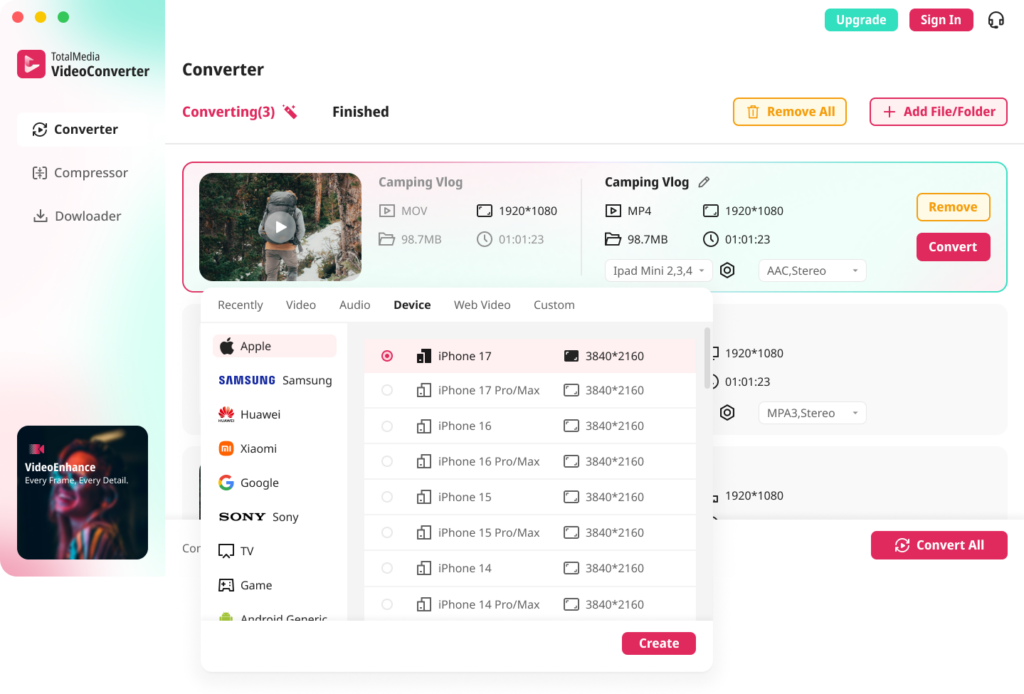
- Open TotalMedia VideoConverter and click Converter in the left sidebar.
- Click + Add File/Folder and select your MKV file or folder of MKV files.
- In the right panel, navigate to the Device tab.
- Select Apple from the device category and choose your iPhone model. This applies an iPhone-optimized preset — H.264 codec, correct resolution, appropriate bit rate — automatically.
- Alternatively, select the Video tab, choose MP4, and click the settings gear to set encoder to H.264 and resolution to match the source manually.
- Set your output folder via Save to and click Convert All.
- Monitor real-time progress in the dashboard. Converted files appear in the Finished tab when complete.
Step 2: Transfer the Converted MP4 to iPhone
AirDrop (Mac only, wireless, fastest for single files):
- Right-click the converted MP4 on your Mac and select Share > AirDrop.
- Select your iPhone. Accept on your iPhone.
- The file saves to your Photos app automatically.
iCloud Drive (Mac or PC, wireless):
- Move the converted MP4 to your iCloud Drive folder.
- On iPhone, open Files > iCloud Drive, find the file, and tap and hold to save it to your Photos app.
USB cable (Mac or PC, fastest for large files or batches):
- Connect iPhone to your computer via USB.
- On Mac: open Image Capture or Photos, select your iPhone, and import the MP4 directly.
- On PC: open File Explorer, navigate to your iPhone under “This PC,” and copy the MP4 into the DCIM folder.
Method 5: Stream MKV via Cloud Storage (No Transfer Needed)
If the MKV file is already in cloud storage — Google Drive, Dropbox, or OneDrive — you may be able to stream it directly on iPhone without downloading or converting, depending on the codec.
Google Drive on iPhone: Google Drive’s iOS app streams MP4 files smoothly. MKV streaming is inconsistent — H.264 MKV files sometimes stream in the Drive app, while H.265 or VP9 MKV files typically do not. For reliable cloud streaming, convert to MP4 first and re-upload.
Dropbox on iPhone: Similar to Google Drive — Dropbox streams MP4 reliably. MKV streaming depends on the codec and may fail silently (video plays but no audio, or freezes during playback).
VLC’s network streaming: VLC for iPhone can stream MKV files directly from network shares, SMB servers, and cloud links without downloading locally. Go to Network in VLC and enter the file URL or connect to a local network share. This is useful for large MKV files you do not want to store on the device.
Which Method Is Right for You?
| Native Files App | VLC | Documents | Desktop Convert + Transfer | Cloud Streaming | |
|---|---|---|---|---|---|
| Requires app install | No | Yes | Yes | No (desktop only) | No |
| MKV codec support | H.264/AAC only | Near-universal | H.264/H.265 | N/A — outputs MP4 | Limited |
| Adds to Camera Roll | No | No | No | Yes | No |
| Works offline | Inconsistent | Yes | Yes | Yes | No |
| Editable in iMovie | No | No | No | Yes | No |
| Best for | Quick test | Regular MKV playback | File management + playback | Editing, sharing, posting | Large files, no storage |
FAQ
Not reliably. iPhone’s native media framework supports MP4, MOV, and M4V. Some MKV files containing H.264 video and AAC audio may preview in the iOS Files app on recent iPhones running iOS 16 or later, but this is inconsistent and codec-dependent. For reliable MKV playback on iPhone, use VLC for Mobile or Documents by Readdle — both handle MKV natively without converting.
Download VLC for Mobile from the App Store — it is free and plays MKV files directly on iPhone regardless of the codec inside. Transfer your MKV to VLC via AirDrop, iCloud Drive, Wi-Fi transfer, or USB cable. No conversion required. For a multi-purpose file manager with built-in MKV playback, Documents by Readdle is a strong alternative.
The Files app only previews MKV files with specific codec combinations — primarily H.264 video and AAC audio on iOS 16 or later. MKV files with H.265, VP9, AV1, DTS audio, or multiple audio tracks will not preview natively. Use VLC for Mobile for reliable playback of any MKV codec combination on iPhone.