Xbox Series X handles USB video playback more flexibly than PS5. The format support list is longer, the codec tolerance is wider, and VLC from the Microsoft Store covers most edge cases that the native Media Player doesn’t.
That said — failures still happen. HEVC from iPhones and modern cameras is the most common culprit. DTS audio causes silent playback. And the Media Player app isn’t installed by default, which trips up first-time users before they’ve even loaded a file.
Here’s the complete picture.
Setting Up Xbox Series X for USB Video Playback
The Media Player app is not installed by default — you’ll need to install it yourself from the Xbox Store. To launch the Xbox Store, head to My Games and Apps, then Apps, then Find more in the Xbox Store. Search for “Media Player” and install it.
Once installed:
- Format your USB drive — exFAT is recommended for Xbox Series X. Ensure the external drive is formatted correctly — exFAT is a good choice for Xbox. FAT32 works but has a 4GB per-file limit. NTFS is supported by the Media Player app on Xbox Series X.
- Copy video files to the USB drive — files can sit in folders or in the root directory
- Connect the USB drive to any of the three USB 3.2 ports on the Xbox Series X
- Open the Media Player app
- Select the connected drive and browse all media files on it. Control playback with your Xbox controller.

Xbox Series X Supported Video Formats
Xbox Series X has broader native format support than PS5. Supported video formats include 3GP, 3GP2, AVI DivX, DV AVI, AVI uncompressed, ASF, AVI Xvid, H.264 AVCHD, M-JPEG, MKV, MOV, MPEG-PS, MPEG-2, MPEG-2 HD, MPEG-2 TS, H.264/MPEG-4 AVC, MPEG-4 SP, and WMV. Supported audio formats include AAC, ADTS, MP3, WAV, WMA, WMA Lossless, WMA Pro, and WMA Voice.
The key supported combinations for USB playback:
| Container | Video Codec | Audio Codec |
|---|---|---|
| MP4 | H.264 | AAC, MP3 |
| MKV | H.264 | AAC, MP3, AC3 |
| AVI | DivX, Xvid, H.264 | MP3, AAC |
| MOV | H.264, MPEG-4 | AAC |
| WMV | WMV | WMA |
| MPEG-2 TS | MPEG-2, H.264 | AAC, MP3 |
The Main Problem: HEVC Won’t Play Natively
Xbox Series X is only compatible with MP4 encoded with H.264 or MPEG-4 codec. You can’t view HEVC movies on Xbox Series X from USB or DLNA.
This affects a significant amount of modern video. iPhones record HEVC by default. Most modern mirrorless cameras default to HEVC at higher quality settings. 4K footage from streaming rips is frequently H.265.
Xbox Series X adds some support for H.265/HEVC playback but this does not mean all 4K H.265 files are playable. Only certain H.264 and MPEG files can be played on Xbox Series X via the Media Player app.
Two solutions: install VLC from the Microsoft Store for HEVC software decoding, or convert to H.264 before copying to USB. Both work. VLC is faster for occasional files. Conversion is more reliable for large libraries.
What Else Causes Playback Failures
DTS audio in MKV files. Most MKV movie rips contain DTS or Dolby TrueHD audio. The Media Player app doesn’t support DTS. The file either fails to open or plays silently. Re-encoding the audio track to AAC fixes it.
Variable frame rate footage. VFR content from smartphone cameras causes choppy playback and audio drift. Convert to constant frame rate before copying to USB.
Corrupt or partially downloaded files. The Media Player app fails silently on corrupted files without a useful error message. If a file refuses to play and the format looks correct, test the file in VLC on a computer first.
File too large for FAT32. A 4K movie file easily exceeds 4GB. If your USB drive is formatted as FAT32, files above that limit simply won’t transfer. Format as exFAT or NTFS.
Option 1: Install VLC — Plays Almost Anything
With VLC you can play H.265 files on Xbox Series X. Version 3.0 has added DVD/Blu-ray playback functionality. Install VLC onto Xbox Series X, copy your H.265/HEVC movies to a USB flash drive, insert it into the USB interface, open VLC, navigate to Video, and select the video you want to play.
VLC on Xbox Series X handles HEVC via software decoding — the same approach as VLC on Android. It works. The trade-off is performance on very high-bitrate 4K HEVC files — software decoding is CPU-intensive and some files may stutter on demanding encodes.
For standard 1080p HEVC and most 4K HEVC files at typical streaming bitrates, VLC performs well. For remux-quality 4K Blu-ray HEVC at 50–80 Mbps, performance is less consistent.
Installing VLC on Xbox Series X:
- Open the Microsoft Store from My Games and Apps
- Search for VLC
- Install the Xbox version
- Open VLC, navigate to your USB drive, and select your video
Option 2: Convert to H.264 — Guaranteed Playback
Converting HEVC and other incompatible formats to MP4 H.264 with AAC audio guarantees playback in the native Media Player app without relying on VLC.
The target for universal Xbox Series X USB playback:
| Setting | Value |
|---|---|
| Container | MP4 |
| Video codec | H.264 |
| Audio codec | AAC |
| Resolution | Match source |
| Frame rate | Constant — match source |
| Bitrate | 8–15 Mbps for 1080p / 35–45 Mbps for 4K |
Using TotalMedia VideoConverter
TotalMedia VideoConverter includes Xbox device presets that automatically apply the correct codec, resolution, and audio settings.
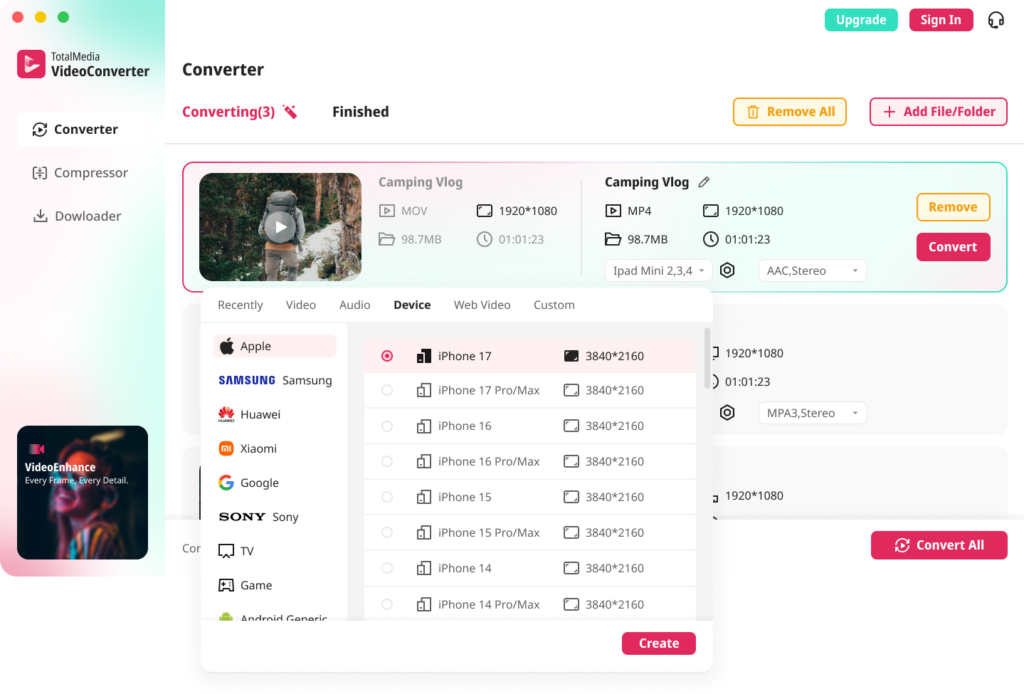
- Open TotalMedia VideoConverter and click Converter in the left sidebar
- Add your video files — drag and drop or use Add File/Folder for batch conversion
- Click the Device tab and navigate to the Xbox preset — automatically sets H.264 video and AAC audio in MP4
- For manual control, open Custom Settings — confirm H.264 encoder, AAC audio, resolution matches source
- Set output folder and click Convert All
Batch processing converts an entire folder in one session — useful for large movie libraries with mixed formats before copying to USB.
Using HandBrake — Free Desktop Option
- Download HandBrake from handbrake.fr
- Load your video file via File under Source Selection
- Under Summary, confirm output is MP4
- Go to Video tab — confirm encoder is H.264
- Go to Audio tab — set codec to AAC, remove DTS or Dolby TrueHD tracks
- Click Start Encode
HandBrake’s Xbox One preset works correctly for Xbox Series X — the codec requirements are identical between the two console generations for USB media playback.
Xbox Series X vs PS5 USB Video Playback — Key Differences
Understanding the difference between the two consoles avoids confusion when switching between them.
| Feature | Xbox Series X | PS5 |
|---|---|---|
| Native HEVC support | Partial — inconsistent | No |
| MKV support | Yes — H.264 with AAC/AC3 | Yes — H.264 with AAC only |
| AVI support | Yes — DivX, Xvid, H.264 | No |
| WMV support | Yes | No |
| DTS audio | No | No |
| VLC available | Yes — Microsoft Store | No |
| USB file system | exFAT, FAT32, NTFS | exFAT, FAT32 |
| Files need to be in folder | No | Yes |
| Media Player pre-installed | No — install from Store | No — access via Media Gallery |
Xbox Series X is the more flexible media playback platform. The VLC option alone significantly extends what it can handle natively. PS5’s stricter codec requirements mean more files need converting before USB playback works reliably.
USB Setup Checklist Before Copying Files
- USB drive formatted as exFAT — supports files over 4GB, recommended for Xbox
- Media Player app installed from Microsoft Store
- Video files in MP4 or MKV container with H.264 video and AAC audio
- HEVC files either converted to H.264 or handled via VLC
- DTS audio re-encoded to AAC if using native Media Player
- Constant frame rate confirmed — not variable
- File plays correctly in VLC on computer before copying to USB
Frequently Asked Questions
Xbox Series X supports a broad range of formats via USB through the Media Player app including AVI with DivX and Xvid, MKV, MOV, MP4 with H.264 and MPEG-4, MPEG-2, WMV, and H.264 AVCHD. Audio formats include AAC, MP3, WAV, WMA, and WMA Lossless. HEVC and DTS audio are the most common formats not supported natively — VLC from the Microsoft Store handles HEVC playback as an alternative.
Xbox Series X is only compatible with MP4 encoded with H.264 or MPEG-4 codec — HEVC movies cannot be viewed on Xbox Series X from USB or DLNA via the native Media Player app. Two solutions: install VLC from the Microsoft Store for software HEVC decoding, or convert the file to H.264 MP4 using TotalMedia VideoConverter or HandBrake.
Yes — with conditions. Some MKVs play properly on Xbox Series X while others have playback problems. The cause is typically an unsupported codec inside the MKV container or an incompatible audio track rather than the MKV format itself. MKV with H.264 video and AAC or AC3 audio plays reliably. MKV with HEVC video or DTS audio fails on the native Media Player app.