The Short Answer
Stock Android does not play WMV files. The format is a Microsoft proprietary codec — Windows Media Video — and Google has never included native WMV support in Android’s media framework.
But “stock Android” covers fewer devices than you might think. Samsung, Xiaomi, and several other manufacturers ship their own media players with broader codec support baked in. If you are on a Samsung Galaxy or a Xiaomi device, your phone might already play WMV files without installing anything.
Start there before downloading apps or converting files.
Step 0: Check Your Device’s Built-In Player First
Samsung Galaxy Devices
Samsung’s built-in Samsung Video Player (also accessible through the Gallery app) supports a wider codec range than stock Android. On most Samsung Galaxy S and A series phones running One UI 4 or later, WMV files with VC-1 or WMV3 encoding open and play without any third-party app.
To test: transfer a WMV file to your Samsung device and open it directly from My Files. If the Gallery app picks it up and plays it, you are done.
If it shows “unable to play this video format” — the file likely uses an older WMV codec variant (WMV1 or WMV2) that even Samsung’s player does not support. Move to the app options below.
Xiaomi / MIUI Devices
Xiaomi’s Mi Video player handles WMV3 and VC-1 encoded files on most MIUI 12+ devices. Same test — transfer the file, open from the Files app, check if it plays.
Stock Android (Pixel, Other Brands)
If you are on a Google Pixel, OnePlus (stock), or any device running near-vanilla Android — the native player will not open WMV. Skip straight to the app methods.
Method 1: MX Player (Best Android-Native Experience)
MX Player is the most capable media player on Android and the strongest recommendation for WMV playback specifically. Unlike VLC — which is a port of desktop software — MX Player was built from the ground up for Android, and it shows in the interface, gesture controls, and hardware decoding behavior.
Why MX Player for WMV:
- Supports WMV1, WMV2, WMV3, and VC-1 codec variants — the full WMV family
- Hardware decoding on supported chipsets for smooth playback without battery drain
- SW decoder fallback when hardware decoding fails — meaning it handles edge cases VLC sometimes drops
- Gesture controls: swipe left/right to seek, swipe up/down on left side for brightness, right side for volume
- Subtitle support including .srt, .ass, and embedded subtitle tracks
Getting WMV files into MX Player:
The simplest path is transferring files via USB cable to your Android device’s storage, then opening MX Player and navigating to the file location. MX Player scans your device storage automatically — your WMV files appear in its library without any manual import step.
For wireless transfer, any of these work:
- Google Drive — upload on PC, download to Android, open with MX Player
- LocalSend — free, open source, transfers files over local Wi-Fi between any devices without cloud storage
- Bluetooth — practical for small files under 100MB
Free vs. Pro: MX Player Free includes ads. MX Player Pro (paid) removes them. Both versions play WMV identically — the codec support is the same. The free version is sufficient for playback purposes.
Method 2: VLC for Android
VLC handles WMV across all codec variants and is a solid alternative if you already have it installed from previous use. The setup and transfer workflow is identical to MX Player.
One practical difference worth knowing: MX Player’s hardware decoding implementation tends to perform better on mid-range Android chipsets for WMV files specifically. If a WMV file stutters in VLC, try MX Player before assuming the file is corrupted.
Method 3: Stream WMV from Cloud Storage (No Transfer Needed)
If your WMV files live on a PC and you do not want to transfer them to your Android device, streaming via a local network is the most practical path for a large library.
Via Plex (best for large libraries): Plex is a media server application that runs on your PC and streams to any device on your network — or remotely over the internet. Install the Plex Media Server on your PC, add your WMV folder as a library source, and Plex transcodes the WMV files on-the-fly for Android playback. The Android app is free for local streaming.
This is the right solution for users with dozens or hundreds of WMV files they want accessible on Android without converting or transferring every file individually.
Via VLC’s network streaming: For smaller collections without a dedicated server setup, VLC for Android connects directly to SMB network shares. If your PC has file sharing enabled, VLC can browse and play WMV files off your PC storage directly — no transfer, no cloud account.
Via Google Drive: Google Drive’s Android app streams some WMV files inline depending on the codec. WMV3 and VC-1 files sometimes stream cleanly; older WMV1/WMV2 variants tend to fail. Reliable for occasional use, not for a production workflow.
Method 4: Convert on PC, Transfer to Android
When you need WMV files in your Android Gallery — shareable via WhatsApp, editable in CapCut, or accessible without a media player app — conversion is the right path. Playing through MX Player is fine for personal viewing; it does not make the file available to other apps.
The conversion target is H.264 MP4 — universally supported across Android regardless of manufacturer or OS version.
Using TotalMedia VideoConverter: TotalMedia includes device presets specifically for Android — covering generic Android, Samsung, Xiaomi, Sony, Google, and Huawei profiles.
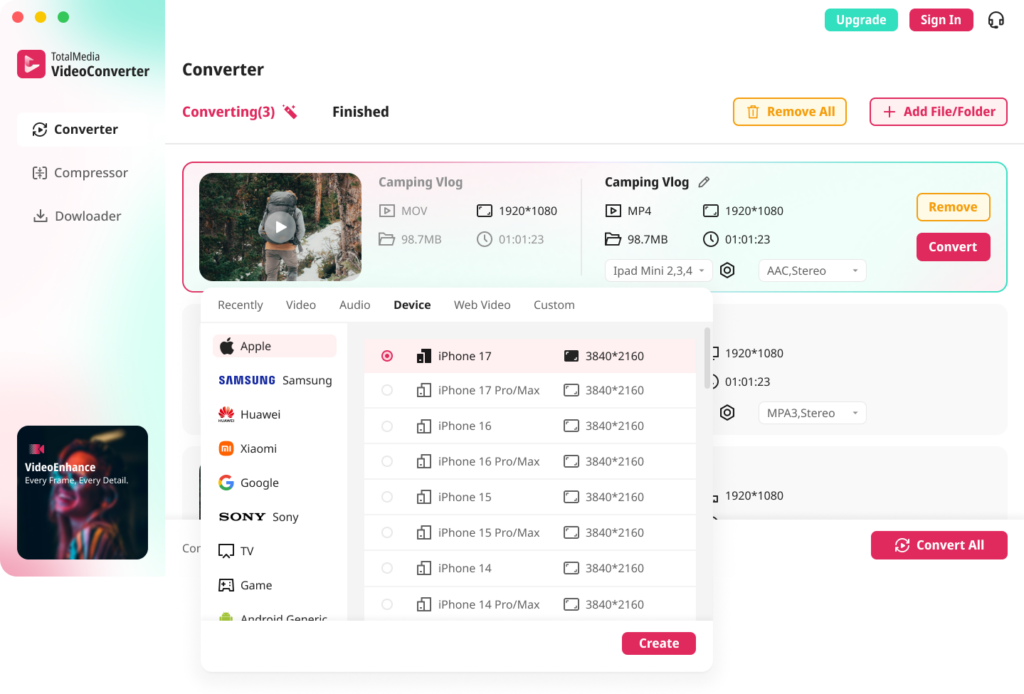
Select the Android preset matching your device, convert your WMV files on desktop, and transfer via USB or Google Drive. The preset applies the correct codec, resolution, and bit rate for that device family automatically — no manual configuration needed.
For a folder of WMV files, batch conversion handles the full library in one session. The Finished tab shows all converted files when complete.
Quick transfer to Android after conversion:
- USB cable — connect Android to PC, enable file transfer mode, drag MP4 files to the DCIM or Movies folder
- Google Drive — upload converted MP4s from PC, download on Android via the Drive app
- LocalSend — wireless transfer over local network, no account required
WMV Codec Variants: Why Some Files Play and Others Don’t
Not all WMV files are the same. WMV is a family of codecs, and older variants are less widely supported than newer ones.
| Codec | Also Known As | Support on Android Apps |
|---|---|---|
| WMV1 | Windows Media Video 7 | Limited — MX Player SW decoder handles it |
| WMV2 | Windows Media Video 8 | Limited — MX Player SW decoder handles it |
| WMV3 | Windows Media Video 9 | Broad — MX Player, VLC, some built-in players |
| VC-1 | WMV Advanced Profile | Broad — MX Player, VLC, Samsung built-in |
If a WMV file refuses to play even in MX Player with hardware decoding enabled, switch to the software decoder: tap the screen during playback, go to Settings > Decoder > SW Decoder. Software decoding is slower and uses more battery but handles edge cases that hardware decoding misses.
FAQ
Stock Android does not support WMV natively. However, Samsung Galaxy and Xiaomi devices include manufacturer media players with WMV support built in — on these devices, WMV files may play without any additional app. For stock Android devices like Google Pixel, a third-party player like MX Player or VLC is required.
MX Player is the strongest recommendation for WMV playback on Android. It supports all WMV codec variants including WMV1, WMV2, WMV3, and VC-1, offers hardware decoding for smooth playback, and includes a software decoder fallback for files that hardware decoding cannot handle. VLC is a reliable alternative, particularly for users already familiar with it.
Yes. H.264 MP4 is universally supported across all Android versions, manufacturers, and apps — including the Gallery, WhatsApp, CapCut, and every social media app. Converting WMV to H.264 MP4 makes the file available to the entire Android app ecosystem, not just dedicated media players. Use TotalMedia VideoConverter on desktop with the Android device preset for the cleanest conversion workflow.