TotalMedia Video Converter, HandBrake, FFmpeg, Movavi Video Converter, and VideoProc Converter AI stand out as the best video compressors for anyone seeking uniconverter alternative 4k compression. Each video converter and compressor helps users convert videos in 4k, improve compressed quality, and manage compression quality. These video compressor software options support online video compressor needs.
1. TotalMedia
Tool overview
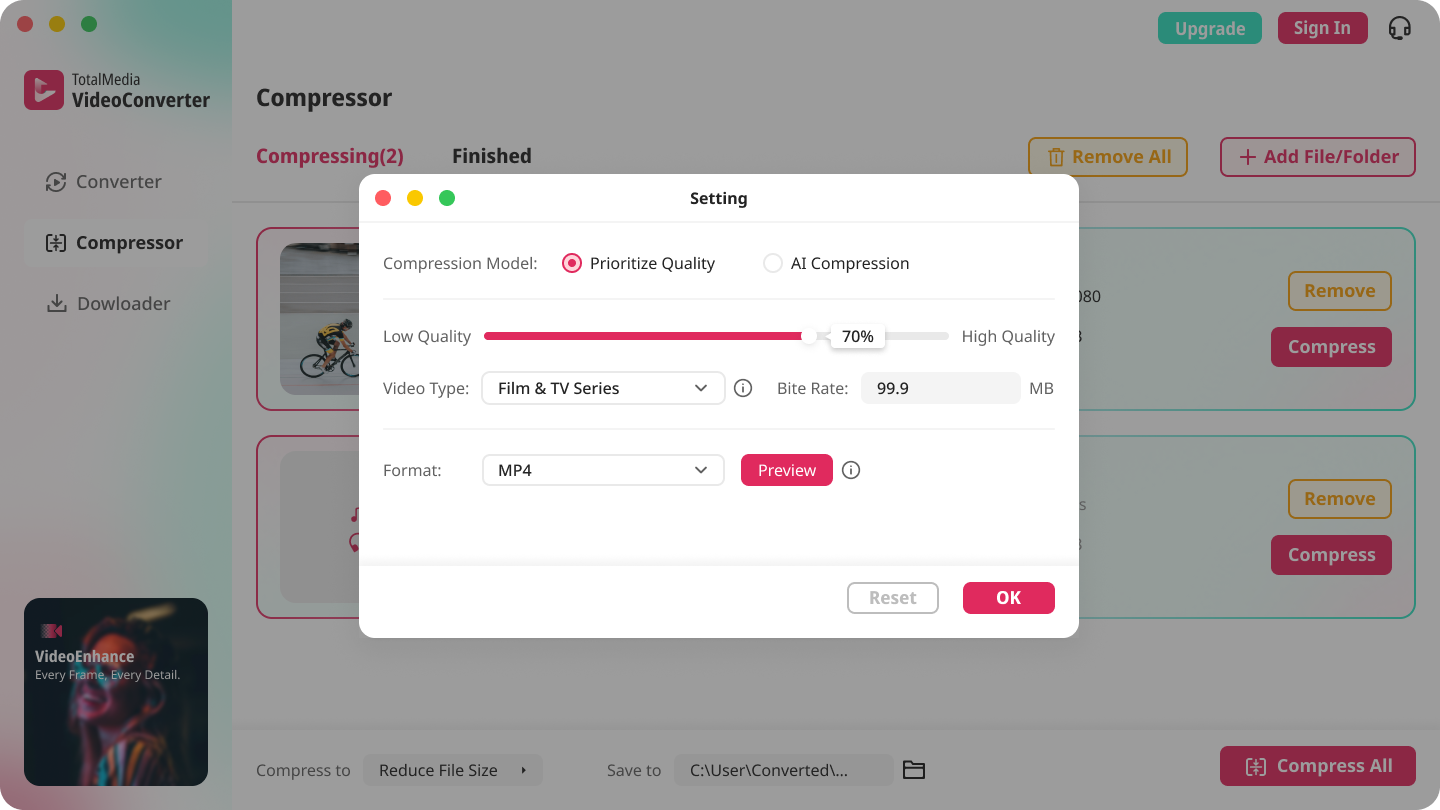
TotalMedia is an all-in-one desktop video converter and compressor for creators, professionals, and everyday users. It helps users convert videos, compress videos, and prepare media for sharing with less effort. The layout stays simple. The controls still give enough depth for careful users. This makes it a practical UniConverter replacement for people who want one-click results plus manual tuning.
4K compression features
TotalMedia focuses on high quality compression with smart automation and flexible control. Users can compress video files in 4k while checking output size before export. The built-in tools also help reduce file size without a major drop in visible clarity.
AI-powered smart compression uses content-adaptive encoding. This can lower bitrate by more than 20% while keeping visual detail strong.
AI super-resolution can improve lower-resolution clips for HD and 4K output.
Batch compression saves time on large folders.
Real-time file size preview makes compression options easier to judge.
Custom settings cover encoder, resolution, frame rate, bit rate, audio codec, sample rate, channels, and reusable presets.
Pros and cons
Pros
Fast workflow for beginners
Strong control for advanced users
Useful presets for repeat jobs
Good fit for batch work
Tip: If you need a video converter that handles both quick exports and detailed settings, TotalMedia offers a balanced approach.
Best for
User group | Why it fits |
|---|---|
Content Creator | Handles batch jobs for editing workflows with stable quality |
Social Media Enthusiast | Helps meet upload limits with less manual work |
Educator | Prepares course videos for easier sharing |
SMB Executive | Saves time across frequent media tasks |
Video Lover | Converts files for broad playback support |
2. HandBrake
Tool overview
HandBrake is a free, open-source video converter that works on Windows, macOS, and Linux. Many users choose it because it offers strong manual control without extra cost. The interface looks plain, yet the tool is powerful. Users can convert videos for smaller uploads, backups, or playback on more devices. Its preset system also helps new users start faster, though the menu labels may still feel technical at first.
4K compression features
HandBrake gives users several practical ways to compress video files while keeping good detail. It supports H.264, H.265, and AV1. H.265 often cuts file size much more than H.264, which makes it useful for large footage.
Feature | How it helps |
|---|---|
Downscales 4k to 1080p for a much smaller file | |
Change video codec | Lets users switch to HEVC for better efficiency |
Average bitrate or Constant Quality | Gives flexible compression options based on file size or visual quality goals |
HandBrake also supports hardware acceleration on supported systems. That can improve speed, but export times may still run slower than Movavi Video Converter or VideoProc Converter AI.
Pros and cons
Pros
Completely free
Cross-platform support
Modern codec support
Batch queue and presets
No ads or bundled software
Cons
Steeper learning curve
Only MP4, MKV, and WebM output
Slow encoding with H.265 or AV1
Large files may cause crashes in some cases
No AI upscaling tools
Note: HandBrake is a strong pick for users who care more about control and cost than speed.
Best for
HandBrake fits budget-focused users, hobby editors, and learners who want deep settings. It works best for people who do not mind testing presets, tuning bitrate, and comparing results by hand.
3. FFmpeg

Tool overview
FFmpeg is a free, open-source video converter that works through the command line. Many professionals and tech-savvy users choose it because it offers unmatched control over how you convert videos and compress video files. FFmpeg runs on Windows, macOS, and Linux. It can handle almost any video or audio format. The tool does not have a traditional graphical interface, but it is very powerful for those who learn its commands.
4K compression features
FFmpeg stands out for 4k compression because it gives users deep control over every step. You can set the exact quality, file size, and codec you want. The table below shows what makes FFmpeg unique for 4K workflows:
FFmpeg feature | How it is unique for 4K compression compared to many other tools |
|---|---|
Fine-grained encoding control | Lets you tune bitrate, quality, and encoding settings for best results |
Broad codec coverage | Supports H.264, H.265, VP9, AV1, and more for flexible delivery |
Scriptable automation | Enables batch processing and automation for large projects |
Strong filter ecosystem | Offers built-in filters for scaling, cropping, and watermarking |
Hardware-accelerated encoding | Uses GPU acceleration for faster 4K encoding |
Open-source and free | Delivers pro-level features at no cost |
You can customize compression using CRF values, bitrate limits, and resolution scaling. Batch processing is possible by writing simple scripts that loop through multiple files.
Pros and cons
Pros
Maximum control over compression and conversion
Supports almost every codec and format
Free and open-source
Great for automation and scripting
Cons
Steep learning curve for beginners
No graphical user interface
Requires command-line knowledge
Tip: FFmpeg is best for users who want to automate tasks or need precise control over 4K video settings.
Best for
Advanced users who want to fine-tune every detail
Developers building automated video workflows
Anyone needing to compress video files in bulk for 4k delivery
4. Movavi Video Converter
Tool overview
Movavi Video Converter is a desktop tool designed to help users convert videos and compress large files with ease. The interface is simple, making it accessible for beginners and home users. Movavi supports a wide range of formats, so users can prepare media for different devices or platforms. The software also allows bulk conversion, which is helpful for managing large personal media libraries.
4K compression features
Movavi stands out for its advanced 4k compression technology. The software uses AI upscaling to enhance video resolution, keeping important details clear. SuperSpeed Conversion processes files up to 79 times faster than standard methods, which saves time when working with big 4k files. Lossless Compression reduces file size while preserving the original quality, so users do not lose important data during compression.
Feature | Description |
|---|---|
AI Upscaling | Deep learning boosts video resolution without losing key details. |
SuperSpeed Conversion | Converts videos up to 79x faster than regular methods, with no quality loss. |
Lossless Compression | Shrinks file size while keeping the original quality intact. |
Pros and cons
Pros:
Intuitive interface for beginners
Fast conversion speeds with SuperSpeed mode
Wide format support for popular devices
Bulk conversion and compression
Cons:
Limited output formats compared to some competitors
Free trial adds watermarks and restricts audio
High CPU and memory usage during conversion
Fewer updates and limited extra features
Note: Movavi is resource-intensive during heavy tasks, so users should check system requirements before starting large projects.
Best for
User segment | Why it fits |
|---|---|
Compression helps manage large 4k files and free up storage. | |
People uploading large videos online | Smaller files upload faster, making sharing easier. |
Viewers wanting smoother playback | Compressed videos play better on devices with limited power or slow networks. |
Home and amateur users | Simple design and easy controls appeal to non-professionals. |
Prepares 4k videos for trips on iPad or MacBook, saving space for mobile viewing. |
5. VideoProc Converter AI
Tool overview
VideoProc Converter AI is a desktop video converter designed for users who want to convert videos and compress large files with minimal effort. The interface is simple, making it easy for beginners to start. The software uses GPU acceleration to speed up processing, which helps when working with high-resolution footage. Many users choose this tool for its balance of speed and quality.
4K compression features
VideoProc Converter AI offers advanced features for 4k video compression. Users can shrink video size by up to 90% using a percentage slider. The tool preserves maximum visual quality, even with large reductions. It supports batch compression and allows detailed control for each video. The software works well with large and complex footage, including HDR content and fast-motion clips.
Shrink video size by up to 90% with a simple slider
Batch compress multiple files at once
Detailed per-video controls for advanced users
Optimized for 4k, 8K, HDR, and fast-motion videos
Pros and cons
Strengths | Limitations |
|---|---|
Easy to use | Upscaling quality varies by input resolution |
Fast GPU-accelerated processing | Some customer service concerns |
Affordable lifetime license | Mixed reports on stability after updates |
Many long-term users praise the conversion speed. In one test, converting a 4K HEVC video to H.264 MP4 with GPU acceleration took under 2 minutes, while CPU-only processing took nearly 10 minutes.
Best for
People with archived older videos who want to improve quality
Users working with footage from early DSLR cameras or first-generation smartphones
Anyone facing issues like blurred detail, noise, or frame stutter in older clips
Those who want to make older footage usable in higher-resolution formats
UniConverter alternative 4K compression comparison
Platforms
The best UniConverter alternative 4K compression tools support a range of operating systems. The table below shows which platforms each video compressor software works on:
Software | Windows | macOS | Linux |
|---|---|---|---|
TotalMedia Video Converter | ✅ | ✅ | ❌ |
HandBrake | ✅ | ✅ | ✅ |
FFmpeg | ✅ | ✅ | ✅ |
Movavi Video Converter | ✅ | ✅ | ❌ |
VideoProc Converter AI | ✅ | ✅ | ❌ |
Pricing
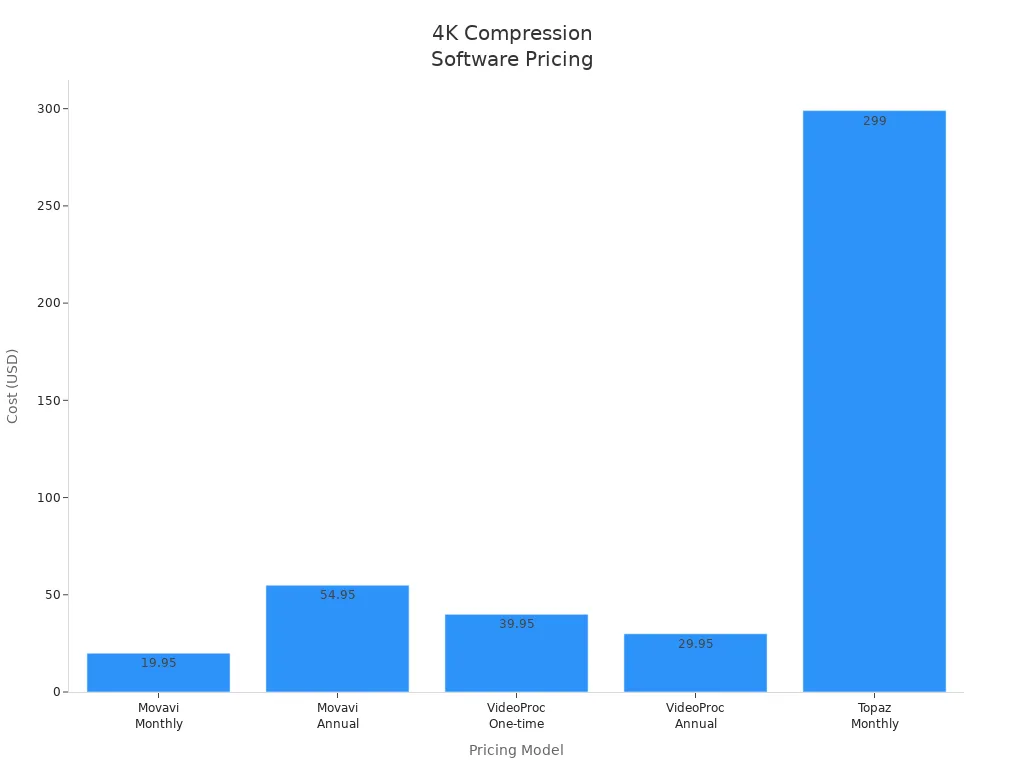
Pricing varies by video compressor software. Some offer free versions, while others require a subscription or one-time payment.
Software | Cost | |
|---|---|---|
TotalMedia Video Converter | Subscription/ License | From $19.59 |
HandBrake | Free | $0 |
FFmpeg | Free | $0 |
Movavi Video Converter | Subscription/License | $19.95/mo, $54.95/yr |
VideoProc Converter AI | One-time/Annual | From $39.95 |
4K support
All five UniConverter alternative 4K compression tools support 4K video formats. They handle popular codecs like H.264, H.265, and AV1. Each video compressor software can process large 4K files for sharing or storage.
Ease of use
TotalMedia Video Converter: Simple for beginners, with advanced options for experts.
HandBrake: Basic interface, but menus can be technical.
FFmpeg: Command-line only, best for advanced users.
Movavi Video Converter: User-friendly, quick to learn.
VideoProc Converter AI: Easy navigation, fast setup.
Compression control
Most video compressor software in this list offers both one-click presets and custom settings. FFmpeg gives the most control, while TotalMedia and HandBrake balance automation with manual options. Movavi and VideoProc focus on speed and simplicity.
Video compression software picks
For free and open-source needs: HandBrake or FFmpeg.
For fast, everyday 4K compression: VideoProc Converter AI or TotalMedia Video Converter.
For best balance of features and ease: Movavi Video Converter.
For advanced users who want full control: FFmpeg.
For those seeking an online video compressor, browser-based tools like CapCut or FreeConvert are also available.
Experts often recommend Winxvideo AI as a top UniConverter alternative 4K compression tool because it combines GPU acceleration with high-quality results.
Each UniConverter alternative fits a different user. Beginners may prefer Movavi or VideoProc for speed and ease. Advanced editors often choose FFmpeg for control. HandBrake is best for free use. TotalMedia balances automation and detail.
Decision area | Key factor | Why it matters |
|---|---|---|
Workflow | Simplicity, speed, or quality | |
Budget | Free vs. paid | Weigh cost against features |
OS | Platform support | Ensure compatibility |
Choose based on your workflow, budget, and operating system for the best 4K compression experience.
FAQ
HandBrake and FFmpeg are both free. HandBrake is easier for beginners. FFmpeg gives more control for advanced users.
Yes. Most tools use smart compression or advanced codecs. They keep visual quality high while reducing file size.
Movavi Video Converter and TotalMedia Video Converter have simple interfaces. Both offer presets for quick 4K compression.