
AI video restoration has improved dramatically. Tools that would have required a professional post-production suite five years ago now run in a browser. The results, on the right kind of footage, are genuinely impressive.
But not all video damage is equal. AI fixes some problems well, others partially, and some not at all. Knowing which category your footage falls into saves time and sets realistic expectations before you invest hours in a restoration workflow.
Here are seventypes of video damage AI handles well and an honest note on where each one hits its limit.

1. Noise and Grain
What it looks like: A random, speckled pattern across the frame. Worse in dark areas. Common in footage shot in low light, on small-sensor cameras, or on aged analog tape.
How AI fixes it: AI noise reduction identifies and removes noise and artifacts using deep learning algorithms, including noise models based on convolutional neural networks that restore image quality without simply blurring the frame. The difference from traditional noise reduction is significant. Traditional video restoration tools apply the same correction to every frame. AI video restoration works differently — it evaluates patterns across frames, which is why it performs better on severely degraded footage.
What to expect: Noise reduction is one of AI’s strongest restoration capabilities. Grain from low-light shooting, tape hiss from Hi8 or VHS sources, and sensor noise from small-sensor cameras all respond well. The improvement is visible and consistent.
The ceiling: Very heavy noise on near-black footage has less signal for the AI to work from. Improvement is still meaningful — but not as dramatic as on moderately noisy footage.
2. Compression Artifacts
What it looks like: Blocky, pixelated areas. Visible grid patterns in high-motion sections. Mosquito noise around edges. Common in heavily compressed video, streaming downloads, and footage that has been encoded multiple times.
How AI fixes it: Neural networks remove noise, flicker, and compression artifacts by analyzing pixel patterns and motion vectors to reconstruct the affected areas. Rather than blurring the block pattern, the AI predicts what the underlying detail should look like and reconstructs it from the surrounding frame data.
What to expect: Strong results on moderate compression artifacts. Footage downloaded at lower quality settings, MTS files from old camcorders, and video that has been re-encoded multiple times all show visible improvement.
The ceiling: Severe blocking from extreme compression, like the kind where the original detail is entirely gone, has a lower recovery ceiling. The AI is synthesizing from what remains, not restoring from what was lost.
3. Low Resolution and Soft Detail
What it looks like: The image is small, stretched, or lacks sharpness. Fine details are soft or absent. Common in SD footage, early phone video, and digitized VHS or 8mm content.
How AI fixes it: Upscaling increases the resolution for modern screens, from 480p to 1080p or even 4K. AI reconstruction is specifically effective at recovering details in faces, hair strands, foliage, and facial features. The AI analyzes structures across the frame and synthesizes new pixels based on that understanding, rather than simply stretching the existing ones.
What to expect: Upscaling is consistently one of AI’s most impressive restoration results. SD footage at 480p upscaled to 1080p looks significantly better on modern screens. The improvement in perceived sharpness and detail is real.
The ceiling: The original video quality, current damage conditions, and other factors affect the final results. AI tools can upscale videos to higher resolutions, but remastering to 4K has limits. An upscaled 480p video does not look identical to footage natively captured at 4K. The gap closes considerably. It doesn’t disappear entirely.
4. Faded and Inaccurate Color
What it looks like: Washed-out, desaturated footage. Color casts yellowed or greenish tones from aged tape. Flat contrast. Common in VHS tapes, Hi8, and early digital video that has degraded over time.
How AI fixes it: Color correction adjusts color balance and saturation. AI video restoration analyzes the clip to restore more accurate, consistent color and reduce bleeding. Unlike a manual color correction pass that applies the same adjustment to every frame, AI evaluates each frame’s content and applies correction based on what the colors should look like.
What to expect: Color restoration is one of AI Smart Enhance’s core capabilities. Faded colors, low contrast, and color casts from aged tape all respond well to a single-pass AI enhancement. The result looks more natural and better balanced than the source.
The ceiling: True colorization of black and white footage is a different capability from color restoration. And a significantly harder problem. Restoring faded colors that were captured but have degraded works well. Adding color to footage that was never recorded in color is a separate, more limited technology.
5. Choppy and Low Frame Rate Motion
What it looks like: Stuttered, uneven motion. Video that advances in jumps rather than smooth playback. Common in footage recorded at 24fps or below, old camcorder footage, and video converted from interlaced formats.
How AI fixes it: Frame interpolation creates additional frames between existing ones to increase the frame rate and provide smoother motion. The AI generates new intermediate frames that fit perfectly between existing ones. It’s far superior to simple frame duplication, which produces a different kind of stutter.
What to expect: Frame interpolation produces visible improvement on choppy footage. Old home video that has a distinctly uneven cadence becomes noticeably more watchable. Fast motion in particular benefits.
The ceiling: Frame interpolation works frame by frame. Very fast motion in complex scenes can produce artifacts where the AI’s motion prediction isn’t accurate. Preview on high-motion sections before batch processing.
6. Interlacing Artifacts
What it looks like: Horizontal lines across moving subjects with a serrated, comb-like pattern on edges in motion. Exclusively a problem with interlaced source footage: VHS, broadcast capture, older camcorder material.
How AI fixes it: Deinterlacing converts the two-field interlaced structure of each frame into a single progressive frame. Deinterlacing transforms interlaced video into a progressive scan format to achieve a cleaner, more consistent image. AI-based deinterlacing is more accurate than simple field blending — it analyzes motion between fields to reconstruct progressive frames without the ghosting that basic deinterlacing produces.
What to expect: Interlacing artifacts are fully addressable. Properly deinterlaced footage looks clean on modern progressive displays. This is a solved problem with reliable results when handled correctly.
The ceiling: Deinterlacing should happen before AI enhancement, not after. Running AI upscaling or enhancement on interlaced footage produces inconsistent results — the AI processes two partially-captured fields as a single frame. Handle deinterlacing first, then enhance.
7. Missing and Damaged Frames
What it looks like: Brief freezes, dropped frames, white flashes, or sections where the video skips. Common in digitized VHS with dropout artifacts, corrupted files, and footage from damaged storage media.
How AI fixes it: When there are missing or damaged frames in a video, AI automatically generates missing frames using surrounding frame data. A drone video with 30% dropped frames can be reconstructed by analyzing stable segments and generating plausible transitions. The AI uses temporal analysis across surrounding frames to synthesize replacement frames that fit the motion context.
What to expect: AI-powered repair tools analyze the video file, detect errors, and attempt to restore the damaged sections — one of the biggest advantages is the ability to automatically reconstruct lost or broken frames without manual adjustment. For dropout artifacts from VHS, the improvement is consistent and visible.
The ceiling: Large sections of corrupted or missing footage have a harder recovery ceiling than brief dropouts. The AI is predicting plausible content from surrounding frames — it works well for brief gaps, less well for extended corruption. Some damage may be irreversible. The effectiveness of restoration depends on the original video’s condition.
What AI Can’t Fix
Honest framing matters here. Three things AI video restoration currently can’t reliably do:
Recover detail that was never captured. Severely out-of-focus footage, extreme motion blur, and footage shot in near-total darkness have a recovery ceiling set by the original capture. AI can improve them. It can’t create detail from nothing.
Fix physical media damage before digitization. Mold, physical tape damage, and broken film stock need physical restoration before any AI tool can help. AI works on the digital file — not the source media.
Produce results identical to native high-resolution capture. AI video restoration is especially effective at upscaling SD or DVD videos, reducing heavy grain, and fixing compression artifacts — but results vary widely depending on the software and type of footage. The improvement is real and often significant. Upscaled 480p footage and natively captured 4K footage are not the same thing.
Where TotalMedia VideoEnhance Fits
For the damage types that respond well to AI — noise, compression artifacts, color fade, low contrast, and detail loss — TotalMedia VideoEnhance’s AI Smart Enhance addresses all of them in a single pass. No separate modules for each problem type. The split-screen preview shows the improvement on your actual footage at full output resolution before committing to the render.
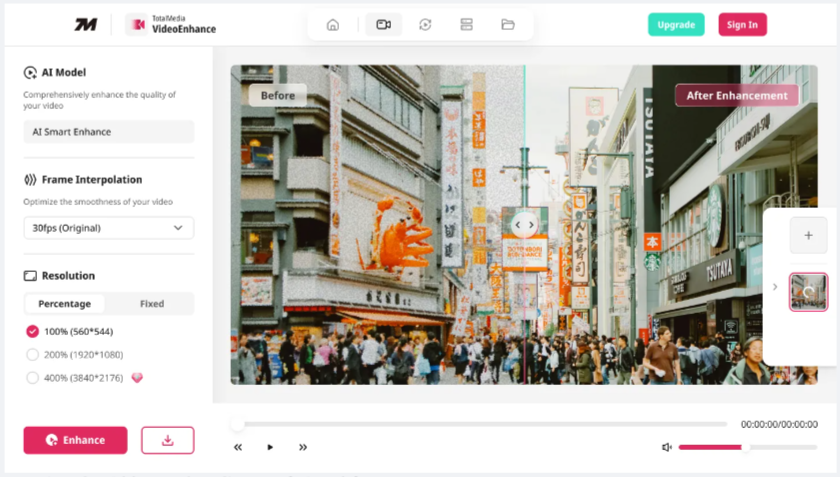
Resolution upscaling to 1080p, 4K, or 8K on Pro works alongside AI Smart Enhance — the enhancement and upscale happen together rather than requiring separate processing steps.
Available as a web app. No installation required. Free tier includes 4K upscaling with no watermark.
Bear in mind: the goal of AI restoration is the best version of what was captured — not footage that looks like it was shot on a modern camera. That framing applies to every tool in this space, not just one.
Frequently Asked Questions
Partially. AI handles noise reduction, compression artifacts, and upscaling well on most damaged footage — but results vary by software and footage type. Some tools handle noise reduction well but struggle with faces or fast motion. The improvement is consistent and meaningful. Full restoration to original quality is not always achievable — the ceiling depends on the source condition.
Yes. These are primary use cases for AI enhancement. The noise, color fade, and low resolution characteristic of VHS and Hi8 tape all respond well. Deinterlacing should happen before enhancement for best results — interlaced footage processed directly produces less consistent output.
It varies by tool, source resolution, output resolution, and processing hardware. Cloud-based tools like TotalMedia VideoEnhance offload processing from your device — useful if your computer lacks a dedicated GPU. A short clip typically processes in minutes. A two-hour tape capture takes longer. Check the tool’s processing speed on a test clip before committing a large archive.
For most use cases, yes. Traditional video restoration requires manual work adjusting color, applying filters, and retouching damaged areas frame by frame. AI video restoration tools use artificial intelligence to automatically denoise, upscale, interpolate frames, and fix artifacts — faster and more consistently than manual frame-by-frame work.
File corruption and quality degradation are different problems. AI video repair tools analyze the video file, detect errors, and attempt to restore damaged sections — fixing broken frames, audio sync problems, and playback errors. Tools like Repairit and ONERECOVERY handle file-level corruption. Quality enhancement tools like TotalMedia VideoEnhance work on playable files that have quality issues rather than structural corruption.