VLC media player is widely used, but the VLC alternative often faces issues with video conversion speed and format support. Users who want to convert video online or need MP4 compatibility should try an intuitive online free video converter. These online alternatives offer free recommendations for the best video converter software.
VLC Converter Limitations
Limited Format Support
Slow Conversion Speed
VLC media player supports a range of video and audio formats, but its vlc converter cannot match the flexibility of dedicated video converter software. Many users find that VLC does not support the latest codecs or some popular formats like AV1 or VP9. In contrast, the best video converter options, such as Wondershare UniConverter, offer conversion to over 1000 formats, including mp4, AVI, and MKV. This limitation often leads users to seek a vlc alternative or explore online alternatives for broader compatibility.
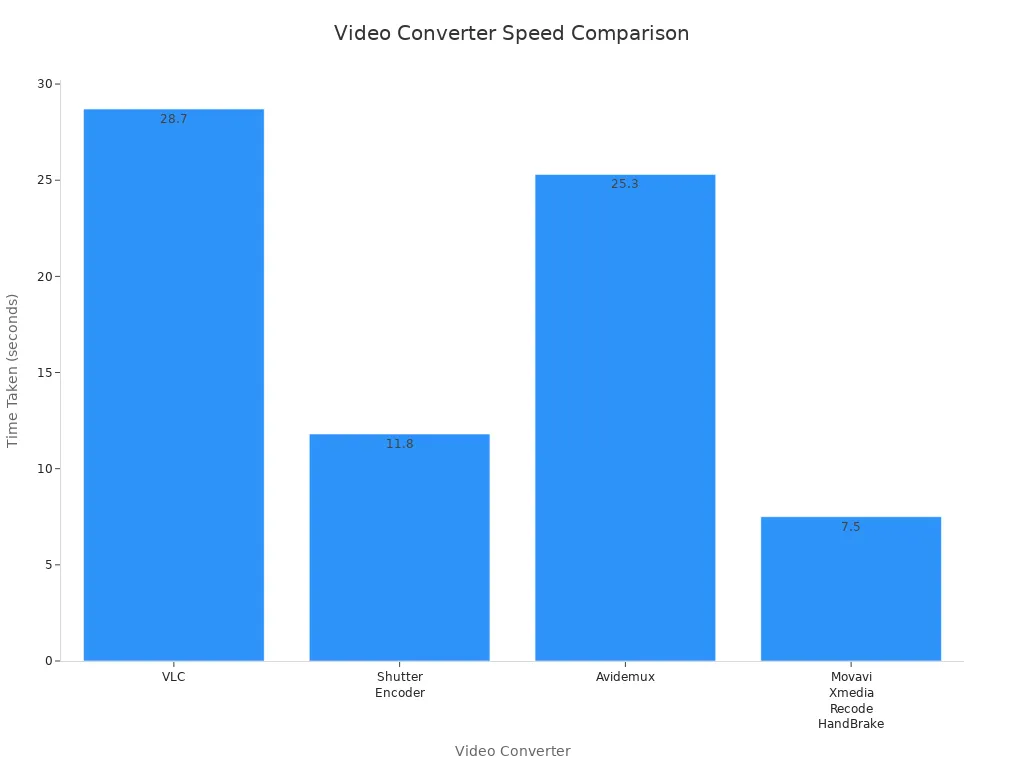
Speed is a major concern with the vlc converter. VLC relies only on the CPU and lacks GPU acceleration, which slows down the conversion speed, especially for high-resolution files. For example, converting a 4K HEVC MOV to 1080p mp4 takes about 28.7 seconds in VLC, while other converters like HandBrake or Movavi complete similar tasks in less than half the time. The chart below shows how VLC compares to other tools in terms of conversion speed:
Lacks Advanced Settings
The vlc converter offers only basic controls. It does not provide smart presets for devices or platforms, and it lacks advanced settings for codec parameters, bitrate, or filters. Users who want more control over their output often find this limitation frustrating and turn to a vlc alternative with more features.
Inconsistent Output Quality
VLC often produces files with noticeable quality loss or visible artifacts, especially when converting large or high-resolution videos. Tests show that converting a 4K file to 1080p can result in significant detail loss. This makes VLC less suitable for users who need high-quality results from their video converter.
Weak Batch Processing
Batch processing is another area where the vlc converter falls short. VLC is not designed for high-volume conversions. Its interface is less intuitive, and it lacks features for managing multiple files efficiently. Dedicated converter tools like HandBrake or TotalMedia VideoConverter offer streamlined batch processing, higher output quality, and better performance.
These limitations make VLC suitable mostly for basic, occasional conversions rather than professional or batch processing needs.
1. TotalMedia VideoConverter – Top VLC Alternative
Key Features
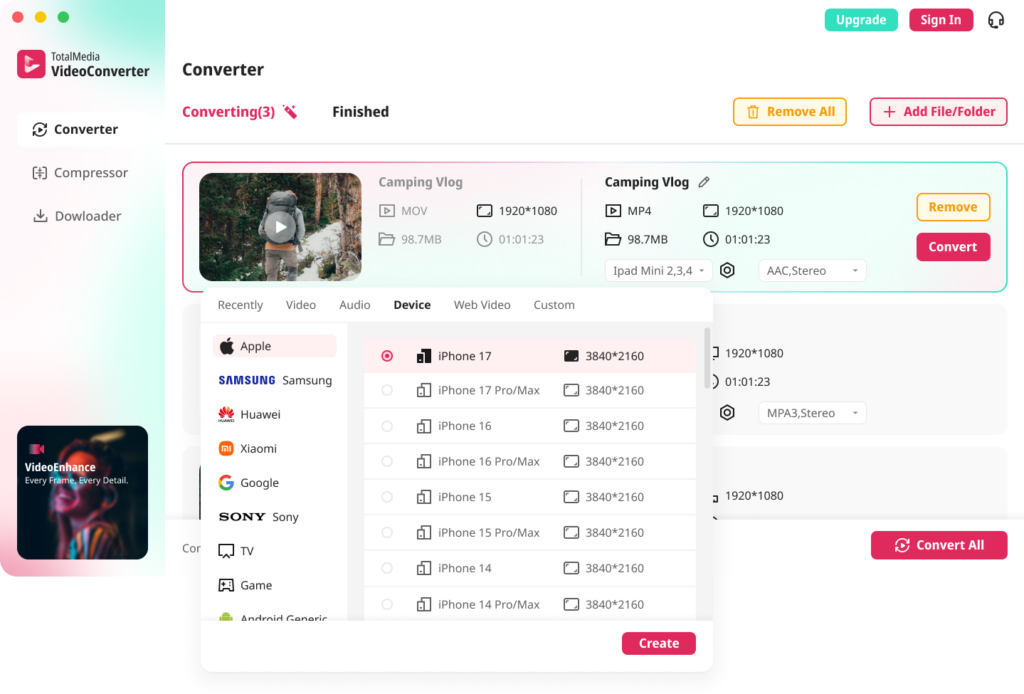
TotalMedia VideoConverter stands out as a vlc alternative for users who need fast and reliable video conversion. The software supports a wide range of formats, including mp4, MOV, MKV, AVI, and more. Users can convert video files with ease, thanks to device-optimized presets for Apple, Samsung, Sony, and other brands. The AI-powered compression engine helps reduce file sizes while keeping quality high. Batch processing allows users to convert multiple files at once, saving time and boosting speed. Real-time monitoring shows progress for each job, so users always know how much time remains. Advanced settings let users adjust video and audio parameters for the best results.
Tip: TotalMedia VideoConverter offers smart presets for platforms like YouTube and Vimeo, making it easy to optimize files for online sharing.
The table below shows features that TotalMedia VideoConverter offers but are missing from the vlc converter:
Feature | TotalMedia VideoConverter | VLC Video Converter |
|---|---|---|
Yes | No | |
Batch processing of AVCHD folders | Yes | No |
Advanced enhancement capabilities | Yes | No |
Why Choose This VLC Alternative
TotalMedia VideoConverter addresses many weaknesses found in the vlc converter. It offers broader format support, faster speed, and better batch processing. Users can convert video files for the latest devices and platforms. The software provides advanced enhancement tools that improve output quality. Unlike vlc media player, TotalMedia VideoConverter gives users more control and flexibility. For those who need the best video converter software, this tool is a strong choice. It works well for professionals and everyday users. Compared to online alternatives like flexclip, 123apps, zamzar, and others, TotalMedia VideoConverter delivers higher speed and more reliable results. The free version lets users try its features before upgrading. This converter is ideal for anyone who wants to convert video files quickly and efficiently.
2. HandBrake Free Video Converter
Features Overview
HandBrake is a popular free video converter that many users choose as a vlc alternative. This open-source converter stands out for its advanced features and user-friendly design. Unlike the vlc converter, HandBrake gives users more control over the conversion process. Here are some key features that make HandBrake a strong choice:
Open-source and community-driven development
Extensive control over video quality and resolution
Batch processing for multiple files at once
Detailed customization of output settings, including deinterlacing and cropping
Integrated video preview before starting the conversion
Subtitle integration during conversion for transcription or accessibility
These features help users convert video files with precision. HandBrake’s batch processing saves time when working with large media libraries. The integrated preview lets users check their settings before starting, which reduces errors. Subtitle support is useful for those who need to add or edit captions.
HandBrake vs VLC Converter
HandBrake and the vlc converter both allow users to convert video files, but they differ in several ways. The table below compares their main features, focusing on format support and speed:
Feature | HandBrake | VLC |
|---|---|---|
MP4, MKV, WebM, and presets | Wide range including MP4, MOV, MKV, etc. | |
Conversion Speed | Similar speed under same settings | Faster in remuxing without re-encoding |
HandBrake offers detailed customization, which the vlc converter lacks. Users can adjust quality, resolution, and add subtitles. While both tools support popular formats, HandBrake’s presets make it easier to choose the best video converter settings for different devices. Speed is important for any video converter software. HandBrake matches the vlc converter in speed for most tasks, but VLC may be faster when remuxing files. For users who want a free, flexible, and reliable converter, HandBrake is a top choice among online alternatives.
3. Movavi Video Converter
Features Overview
Movavi Video Converter is a strong vlc alternative for users who want more than basic conversion. The software can convert video files between over 180 formats, including MP4, AVI, MKV, MOV, and DVD. It also supports audio extraction and image conversion. The interface is intuitive, so beginners can start using it right away. Movavi offers high-speed processing, especially with its SuperSpeed mode. This mode lets users convert files quickly when the codec and resolution stay the same. The built-in editing tools allow users to trim, crop, or merge videos before conversion. Users can compress videos without losing quality. Movavi provides preset profiles for many devices, making it easy to optimize files for smartphones, tablets, or gaming consoles.
Supports more than 100 media formats
High-quality encoding for all files
SuperSpeed mode for fast conversions
Built-in editing tools for basic video adjustments
Compresses videos without quality loss
Movavi Video Converter stands out for its speed and ease of use. Many users choose it as the best video converter for both simple and advanced tasks.
Movavi as a VLC Alternative
Movavi Video Converter offers several advantages over the vlc converter. The user interface is extremely beginner-friendly, while vlc can be complex for new users. Movavi includes basic editing tools, which the vlc converter lacks. The conversion speed is much faster, especially for batch processing. Movavi supports more formats than vlc, so users can convert video files for almost any device. The table below compares the user experience between Movavi and vlc:
Feature | Movavi Video Converter | VLC Media Player |
|---|---|---|
User Interface | Beginner-friendly | Simple, but complex for some |
Ease of Use | Very easy for beginners | Requires navigation |
Editing Tools | Trim, crop, merge videos | Basic trimming only |
Movavi Video Converter is a free option for users who need reliable speed and quality. It works well as a converter for professionals and everyday users. The software is a top choice for anyone looking for video converter software that is fast, flexible, and easy to use.
4. Wondershare UniConverter
Features Overview
Wondershare UniConverter is a popular video converter that offers a wide range of advanced tools. Users can convert video files to many formats, including MP4, MOV, and AVI. The software provides high speed for both single and batch conversions. It supports GPU acceleration, which increases speed and keeps performance stable. UniConverter also includes editing features such as trimming, cropping, and merging videos before conversion. These tools help users prepare their videos exactly as needed.
The table below highlights advanced features found in Wondershare UniConverter that are not available in the vlc converter:
Advanced Feature | Description |
|---|---|
Encoder Selection | Choose specific encoders like H.264 or H.265 for better compression and quality. |
Merge Converted Files | Combine multiple clips into one file after conversion. |
GPU Acceleration | Use graphics card power to boost speed and stability. |
Crop or Trim Before Conversion | Cut unwanted sections or adjust frame size before exporting. |
Why Choose This VLC Alternative
Wondershare UniConverter stands out as a vlc alternative for users who need more than basic conversion. The software delivers high speed, especially when converting multiple files at once. Unlike vlc, UniConverter supports advanced batch processing. Users can convert video files in groups, saving time and effort. The built-in editing tools let users adjust videos before exporting, which is not possible with the vlc converter. UniConverter also allows transferring converted files directly to devices, making it a versatile choice.
Note: VLC is suitable for simple tasks, but UniConverter offers professional features and faster speed for demanding projects.
Many users prefer UniConverter because it combines speed, flexibility, and ease of use. The free version lets users try its main features before upgrading. For anyone looking for a reliable video converter with advanced options, Wondershare UniConverter is a strong contender.
5. Freemake Video Converter
Features Overview
Freemake Video Converter is a popular choice for users who want a simple way to convert video files. The software supports over 500 formats, including MP4, AVI, MKV, and MOV. Users can convert video for playback on smartphones, tablets, and gaming consoles. The interface is easy to navigate, making it accessible for beginners. Freemake also offers basic editing tools, such as trimming, joining, and rotating clips before conversion. The converter allows users to add subtitles and adjust output settings like bitrate and resolution. Batch conversion is available, which helps when working with multiple files. The free version includes a watermark on output videos, which some users may find limiting.
Tip: Freemake Video Converter provides device-specific presets, so users can quickly select the best settings for their device.
Freemake vs VLC Converter
Freemake and VLC both serve as reliable tools for video conversion, but they differ in several ways. Freemake supports more formats and offers a more user-friendly interface. VLC, on the other hand, is known for its versatility as a media player and its ability to handle a wide range of file types. When comparing output quality, both Freemake and VLC can maintain good results if users select the right settings for bitrate, resolution, and codec. However, Freemake’s free version adds a watermark, while VLC does not.
Speed is another important factor. Freemake processes conversions at a moderate speed, which is suitable for most users. VLC converter may be slower, especially with large files or complex formats. Users who need to convert video quickly may prefer Freemake for its batch processing and device presets. Both tools are free, but the watermark in Freemake’s output may influence the final choice.
Feature | Freemake Video Converter | VLC Converter |
|---|---|---|
Supported Formats | 500+ | 50+ |
Output Watermark | Yes (free version) | No |
Batch Conversion | Yes | Limited |
Speed | Moderate | Slower |
Editing Tools | Basic | Minimal |
VLC Alternative Comparison Table
Choosing the right video converter often depends on format support, speed, batch processing, and advanced features. This comparison helps users see how vlc stacks up against the top alternatives.
Feature | VLC | TotalMedia VideoConverter | HandBrake | Movavi Video Converter | Wondershare UniConverter | Freemake Video Converter |
|---|---|---|---|---|---|---|
Format Support | 50+ formats | 100+ formats | MP4, MKV, WebM | 180+ formats | 1000+ formats | 500+ formats |
Speed | Moderate | Fast (AI, GPU) | Moderate | SuperSpeed mode | Fast (GPU) | Moderate |
Batch Processing | Limited | Yes | Yes | Yes | Yes | Yes |
Advanced Features | Basic edits | AI compression, presets | Codec control | AI upscaling, editing | Editing, device transfer | Basic editing |
Device Presets | No | Yes | Yes | Yes | Yes | Yes |
Editing Tools | Minimal | Advanced | Basic | Trim, crop, merge | Trim, crop, merge | Trim, join, rotate |
Free Version | Yes | Yes | Yes | Yes | Yes | Yes (watermark) |
Movavi Video Converter supports over 180 formats and includes built-in editing tools. It also features AI upscaling for better video quality.
HandBrake offers batch conversion, subtitle support, and detailed codec customization. Its compact interface may confuse beginners.
VLC allows batch conversion and adjustments to bitrates, frame rates, and resolution. However, its interface can be challenging for new users.
TotalMedia VideoConverter provides AI-powered compression, device-optimized presets, and real-time monitoring for conversion speed.
Wondershare UniConverter delivers fast speed with GPU acceleration and advanced editing features.
This comparison shows that while vlc covers basic needs, dedicated alternatives offer more speed, better batch processing, and advanced features. Users who need a free converter with high performance should consider these options.
How to Choose a Free Video Converter
Key Factors to Consider
Selecting the right free video converter depends on several important factors. Users should look for a converter that supports a wide range of file formats. This ensures compatibility with different devices and editing software. A user-friendly interface makes the process easier and reduces mistakes. Conversion speed is crucial, especially when working with large files or batches. Advanced settings allow users to control output quality, resolution, and codecs. Security and privacy matter when handling sensitive files. Compatibility with your operating system and devices is also important.
Tip: Always check if the free video converter offers batch conversion and device presets. These features save time and improve efficiency.
The table below summarizes the main factors to consider:
Factor | Description |
|---|---|
Handles many input and output formats for broad compatibility. | |
Ease of Use | Simple interface helps users convert files quickly. |
Conversion Speed | Fast processing boosts productivity, especially for large or multiple files. |
Advanced Conversion Settings | Offers control over resolution, codecs, and bitrates. |
Security and Privacy | Protects sensitive data during conversion. |
Compatibility and Platform | Works across different operating systems and devices. |
Matching Features to Your Needs
Different users have unique requirements for a free video converter. Format support is essential for converting files from cameras or editing software. Speed helps reduce waiting times, especially for batch jobs. Quality preservation ensures the output matches the original video. An intuitive interface benefits beginners and professionals alike. Batch conversion is valuable for users with many files.
Format support is important for handling various file types.
Speed improves efficiency and saves time.
Quality preservation keeps videos looking sharp.
User interface affects ease of use.
Batch conversion helps manage large projects.
Users should match these features to their needs. For example, someone converting .mpg files from a camera to .mp4 will need broad format support. Another user working with MKV files for meme clips will benefit from fast conversion and batch processing. Awareness of limitations in free versions, such as watermarks or file size caps, is also important. Choosing the right free video converter ensures smooth and efficient video conversion.
Switching from VLC converter to a dedicated video converter brings clear benefits.
Users report faster speed for batch conversions and easier interfaces.
Modern alternatives improve video quality and save time.
Upgrading to a free converter helps users convert files quickly and efficiently.
Choosing a vlc alternative boosts speed and output quality.
FAQ
Movavi Video Converter offers an easy interface. Beginners can convert files quickly. Device presets help users choose the right settings.
Yes, most alternatives support batch processing.
TotalMedia VideoConverter, HandBrake, and Wondershare UniConverter allow users to convert many files together.
Some converters may lower quality if settings are not correct.
TotalMedia VideoConverter and Movavi help preserve quality with smart presets.