
Why Xbox Clips Don’t Upload to YouTube Directly
Xbox records game clips in MP4 format — so on paper, YouTube should accept them without issue. In practice, several things get in the way.
Clips shared via the Xbox mobile app or copied directly from a USB drive sometimes carry encoding profiles or resolutions that YouTube’s uploader rejects or processes poorly. Longer clips recorded at high bitrates produce files too large for smooth uploading on slower connections. And clips downloaded through OneDrive occasionally arrive with container issues that cause upload failures.
The fix in almost every case is the same: get the clip onto your PC, convert it to a clean H.264 MP4 optimized for YouTube, and upload from there. This guide covers the full workflow from start to finish.
The short version: Xbox clips are technically MP4, but “MP4” covers a wide range of encoding profiles. YouTube performs best with H.264 video, AAC audio, in a standard MP4 container — and not all Xbox clips arrive in exactly that configuration straight off the console.
Step 1: Get Your Xbox Clips onto Your PC
There are three ways to move clips from your Xbox to your computer. Which one you use depends on your setup.
Method A: USB Drive Transfer (Fastest, No Internet Required)
This is the most reliable method for large files or slow internet connections.
- Plug a USB drive formatted as NTFS or exFAT into your Xbox. FAT32 drives will not work for clips larger than 4GB.
- On your Xbox, go to Profile & System > Settings > Preferences > Capture & Share.
- Under Capture Location, set it to External.
- Go to My Games & Apps > See All > Captures to find your saved clips.
- Select a clip, press the Menu button, and choose Copy to USB.
- Eject the USB drive and plug it into your PC. Your clips will be in the Xbox DVR folder on the drive.
Method B: Xbox App on PC (No USB Required)
The Xbox app for Windows 10 and 11 lets you access and download clips directly from your console over your home network or the cloud.
- Install the Xbox app from the Microsoft Store if you have not already.
- Sign in with the same Microsoft account linked to your Xbox.
- Go to Profile > Captures in the app.
- Find the clip you want, click the three-dot menu, and select Download.
- By default, clips download to Videos > Captures on your PC.
This method works well for shorter clips. For large 4K recordings, USB transfer is faster.
Method C: OneDrive (Access from Anywhere)
If your Xbox is set to automatically back up captures to OneDrive:
- Go to onedrive.live.com and sign in with your Microsoft account.
- Navigate to Pictures > Xbox Game DVR or Videos > Xbox Game DVR depending on your console settings.
- Download the clips you need directly to your PC.
OneDrive-downloaded clips occasionally have minor container inconsistencies. If a clip downloaded via OneDrive fails to convert or import cleanly, re-download it or use the USB method instead.
Step 2: Check What You Are Actually Working With
Before converting, it is worth taking 30 seconds to confirm your clip’s specs. Xbox clips vary depending on console model, recording settings, and clip length.
Typical Xbox clip specs by console:
| Console | Default Resolution | Codec | Typical Bitrate |
|---|---|---|---|
| Xbox Series X | Up to 4K 60fps | H.264 | 80–100 Mbps |
| Xbox Series S | Up to 1080p 60fps | H.264 | 20–40 Mbps |
| Xbox One X | Up to 4K 30fps | H.264 | 45–60 Mbps |
| Xbox One / One S | Up to 1080p 60fps | H.264 | 15–25 Mbps |
Most Xbox clips are already H.264 — which is good. The issue is usually bitrate, file size, or encoding profile rather than the codec itself. A 4K clip from a Series X at 80+ Mbps will upload slowly, process for a long time on YouTube, and may hit platform upload limits depending on your account status.
Compressing to a YouTube-optimized profile before uploading solves all three problems.
Step 3: Convert and Optimize for YouTube
Using TotalMedia VideoConverter
TotalMedia VideoConverter includes a dedicated YouTube web preset that handles output optimization automatically — no manual codec or bitrate configuration needed.
Step-by-step:
- Open TotalMedia VideoConverter and click Converter in the left sidebar.
- Click + Add File/Folder and select your Xbox clips. Add an entire folder if you are processing multiple clips at once.
- In the right panel, click the Web Video tab.
- Select the YouTube preset. This applies YouTube-optimized settings automatically.
- If you want manual control, click the settings gear to open Custom Settings. Set encoder to H.264, resolution to match your source (1080p or 4K), frame rate to Same as source, and bit rate to 8–16 Mbps for 1080p or 35–45 Mbps for 4K.
- Set your output folder via Save to.
- Click Convert All to process the batch. Real-time progress is visible in the dashboard.
- Find your converted clips in the Finished tab, ready for upload.
Tip: YouTube recommends a bit rate of 8 Mbps for 1080p60 and 35–45 Mbps for 4K60. Staying within these ranges keeps upload times reasonable while preserving the visual quality viewers expect from gaming content.
Using HandBrake (Free Alternative)
HandBrake works well for one or two clips at a time.
- Open HandBrake and drag in your Xbox clip.
- Under Presets, select YouTube HQ 1080p30 or HQ 2160p60 4K depending on your source resolution.
- Under Video, confirm the codec is H.264 (x264) and set Framerate to Same as source.
- Set Quality (RF) to 18–20 for gaming content — this preserves fine detail in fast motion scenes.
- Click Start Encode.
HandBrake does not have a dedicated YouTube preset out of the box, but its HQ presets produce YouTube-compatible output. For batch processing multiple clips efficiently, TotalMedia VideoConverter handles folder-level conversion with less manual setup per file.
Step 4: Compress Large Clips Before Uploading
4K game clips from Xbox Series X can run 2–8GB for just a few minutes of footage. Even at 1080p, a 10-minute clip can exceed 1.5GB at high bitrate. These file sizes are uploadable — but they slow down processing time on YouTube and increase the window for upload errors.
Compressing before uploading is good practice, especially on slower connections.
Using TotalMedia VideoConverter’s Compressor module:
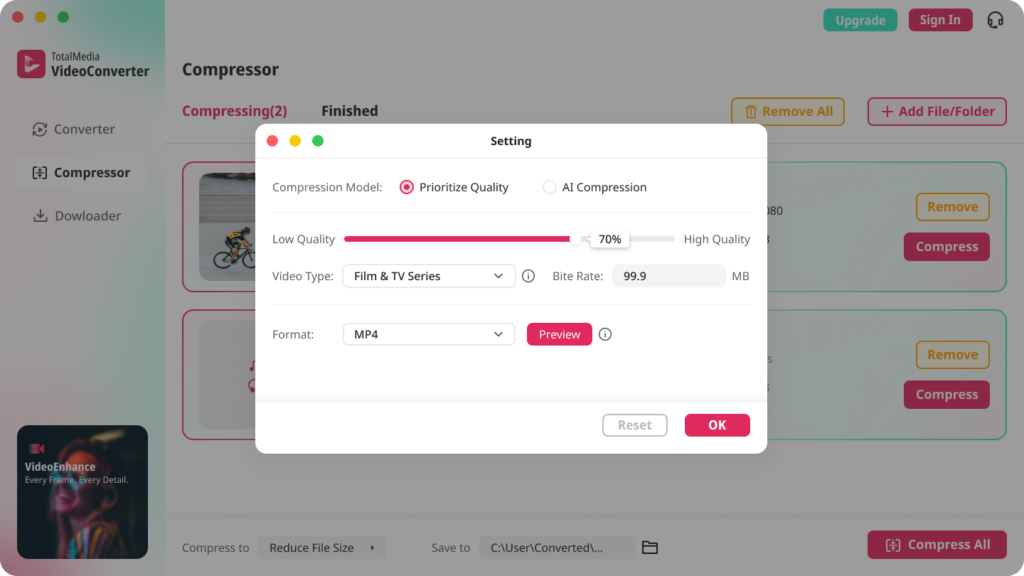
- Click Compressor in the left sidebar.
- Click + Add File for AI Compression and select your converted MP4.
- Choose Reduce File Size from the Compress to dropdown.
- Check the real-time file size preview before committing.
- Set your output folder and click Compress.
The AI compression engine reduces file size while preserving visual quality — particularly useful for gaming content where motion clarity matters.
Step 5: Upload to YouTube
Once your clip is converted and optionally compressed, upload is straightforward.
- Go to YouTube Studio and click Create > Upload Videos.
- Select your MP4 file.
- Fill in your title, description, and tags while YouTube processes the video. Processing time depends on resolution — 1080p typically takes a few minutes, 4K can take 15–30 minutes or longer for longer clips.
- YouTube will initially serve a lower-quality version while the full resolution processes. This is normal. Full quality is typically available within an hour of upload.
YouTube upload specs for reference:
| Resolution | Recommended Bit Rate | Max File Size | Max Duration |
|---|---|---|---|
| 1080p (SDR) | 8 Mbps | 256 GB | 12 hours |
| 1080p60 | 12 Mbps | 256 GB | 12 hours |
| 4K (SDR) | 35–45 Mbps | 256 GB | 12 hours |
| 4K60 | 53–68 Mbps | 256 GB | 12 hours |
Common Upload Problems and Fixes
“File format not supported” on YouTube upload: Your MP4 may have a non-standard encoding profile. Run the clip through TotalMedia VideoConverter or HandBrake to produce a clean H.264 MP4 before retrying.
Video uploads but looks blurry on YouTube: This is almost always YouTube’s processing pipeline, not your file. YouTube serves lower quality while it processes the full resolution version. Wait 30–60 minutes after upload and check again. If quality is still poor, your source bit rate may be too low — re-export at a higher bit rate.
Upload stalls or fails partway through: Usually a connection issue, not a file issue. For files over 1GB, compress first to reduce upload time and the chance of a timeout. YouTube Studio’s upload page resumes interrupted uploads in some browsers — refresh and check before starting over.
Clip is too long to share via Xbox app but fine on YouTube: The Xbox app limits clip sharing to 3 minutes for most account types. YouTube has no such restriction when uploading directly from a PC. Use the PC workflow in this guide to bypass the app’s sharing limits entirely.
FAQ
Xbox clips are recorded as MP4 files, but their encoding profile or bit rate may not align with what YouTube expects. The most reliable fix is to convert the clip to a clean H.264 MP4 using a tool like TotalMedia VideoConverter or HandBrake before uploading. This resolves the majority of upload failures and format rejection errors.
Xbox records game clips in MP4 format using the H.264 codec. Resolution and bit rate vary by console — Xbox Series X records up to 4K at high bit rates, while Xbox One records up to 1080p. The clips are technically compatible with YouTube but often benefit from re-encoding to a standard YouTube-optimized profile before upload.
YouTube recommends 8 Mbps for 1080p60 and 35–45 Mbps for 4K SDR content. Xbox clips often exceed these bit rates significantly — a 4K clip from Xbox Series X can hit 80–100 Mbps. Re-encoding to YouTube’s recommended range before uploading reduces file size, speeds up upload, and has no visible quality impact on the platform.