
A 1GB video is too large for email. Too large for WhatsApp. Too slow to upload to most platforms. And it eats storage on devices that are already full.
Compressing a 1GB video to 100MB is a 90% file size reduction. That’s aggressive but achievable. It’s just the quality outcome depends on the video’s length, resolution, and original bitrate. Here’s how to do it correctly, and what to expect from the result.
Why Videos Are Large in the First Place
Video file size is determined by four things: resolution, frame rate, bitrate, and duration. A 4K video at 60fps with a high bitrate produces enormous files. A 1080p video at 30fps with a moderate bitrate produces manageable ones.
The math is simple. Bitrate is the amount of data used per second. Multiply bitrate by duration and you get file size. To hit 100MB from 1GB, you need to reduce the data rate by 90%.
Two ways to do that: lower the bitrate, lower the resolution, or both. The right combination depends on the source video and how it will be used after compression.

Before You Compress: Know Your Source
Run through these before touching any compression tool.
How long is the video? A 30-second 1GB file at 4K 60fps compresses to 100MB cleanly because the source bitrate is very high. A 30-minute 1GB video is already fairly compressed — squeezing it to 100MB will produce visible quality loss.
What resolution is the source? 4K source compresses well to 1080p with minimal visible difference. 1080p compressing to 720p loses some sharpness. 720p compressing to 480p is noticeable on large screens.
Where is the output going? WhatsApp inline playback needs under 16MB. Email needs under 25MB. Web embedding works up to several hundred MB. Knowing the destination determines how aggressively you compress.
The Settings That Make 1GB to 100MB Work
To compress 1GB to 100MB with minimum quality loss, use these settings:
| Setting | Value |
|---|---|
| Codec | H.264 or H.265 |
| Container | MP4 |
| Resolution | 720p — lower if needed for short clips |
| Bitrate | 1,000 to 1,500 kbps for longer clips |
| Audio | AAC, 128kbps |
| Frame rate | Match original |
H.265 compresses more efficiently than H.264 — the same visual quality at roughly half the file size. H.265 yields better compression especially at higher resolutions such as 1080p or 4K. Use H.265 where the playback device supports it. Use H.264 for broadest compatibility.
One honest note: compressing a 1GB file to 100MB involves real quality trade-offs. Compression permanently reduces the size of the file — always keep your original files. The output is smaller and more shareable. It is not identical to the source. Keep the original archived separately before compressing.
Method 1: HandBrake — Free Desktop Tool
HandBrake is free, open-source, and gives full control over every compression variable. Best for users comfortable with settings.
- Download HandBrake from handbrake.fr and open your 1GB video
- Under Dimensions, set resolution to 720p — 1280×720
- Under Video, switch Encoder to H.264 or H.265
- Select Average Bitrate and enter 1,000 to 1,500 kbps
- Under Audio, set codec to AAC at 128kbps
- Click Start Encode
For a typical 5-minute 1080p video, these settings produce an output of 50 to 90MB. Adjust bitrate up if the result looks too soft — adjust down if still over 100MB.
Method 2: TotalMedia VideoConverter — AI Compression with Size Preview
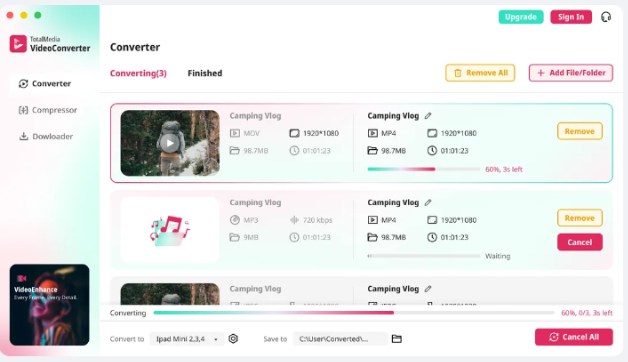
The key advantage here is the real-time file size preview before committing to compression. You see the predicted output size before processing starts — no guessing whether the result will hit 100MB.
- Open TotalMedia VideoConverter and select the Compressor module
- Add your 1GB video file
- Select a compression target from the Compress to dropdown
- Check the predicted output size in the preview
- Adjust the target if needed to land under 100MB
- Click Compress
The AI compression engine determines optimal settings automatically rather than requiring manual bitrate calculation. For users compressing multiple files from the same project — event footage, a video archive, client deliverables — batch compression processes the full set in one session. Available as both a web app and desktop application.
Method 3: Online Browser Tools — No Installation
Browser-based tools work for one-off compressions where installing software isn’t practical.
FreeConvert — allows you to set a target file size as a percentage of the original. Set it to 10% for a 1GB file and the tool attempts to produce a result at 100MB or less. File size limit of 1GB on free tier.
Clideo — shows the estimated compression rate and size before completing the compression and downloading. Free tier limited to 500MB input files. Watermark on free exports.
VEED — shows file size estimates in real time as you adjust quality settings. Supports MP4, MOV, AVI, MKV, and other major formats. Free tier up to 1GB.
The trade-off with all browser tools: upload time for a 1GB file on a slow connection is significant. For large files, a desktop tool is faster and more reliable.
Method 4: Trim Before Compressing
The simplest file size reduction that no compression tool can replicate: remove the footage you don’t need.
Every second of video removed reduces file size proportionally. A 10-minute video trimmed to 7 minutes is 30% smaller before any compression is applied. Combine trimming with compression and hitting 100MB from 1GB becomes significantly more achievable.
Most basic editing tools handle trimming — iMovie on Mac, Photos on iPhone, the Photos app on Android, or VLC on any desktop platform. Remove dead air at the start and end. Cut sections that don’t add value. The compression pass handles the rest.
Realistic Expectations: What 100MB Looks Like
A 100MB video at H.264 with 1,500 kbps bitrate gives you roughly:
- 8 to 10 minutes of clean 720p footage
- 4 to 5 minutes of 1080p footage
- 2 to 3 minutes of 4K footage downscaled to 1080p
For clips shorter than these durations, 100MB at these settings preserves good quality. For longer clips, the bitrate drops below the threshold where quality is maintained — either accept more visible compression or trim the footage before compressing.
The right question isn’t “can I compress this to 100MB.” It’s “can I compress this to 100MB without the quality being unacceptable for my use case.” On a phone screen for WhatsApp, 720p at 1,500 kbps looks fine. On a 65-inch 4K TV, the same file looks soft.
Frequently Asked Questions
Not entirely — a 90% file size reduction involves real trade-offs. The goal is to minimize visible quality loss, not eliminate it. Using H.265 codec at 720p resolution with a bitrate of 1,000 to 1,500 kbps produces a result that looks acceptable on most screens, especially phones and laptops. The quality difference is more visible on large 4K displays.
H.265 produces the smallest file at a given quality level — roughly half the file size of H.264 at equivalent visual quality. Use H.265 for the best compression ratio. Use H.264 if the playback device or platform doesn’t support H.265 — it has broader compatibility across older devices and platforms.
At 1,500 kbps total bitrate in H.264, a 100MB file holds roughly 8 to 10 minutes of 720p video. At higher bitrates for better quality — 3,000 kbps — 100MB holds around 4 minutes of 1080p. Duration at a fixed file size depends entirely on the bitrate — lower bitrate means longer video at the same file size, with lower quality per frame.
It depends on your settings. Compression can reduce bitrate without changing resolution — the image stays the same pixel dimensions but has less data per frame. Reducing resolution alongside bitrate produces smaller files with more impact on perceived quality. For a 1GB to 100MB compression, reducing resolution from 1080p to 720p alongside bitrate reduction typically produces better results than keeping 1080p at a very low bitrate.